
Two tabs used to cost you a whole row. In YEN 1.278, they sit beside the window controls. Open another tab and the strip grows. With just a couple open, the rest of the titlebar stays clear for dragging the window.
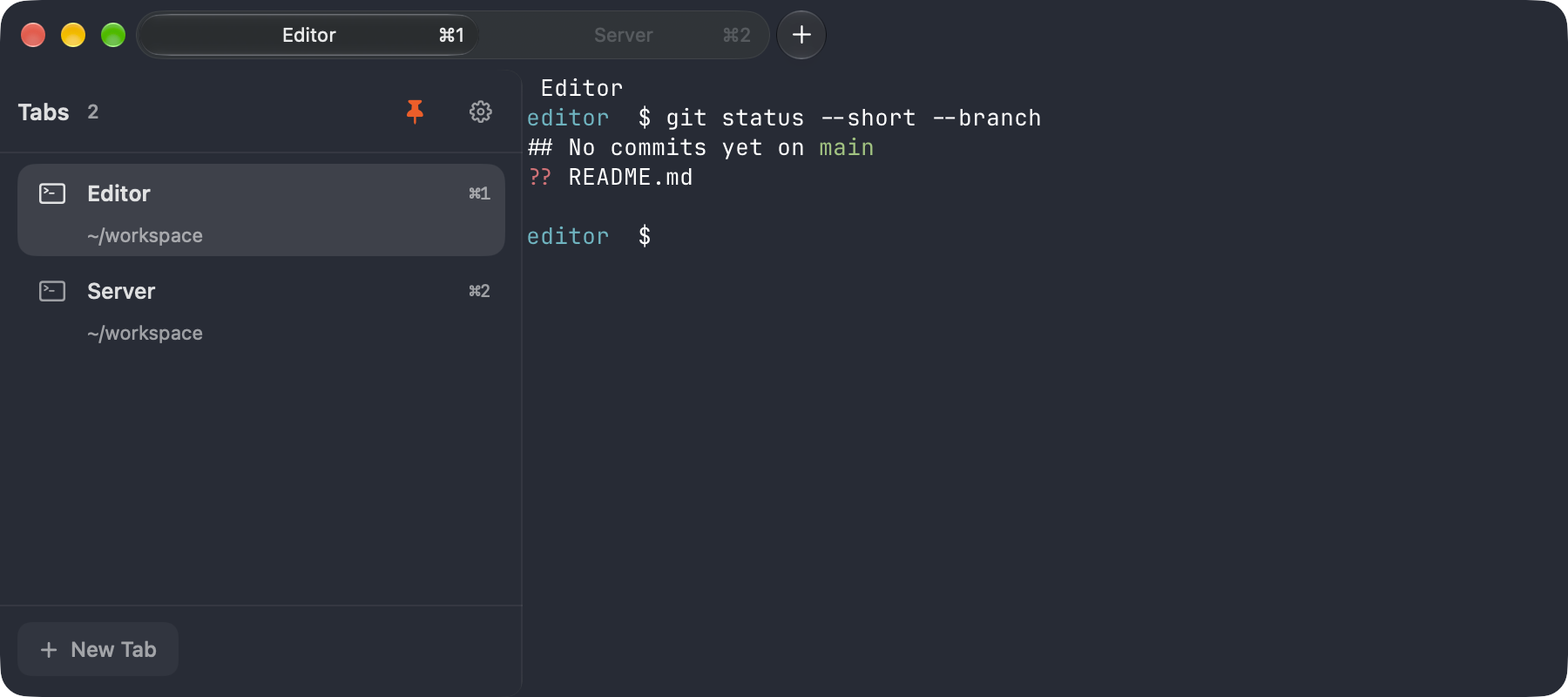
If you keep many tabs open, press Cmd + Shift + B. The sidebar lines up their titles in one column. A quiet highlight marks the active tab. Click the terminal icon beside a title to give that tab a color. Its swatch stays in the same spot, so you can find it again without reading every title.
Pin the sidebar to keep it beside your shell, or leave it floating and press Esc when you finish. In native fullscreen, two buttons before the first tab let you open the sidebar and leave fullscreen. Your windowed sidebar preference stays as you left it. The titlebar layout is the default on macOS 14 and later. On macOS 13 the tabs keep their previous position.
In 1.279, you can move a shell beside the work it belongs to. Grab its split header and drop it on a highlighted edge. Each tab shows the first three pane icons, so you can spot your editor or agent before switching. Use Move Tab to New Window to give a tab its own window. The remaining tabs keep their width when you switch between them.
When you quit YEN with Keep Sessions Running enabled, your shells stay on this Mac. Reopen YEN to pick up where you left off, or run yen sessions to list them.