


Hey folks!
When we first shipped the tab sidebar back in January, it was a floating panel. You hit Cmd + Shift + B, a translucent overlay slid in from the left, you glanced at your tabs, and you dismissed it. It was useful. It was also temporary by design — a quick reference surface, not a workspace companion.
That was fine for the first few iterations but I knew that it wouldn’t be enough. You see, the more I used it myself, the more I realized that a glanceable sidebar is only half the story. And, there was so much more I could do with it, especially as we move closer and closer to a real Terminal-first IDE.
If you’re running five agents across three projects and a production SSH session, you don’t want to keep summoning a panel. You want that context pinned to your window. Always there. Always current.
So I rebuilt it from the ground up.
What Changed
The sidebar now has two presentation modes.
The original floating panel is still there — Cmd + Shift + B still works and “Escape” still dismisses it, and it still slides in from the left edge. Nothing was removed.
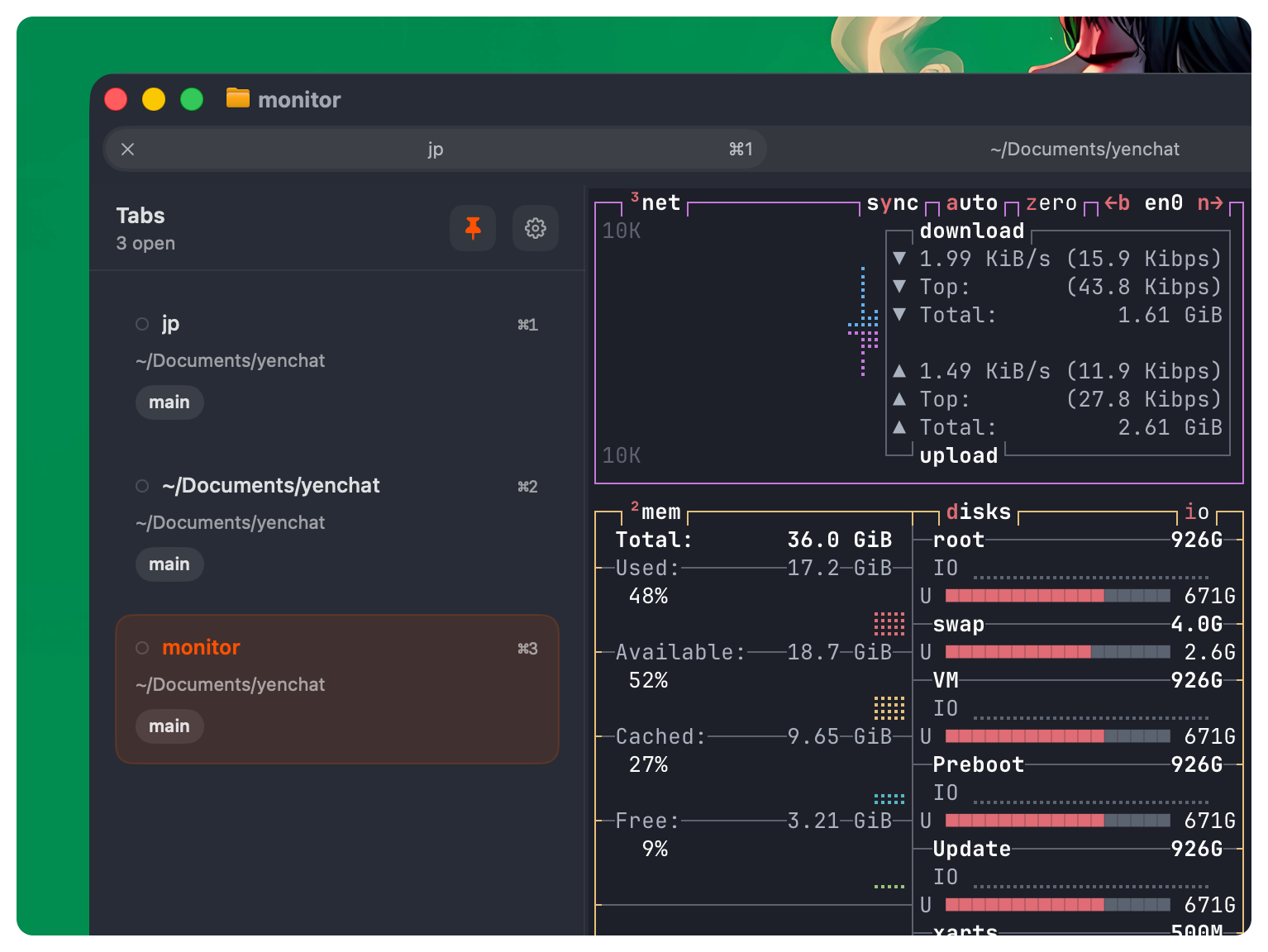
The new mode is a persistent docked rail. Pin the sidebar and it becomes part of your terminal window. It expands the window frame to make room instead of overlapping your content. Your terminal columns stay exactly the same.
Unpin it and the window contracts back to its original size. It’s screen-edge-aware — if your window is against the left margin, the expansion goes right instead.
Every tab in the rail shows live metadata: the working directory, the git branch, build status, and a process activity indicator. This is not scraped from window titles. The sidebar observes the actual surface tree that the terminal engine maintains — the same data structure that tracks splits, focus, and tab ordering.
Take a look:
Why We Didn’t Invent “Agentic Tabs”
It would have been easy to build something flashy. Something like “Agent-aware” tab grouping. Automatic workspace layouts that reorganize themselves. Tabs that talk to each other through some custom IPC layer. The AI-powered IDE playbook practically writes itself.
We didn’t do any of that.
Here’s why: The terminal already has conventions for this. A tab is a tab. A split is a split. An SSH session has a hostname. A git repo has a branch. A running process has a name. These are not new concepts — they’re the vocabulary that every developer already knows.
I’m not interested in re-inventing the wheel just because I can.
When you’re running Claude Code in one tab, a local server in another, and tailing production logs in a third — you don’t need the sidebar to “understand” your workflow. You need it to show you what’s happening in each tab, clearly and immediately, so you can switch to the right one without thinking.
That’s a UX problem, not an AI problem.
The Engineering Reality
This sounds simple when you describe it. It was not simple to build.
The sidebar needs to observe YEN’s surface tree — the internal representation of windows, tabs, and splits. That tree is managed by the terminal engine, not by our overlay code. We can observe it through published properties, but we cannot own it.
The challenge is lifecycle management. When a tab closes, the observation must detach. When a window gains focus, the sidebar must reattach to the new window’s tree. When the user is switching tabs rapidly, the sidebar must not trigger cascading observation updates that feed back into the tree and create infinite loops.
I honestly spent roughly 30 commits stabilizing this. The core fix was separating the concept of “attach to a new window” from “rescan the current window’s tabs.” When the sidebar attaches, it checks whether the window actually changed. If not, it rescans without re-notifying. That single guard eliminated the recursion that was causing runaway CPU and observation storms.
The persistent docked mode added another layer of complexity. When you pin the sidebar, the window frame must expand. When you unpin it, the frame must contract by exactly the same amount it grew — not more, not less. The expansion has to be screen-aware: If expanding left would push the window off-screen, expand right instead. If there’s no room in either direction, shrink the terminal content.
We also had to handle edge cases that sound absurd until you hit them: what happens when you pin the sidebar in fullscreen? When a miniaturized window restores with the sidebar visible? When the user drags the window to a different display with different screen bounds?
The answer to all of these is the same: Fail closed. Fullscreen and miniaturized windows don’t get a docked rail. Screen changes trigger a geometry recompute. And every expansion records exactly how many points it added, so the contraction is always symmetric.
Terminal Fundamentals, Not Terminal Theater
We care deeply about aligning YEN with the way developers actually work in 2026 — running agents, juggling contexts, managing parallel workstreams. But we believe the right way to support that is not to reinvent the terminal. It’s to make the terminal’s existing concepts work better.
A tab that shows you its working directory, git branch, and process status gives you everything you need to manage six concurrent agent sessions. You don’t need the tabs to be “smart.” You need the information to be visible.
That’s the difference between terminal theater and terminal UX. Theater is building features that demo well. UX is building features that disappear into your workflow because they just work.
You know, just a wonderful experience that you know that works. No fluff here.
Straight Terminal UX.
— 8