


Hey folks!
v0.841 shipped this week and it includes something I’ve wanted to build for a while — a tab sidebar for YEN! If you’ve ever had 6+ terminal tabs open and lost track of which one is running your dev server vs. your git log vs. that SSH session you forgot about — this one’s for you.
Hit Cmd + Shift + B. That’s it. A panel slides in from the left edge of your terminal window and shows every tab you have open. Click one to switch. Press Escape to dismiss. Done.
Let me show you how it works under the hood, because the implementation turned out to be way more interesting than I expected.
The Problem with Terminal Tabs
Every terminal gives you tabs. Cmd + T to open, Cmd + W to close, Cmd + 1 through Cmd + 9 to switch. This works fine when you have three tabs. It falls apart at seven.
In addition, macOS tab bars are small. The titles truncate. You can’t tell ~/projects/yen-mail apart from ~/projects/yen-terminal when both say ~/project…
And if you’re like me and habitually open new tabs without closing old ones, you end up playing tab roulette — clicking through each one hoping to land on the right session.
I wanted something that gives you a full view of your tabs without replacing the keyboard shortcuts that already work. A sidebar, not a tab bar replacement.
So, I built it.
What You Get: Visual Tab List
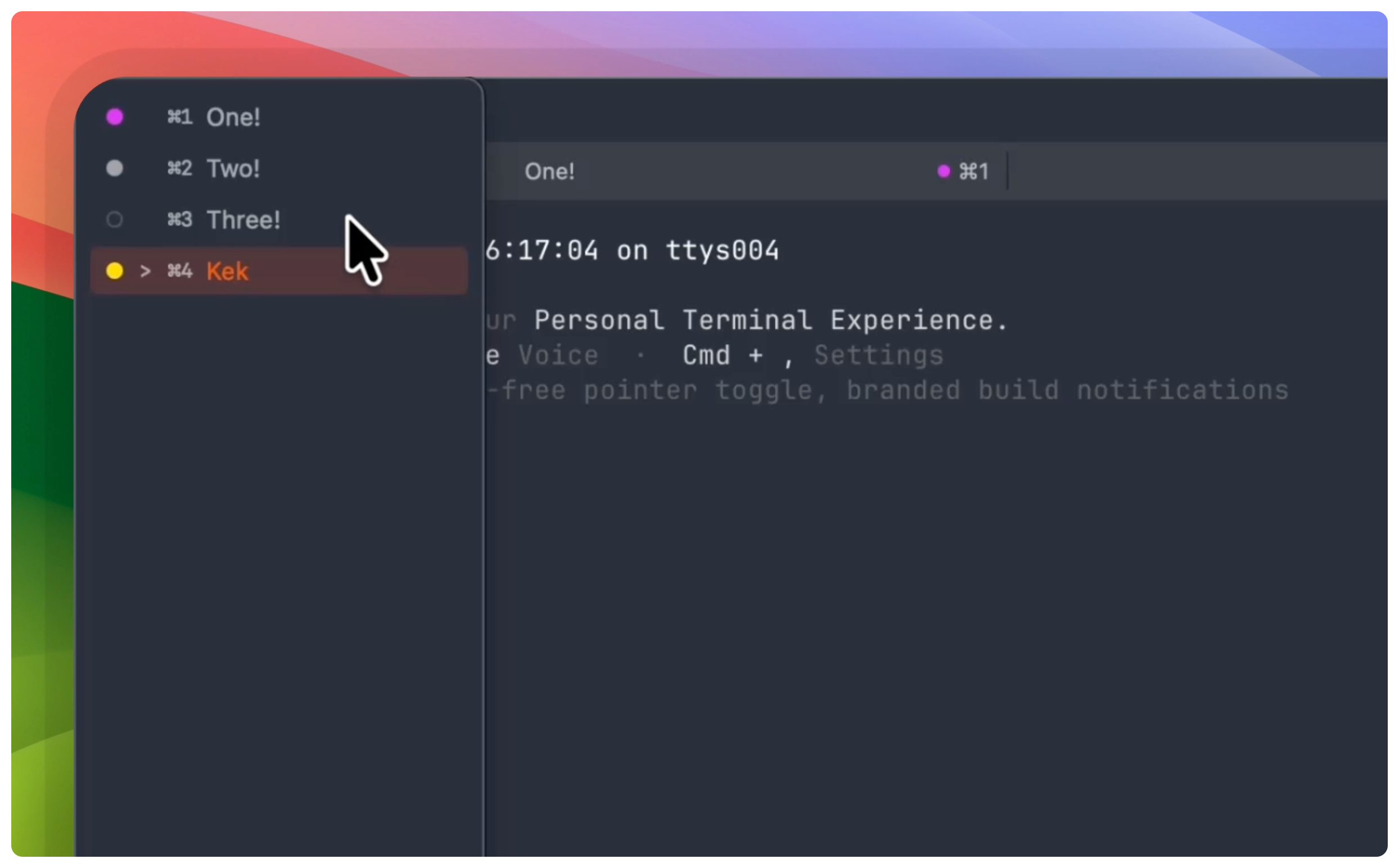
Each tab row shows:
A color dot to visually group your tabs (10 colors).
A selection marker (”>”) on the active tab.
The keyboard shortcut (Cmd + 1 through Cmd + 0) so you can learn the shortcuts while using the sidebar.
The tab title that is highlighted in YEN’s brand orange when selected.
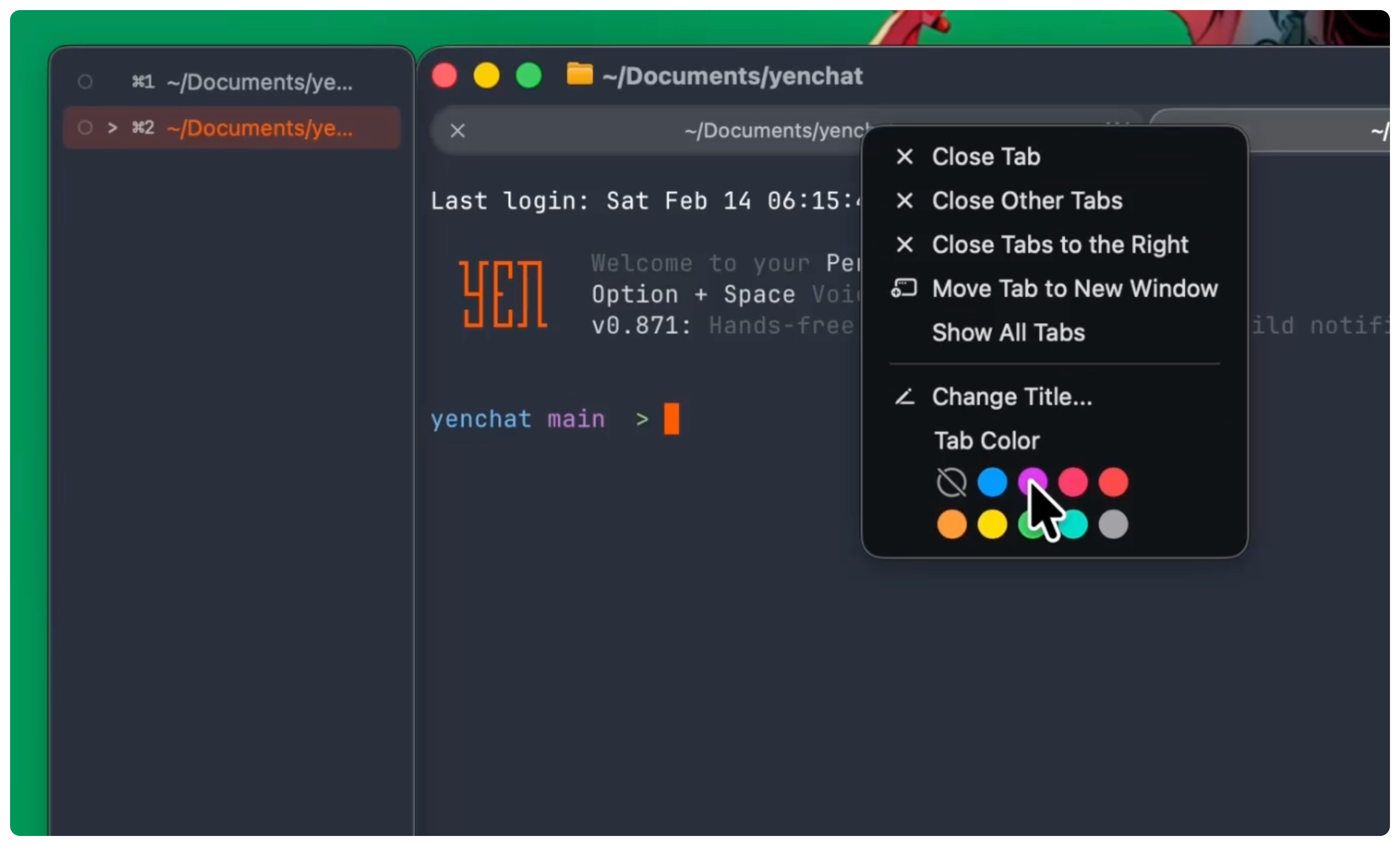
Right-click any tab for:
Change Title to rename your tab to something useful.
Close Tab to close just that one tab.
Close Other Tabs to nuke everything except the one you right-clicked.
Close Tabs to the Right to clean up from a specific point.
Tab Colors to make it all shiny and fun and organized.
The sidebar doesn’t replace your keyboard workflow — it augments it. If you never touch Cmd + Shift + B (and Escape to close it) nothing changes. Your existing shortcuts keep working exactly as before.
The Details That Matter
Yes, it’s dark, translucent, and rounded — perfectly matched to the latest macOS design and the sidebar animates in from the left with a 0.2 second ease-in, and out with a 0.2 second ease-out. Snappy enough to feel responsive, smooth enough to feel intentional.
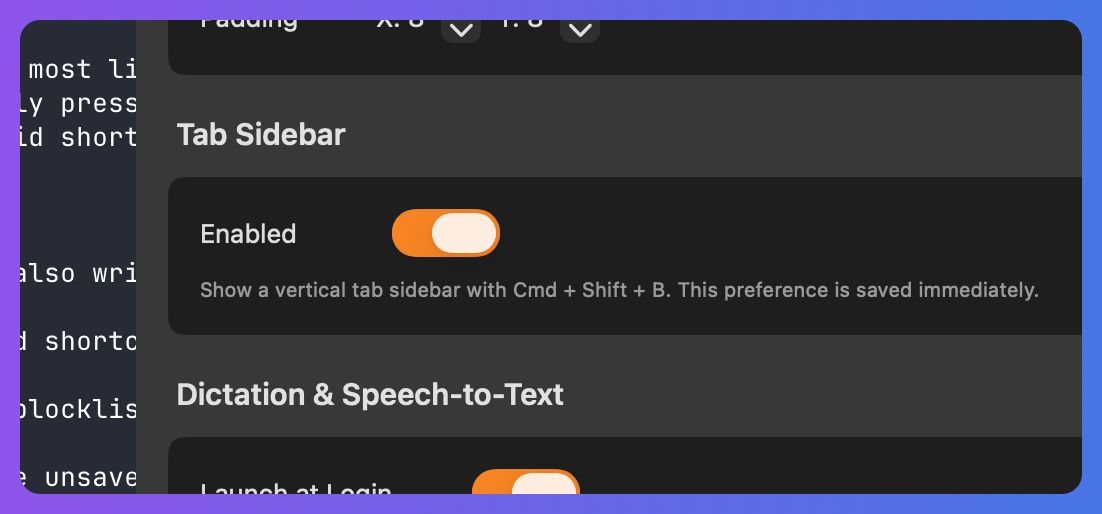
You can, of course, disable the sidebar entirely in Settings via Cmd + , if you want.
It’s true: This sidebar implementation is a real differentiator for YEN as very few other Terminals do this out-of-the-box. Which is weird because it feels so obvious now that it’s here.
But perhaps most importantly, from an engineering perspective, it’s a prime example of my own personal philosophy to keep things simple. Read existing state, dispatch existing commands, add zero new complexity to the build. The sidebar is about 500 lines of Swift across 3 different files. It has no model layer, no persistence beyond the color preferences, and no custom tab logic. It just watches and renders.
Simple things that work well. That’s the whole game. I can’t wait for you to try it.
— 8