


Hey folks!
YEN's file browser already had syntax-highlighted code previews, Quick Look, and directory navigation. What it did not have was rich media previews that felt native.
When you browsed to a video file, a PDF, an SVG, or a zip archive — you got either a generic icon or nothing. If we wanted thumbnails, we had to bundle heavy cross-platform tools. ffmpeg alone was 248 MB.
So I asked: Does macOS already know how to do this?
It does. Hell yeah it does.
What You See Now
Open the file browser (Cmd + Shift + O or type y in your shell) and navigate to any of these:
Video files: A representative frame extracted instantly via AVFoundation. No ffmpeg, no ffprobe, no 248 MB dependency. A 204 KB native helper does the same job.
PDF files: The first page rendered as a thumbnail via PDFKit. Clean, fast, accurate. 164 KB instead of a 5.3 MB poppler install.
SVG files: Rendered natively through AppKit. For edge cases like compressed .svgz files or SVGs with CSS variables, a lightweight fallback kicks in automatically. You never see the switch happen.
Archives: Zip, tar, gz, bz2, xz, and more listed and extracted via macOS's built-in bsdtar. No bundled archive binary at all — the system already has one.
All of this works the moment you open the file browser. No configuration, no plugins to install, no homebrew dependencies.
The Preview Experience
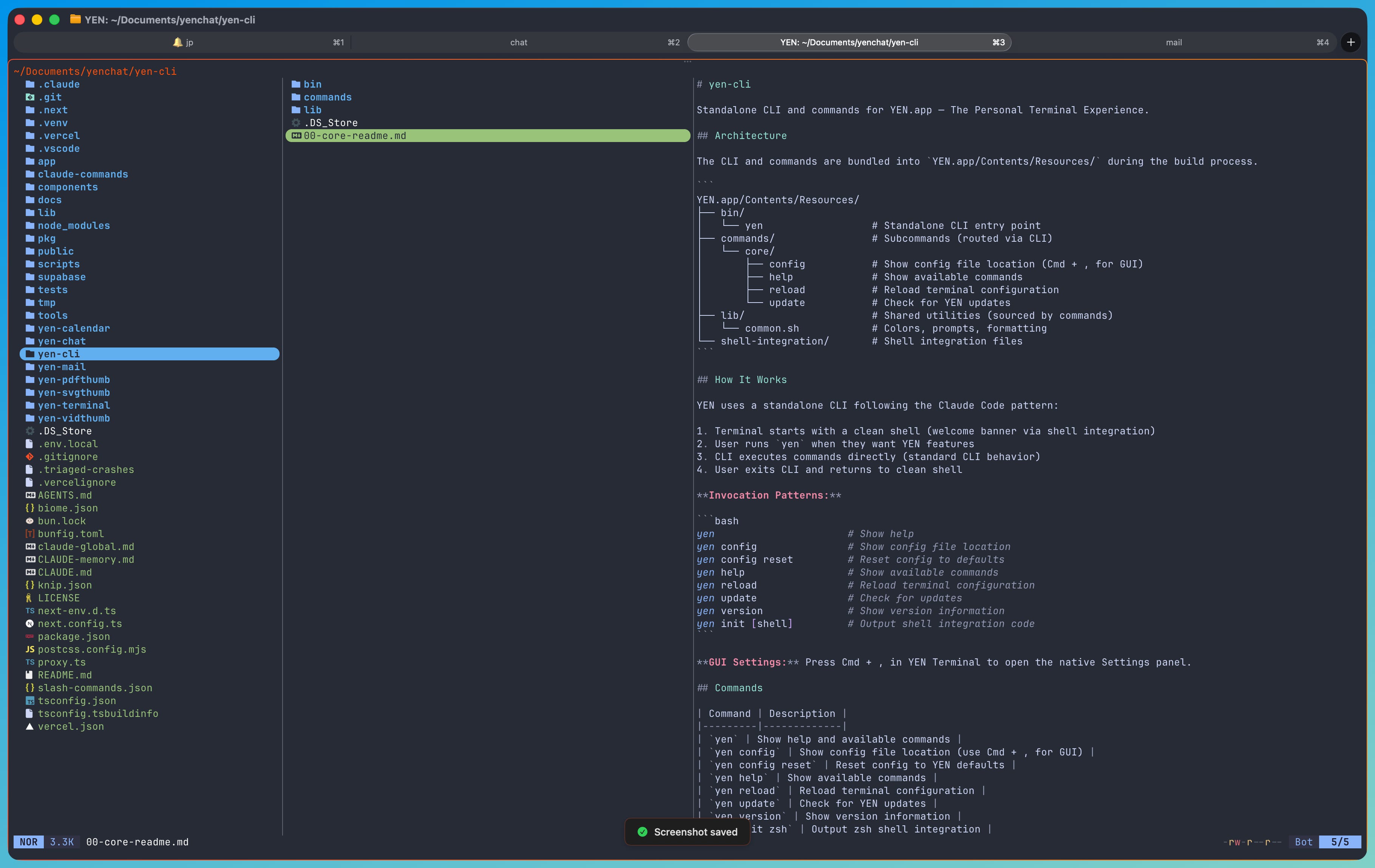
The file browser is a full-screen TUI. The left pane shows your directory tree. The right pane shows a live preview of whatever is selected.
For code files, you get syntax-highlighted preview with language detection. Move the cursor and the preview updates instantly. Press Enter to open a full read-only view with the same color scheme — no color mismatch between the preview pane and the full-file view.
For media files — videos, PDFs, SVGs — you now get actual visual thumbnails rendered in the preview pane. Not placeholder icons. Not "install ffmpeg to enable previews." Real content. For archives, you see the file listing right in the preview pane. Select and extract without leaving the terminal.
Press Space for macOS Quick Look on anything. Press O for an open-with menu. Press e to jump into your editor. Press g r to reveal in Finder. Everything stays inside the terminal until you explicitly choose to leave it.
Theme Consistency
This one is subtle but it matters.
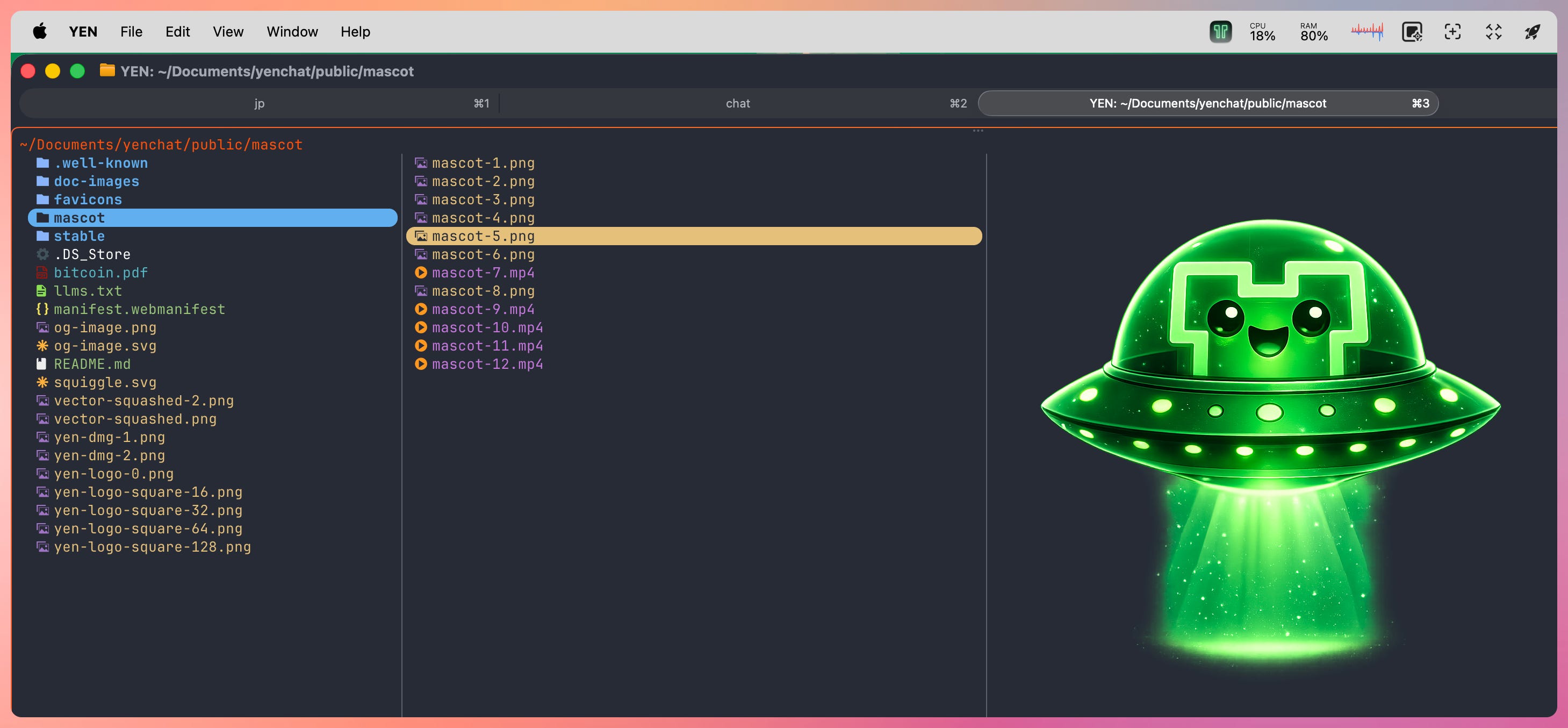
YEN ships a bundled theme for the file browser that stays aligned with your active terminal theme. Both launch paths — Cmd + Shift + O and the shell y function — export the same theme value, so:
The preview pane syntax colors match your terminal
The full-file read-only view matches the preview pane
Git status indicators in the file list use your theme palette
You never see a jarring color switch when moving between preview and full-file view. Most terminals and IDEs get this wrong — their file browser panel uses different colors than their editor, or their preview uses a hardcoded theme that clashes with everything else.
I eliminated that entirely.
Guardrails
Rich previews are great until they slow you down. We added operational safety for edge cases:
Large Files — If a text file is huge or minified (megabytes of single-line JSON, for instance), the preview automatically downgrades to plain wrapped text instead of trying to syntax-highlight a million tokens.
Encrypted Archives. — If an archive is password-protected, extraction fails with an explicit error message — not silent corruption, not a password leaked in process arguments.
Cache Bounds — Video and PDF thumbnail caches are bounded at 512 entries. Git status caches cap at 2,048 tracked directories. The file browser stays responsive in large repos.
What We Removed
The native preview path replaced three bundled dependencies:
ffmpeg + ffprobe (248 MB) — Replaced by a 204 KB native video thumbnail helper
poppler (5.3 MB) — Replaced by a 164 KB native PDF thumbnail helper
7zip (5.9 MB) — Replaced by macOS's built-in **bsdtar** (0 KB added)
Total removed: 259 MB of binary weight. Total added: under 575 KB across three small native helpers. YEN's installer dropped from roughly 170 MB to 110 MB.
Every megabyte removed is a megabyte that does not need to be code-signed, notarized, downloaded, or audited. Smaller attack surface, faster installs, less to trust.
All about speed baby.
Why Native-First
We could have kept ffmpeg. It works. Everybody uses it. But "everybody uses it" is not a good enough reason to ship a quarter-gigabyte binary for generating thumbnails.
macOS has AVFoundation for video, PDFKit for PDFs, AppKit for SVG rendering, and libarchive for archives. These APIs exist on every Mac. They get security updates from Apple automatically. They add zero binary weight to YEN because they are already on your machine.
The native helpers we wrote are small, single-purpose Swift programs. **yen-vidthumb** calls **AVAssetImageGenerator** and writes a JPEG. **yen-pdfthumb** calls **PDFPage.thumbnail()** and writes a PNG. **yen-svgthumb** renders through AppKit first, falls back to a vendored SVG rasterizer for the edge cases AppKit cannot handle.
Each one does exactly one thing. If Apple improves AVFoundation's video decoding next year, our video thumbnails get faster for free. We do not have to vendor a new ffmpeg build.
This is the same pattern we apply everywhere in YEN: if macOS already provides the capability, use it. Only vendor a third-party tool when the native alternative is missing or significantly worse.
Everything runs locally. Nothing phones home. No setup required.
Give it a try and let me know what you think.
— 8