


Hey folks!
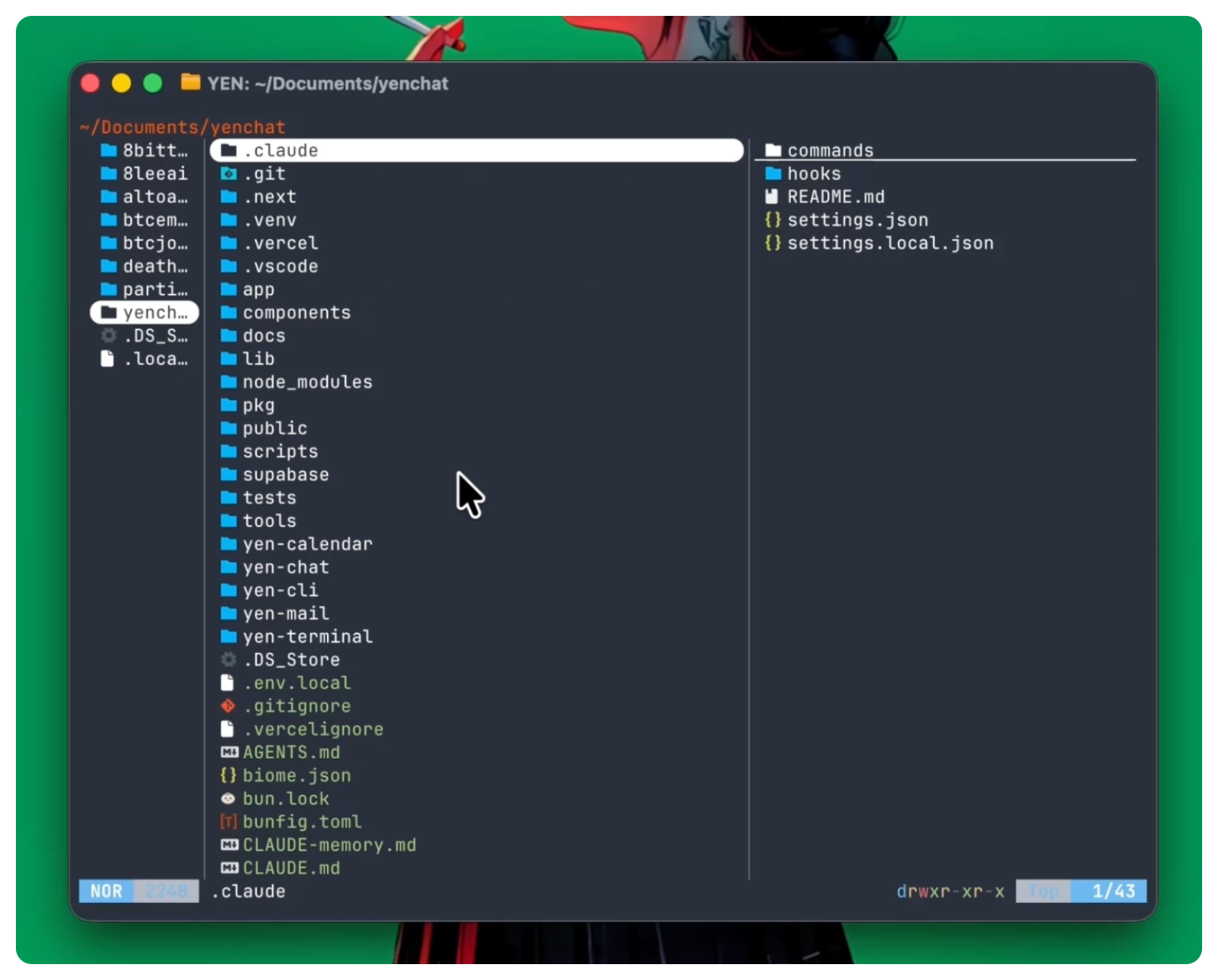
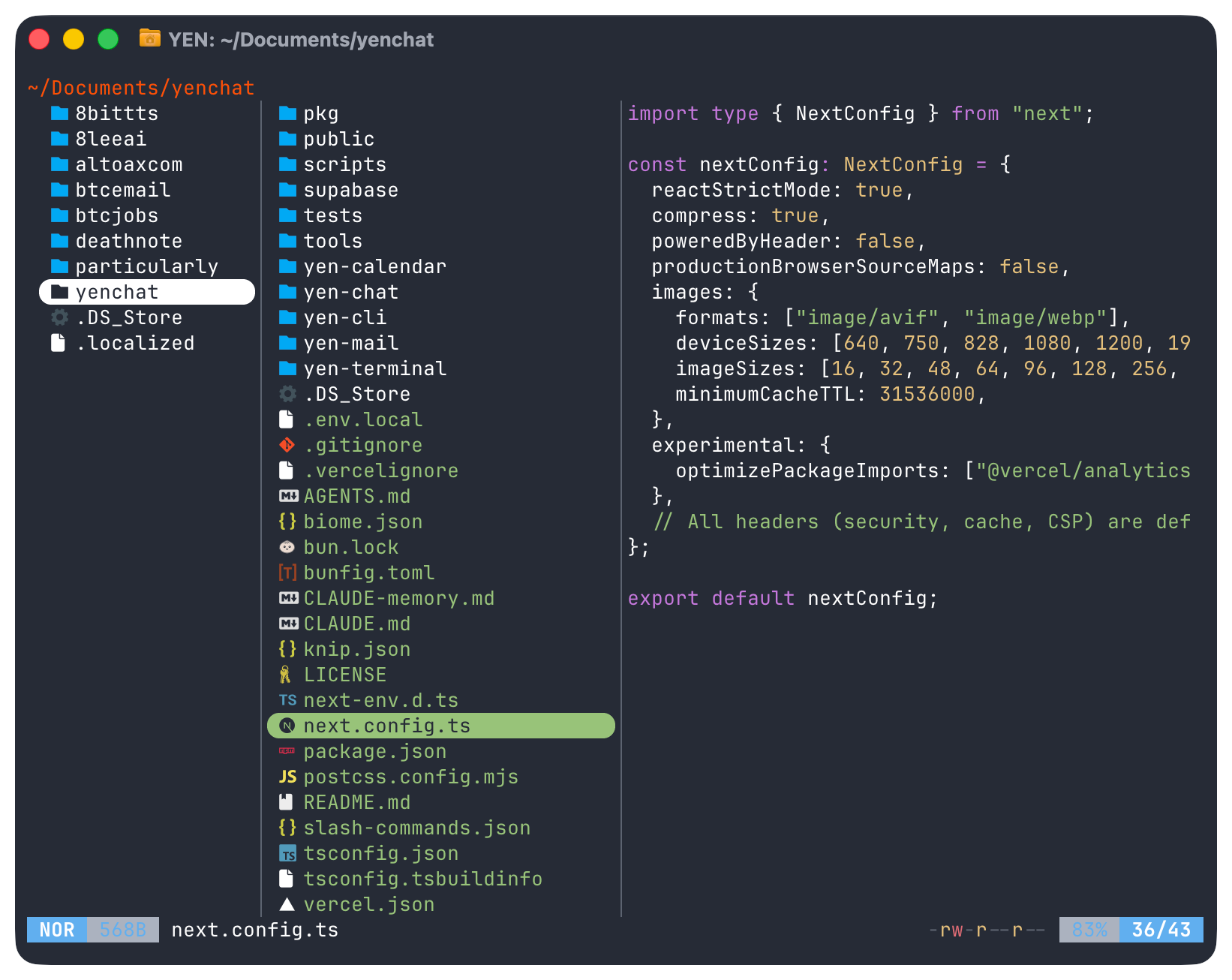
This one’s been shipping in pieces over the last several releases, but I’ve never actually written about it: YEN has a built-in file browser! Press Cmd + Shift + O (or type y in your shell), and a full file manager opens inside the terminal surface.
Not in a sidebar. Not in a floating panel. Inside the terminal, where your cursor already is. Here’s why I built it, how it works, and the engineering decisions behind it.
Why Put a File Browser in a Terminal?
Every developer I know has a file browser open somewhere. Finder, VS Code’s sidebar, ranger, nnn -- something. The context-switch is small but constant: you need to find a file, so you leave the terminal, navigate to it, then come back.
I wanted to eliminate that round-trip. Press one shortcut, browse your project, preview a file with syntax highlighting, open it in your editor, and be back in your shell -- all without the terminal losing focus.
The alternative was building it as a separate macOS window or sidebar (like the tab sidebar uses). But the file browser isn’t auxiliary UI -- it’s a primary workflow.
It should feel like vim or htop: A full-screen TUI that takes over the terminal surface and gives it back when you’re done.
What’s Inside: Syntax-Highlighted Previews
Navigate to any file and the preview pane shows syntax-highlighted code. Not a raw cat dump — actual highlighting with the correct language grammar. This works for most languages out of the box.
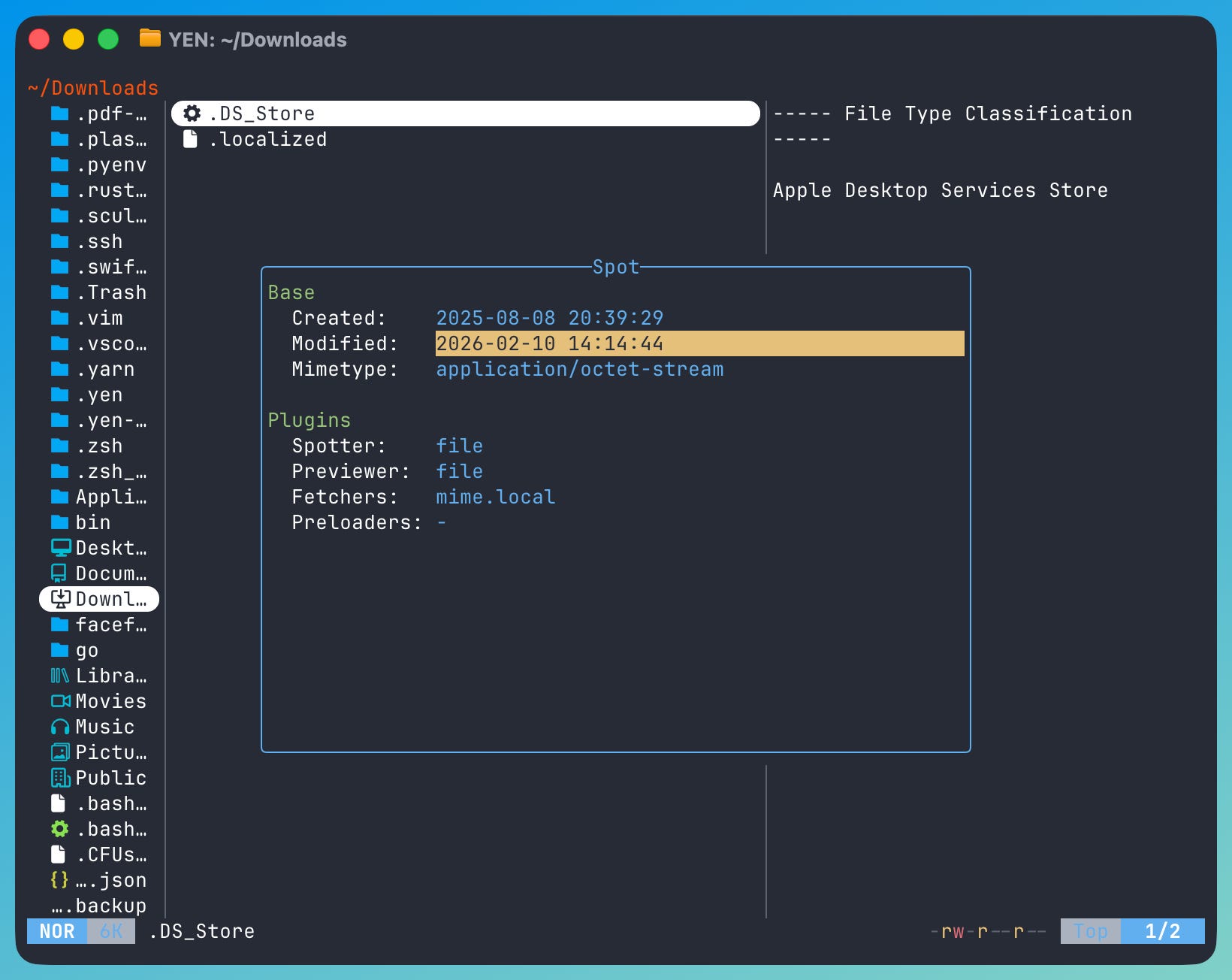
For non-code files, you get rich previews too: images render as pixel-mapped output, PDFs show text content, archives show file listings, directories show contents.
Quick Look
Press Space on any file and macOS Quick Look opens — the same preview you get in Finder. This is the native Quick Look process, not a custom implementation. It handles PDFs, images, videos, Office documents, and anything else Quick Look supports. Press Space again to dismiss (it kills the previous preview before opening a new one), or click the Quick Look window’s close button.
Here’s the fun detail: the terminal is a TUI. Quick Look is a native macOS window. Getting them to coexist required spawning the preview as an orphan process (so it doesn’t block the terminal) and cleaning up stale previews before each new one (so they don’t pile up). Two lines of shell, zero dependencies.
Find and Search
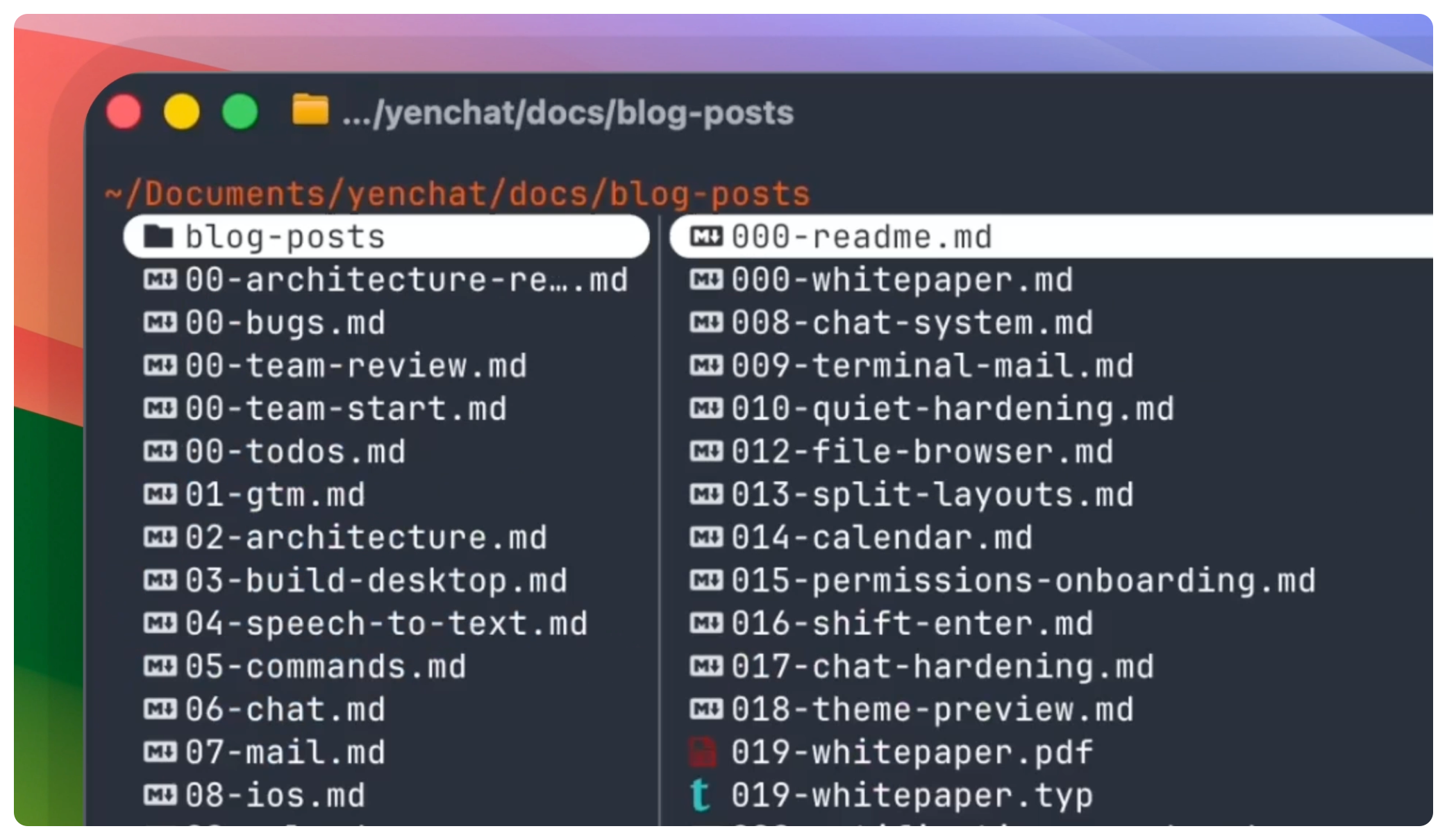
Press / for incremental file search within the current directory. Start typing and the cursor jumps to the first match -- keep typing to refine. It’s fast, keyboard-driven, and works the way you’d expect from vim’s / search.
Git Status Indicators
Modified, staged, and untracked files show git status icons inline. You can see at a glance which files have changed without running git status. This uses a Lua plugin that calls git status --porcelain in the background -- non-blocking, so large repos don’t freeze the browser.
cd-on-quit
This is the killer feature, and it’s deceptively simple. When you press q to exit the file browser, your shell automatically cds to the last directory you were browsing.
Think about what this means: you can navigate your entire filesystem visually, land on the directory you want, press q, and you’re *there*. No typing paths. No cd ../../../somewhere/else. Just browse and land.
The implementation is a temp file. Before launching, the y() shell function creates a temp file with mktemp. When the file browser exits, it writes the last directory path to that file. The shell function reads it back and runs cd. Simple, reliable, no IPC needed.
Seven Bundled Tools, Zero Setup
The file browser doesn’t work alone. It’s backed by seven pre-built tools that ship inside YEN:
File finder — Fast recursive file search (powers / search)
Content search — Search inside files by regex or literal text
Fuzzy finder — Interactive fuzzy matching for files and commands
Smart directory jump — Learns your frequent paths, jumps to them instantly
Syntax highlighter — Code-aware previews with language detection
JSON formatter — Pretty-prints and queries JSON files
File browser engine — The TUI file manager powering y and browse
These are universal binaries (arm64 + amd64) sitting in Contents/Resources/bin/. Shell integration adds them to your PATH automatically. You don’t install them. You don’t configure them. They’re just there.
And here’s the bonus: You can use them directly in your shell too. Search for files, grep content, preview code with highlighting — they all work outside the file browser. YEN becomes a productive environment from first launch, no homebrew required.
Speed baby, speed.
The Sandboxed Config
The file browser ships with a curated configuration that I’ve tuned for macOS. Custom keybindings for Quick Look (Space), Reveal in Finder (g r), Open in default app (g o). A theme that matches YEN’s dark terminal aesthetic. Git status integration enabled by default.
The important part: this config is locked to the bundled version. The file browser ignores any user configs in ~/.config/ — it uses the config shipped inside the app bundle. This means:
Updates to YEN can ship improved file browser configs without conflicting with user customizations
The experience is consistent for every user
There’s no “works on my machine” debugging for file browser behavior
If you want to customize the terminal itself, that’s what config.yen is for. The file browser is an opinionated tool that ships ready to use.
Two Ways In
There are two commands, and the difference matters:
Cmd + Shift + O (or y in the shell): Opens the file browser with cd-on-quit. When you exit, your shell follows you to the last directory. Requires shell integration (yen init zsh or yen init bash).
browse: Opens the file browser without cd-on-quit. When you exit, your shell stays where it was. Works without shell integration -- it’s a standalone binary.
If you’re exploring a project and want to land somewhere, use y. If you just want to preview or open a file, use browse. Most people end up using y exclusively.
Keyboard Shortcuts
Print this out on your wall if you want:
h / j / k / l — Vim-style navigation (or arrow keys)
Enter or l — Enter directory / open file
h — Go up a directory
Space — Quick Look preview (macOS native)
e — Open in $EDITOR
g o — Open in default app
/ — Incremental file search
Tab — Select file (for bulk operations)
. — Toggle hidden files
~ — Jump to home directory
g r — Reveal in Finder
? — Show help (full shortcut list)
q — Quit (cd to last directory)
If you know vim motions, you already know how to use this. If you don’t, arrow keys work too.
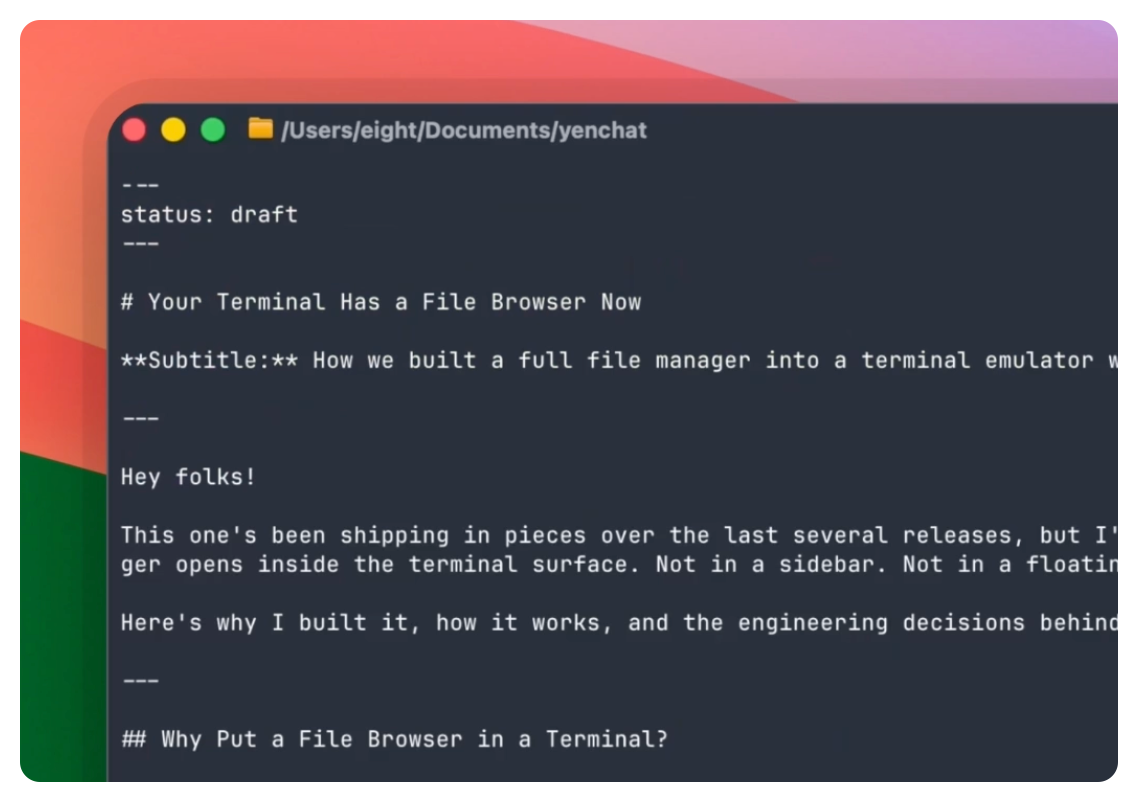
The Bigger Picture: Terminal-First IDE
Here’s the thesis I’ve been working toward: Most IDEs are text editors that bolted on a terminal panel. VS Code, Zed, Cursor — they all start with an editor and treat the terminal as a small rectangle at the bottom of the screen.
This makes the Terminal a second-class citizen in their world. Well, not in ours baby as I’ve entirely inverted that. I starteded with the fastest terminal on macOS, then add IDE capabilities inside the terminal surface.
The file browser is the first serious move in that direction.
Think about what a typical power-user setup looks like today: A terminal (Ghostty, Kitty, Alacritty), a multiplexer (tmux), an editor (Neovim with 30+ plugins), a file manager (ranger or yazi), a fuzzy finder (fzf), a search tool (ripgrep), a git TUI (lazygit). Each tool installed separately. Each configured separately. Plugin conflicts, version mismatches, PATH issues, “works on my machine” debugging. A productive terminal environment takes hours to assemble and a lifetime to maintain.
YEN ships that entire stack in one, single app. The file browser, the search tools, the syntax highlighter, the fuzzy finder, the directory jumper — all bundled, all pre-configured, all working together from first launch. No homebrew. No dotfile archaeology. No Lua configuration.
And here’s the part I’m most excited about: The file browser is just the foundation. The seven bundled tools give YEN a capability layer that no other terminal has. Search across files, preview code with highlighting, check git status, navigate your project visually — these are IDE primitives. They’re the building blocks for everything that comes next.
And there’s a lot on the (growing) roadmap)
Every CLI tool is already a “plugin.” The Unix philosophy IS the extension system. VS Code has 40,000 extensions because it needs them — everything is a plugin, from language support to file icons. In a terminal, rg is your search extension. fd is your file finder extension. bat is your syntax highlighting extension.
They compose naturally through pipes. They work over SSH. They don’t break when you update the app.
No other terminal ships like this. That’s not a dig at other terminals, it’s just not what they’re building. File management inside the terminal surface is a different philosophy, and it’s one I think more developers will appreciate once they try it.
Give it a Try:
Update to the latest YEN, then:
Press Cmd + Shift + O (or type y)
Navigate around, press Space to Quick Look a file
Press q to exit -- notice your shell followed you
Optional (external shells only): if you want y in shells outside YEN, run yen init zsh (or yen init bash) and restart that shell.
If something feels off or you want a shortcut that isn’t there, type chat in your terminal or ping @yenFTW. I read everything.
— 8