


Hey folks!
The calendar command in YEN has grown into a full daily driver for me and I’m happy to open it up for early testers in the most recent version. It follows the same oAuth pattern as the email integration: Type it, sign in with Google, and your entire schedule renders inside the terminal.
Agenda view, month grid, day view, week view, event detail, RSVP, create, edit, delete — the full loop. No browser tab. No Electron. Just a TUI.
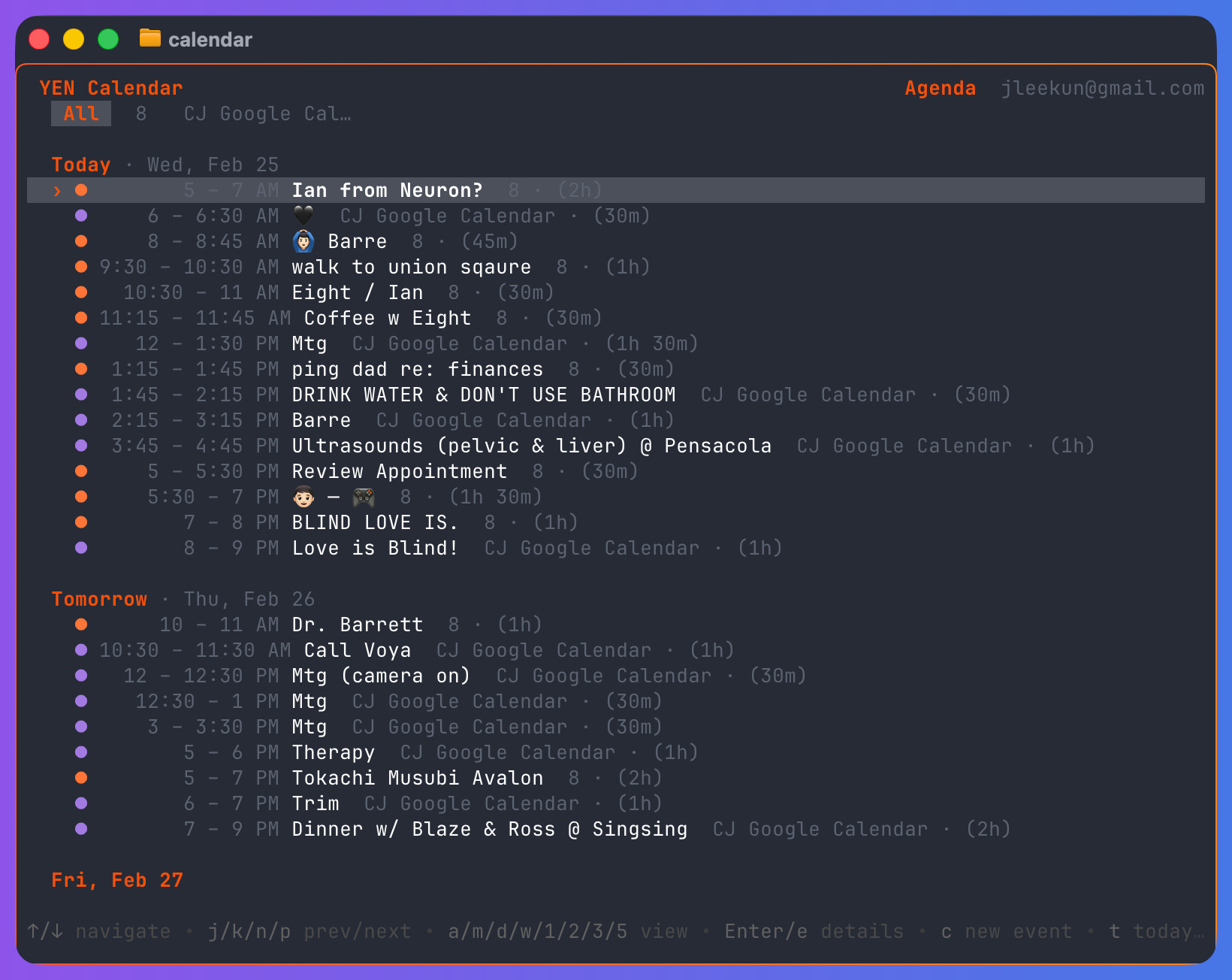
Here’s why I built it, how it works, and the engineering problems that made it more than a bit interesting.
Why Put a Calendar in a Terminal?
Same reason as mail: I live in the terminal. Checking my calendar means opening a browser, waiting for Google Calendar to load, losing focus to whatever else is open in Chrome. The round-trip is 10-15 seconds of context-switching for something that should take 2.
I wanted calendar to feel like mail and chat — type a command, get the information, get back to work. The terminal is where my attention already is. My calendar should be there too.
What It Does
Type calendar in YEN. First time, it opens your browser for Google OAuth using the same PKCE pattern as mail, with local loopback callback handling and Keychain token storage. After that, you’re in.
You get 4 different views:
Agenda view — a is the default. A chronological list of upcoming events across all your calendars, grouped by day. 14-day lookahead. Color-coded calendar indicators on the left, time and duration on the right. All-day events render at the top of each day group in a distinct style.
Month view — m is a real 6x7 calendar grid (Monday-first). It shows leading/trailing days, in-grid event snippets, and local in-grid search filtering. v toggles instantly between agenda and month.
Day view — d shows a single day with time slots. Navigate ranges with j / n (next) and k / p (previous), or use arrow keys for fine-grained stepping. Events render inline at their time position. All-day events sit in a header row above the timeline.
Week view — w shows a 7-day grid. Each column is a day, with all-day and timed rows that expand based on event density. On narrow terminals (under 80 columns), it falls back to day view automatically. On very narrow terminals (under 100 columns), weekends collapse to make room.
Press t from any view to snap back to today. The selected date tracks across view switches — if you’re looking at Wednesday in month/day and press w, week view centers on that same Wednesday.
Other Navigation Options that you may be familiar with:
Up / Down   move cursor
j / n       next date range
k / p       previous date range
h / l       legacy step navigation (month/day/week)
a / m / d / w   agenda / month / day / week view
5 / 3 / 1 / 2   agenda / month / day / week view
v           toggle agenda <-> month
t           jump to today
Enter / e   event detail
c           new event
/           search
f / Tab     next calendar filter
F / Shift+Tab   previous calendar filter
Left/Right  prev / next day (month/day) or prev / next week (week)
z           undo pending delete
r           refresh
S           sign out
q           quit
And even manage all of the Event Details as you might want!
Press Enter (or e) on any event. You get the full details: title, time, location, calendar name, attendee list with RSVP statuses, description, and a direct link to the Google Calendar web event. Detail view also supports direct link open with o and Cmd + click on visible URLs.
From the detail view:
r           RSVP (accept / tentative / decline)
e           edit event
Backspace   delete event
o           open in browser
j / k       scroll
q / Esc     back to list
And what about RSVP and Create, Edit, and Delete? I got you covered.
For RSVPs you can press r on an event detail. A horizontal picker shows three options: Accept, Tentative, Decline. Arrow keys to select, Enter to confirm. Your response is sent to Google Calendar API immediately. The attendee list updates on the next refresh.
For Create, Edit, and Delete you can do the following:
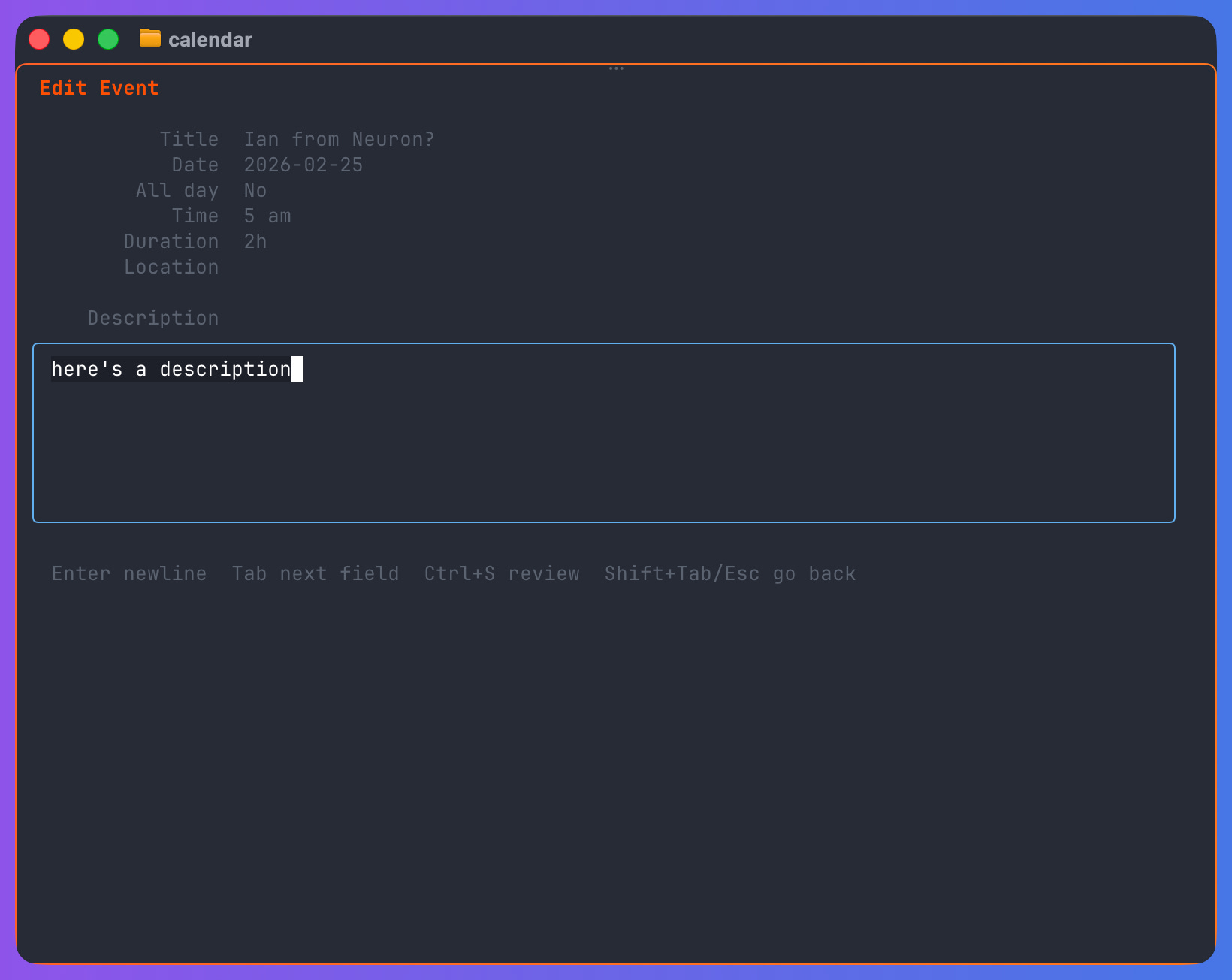
Press c from any list view. You get a field-by-field flow: calendar picker, title, date, time, duration, location, description. Description is multi-line. Tab or Enter advances between fields (in description, Enter inserts a newline). Shift+Tab or Esc goes back and preserves what you typed. Ctrl+S jumps straight to the confirmation review when required fields are complete. From the confirmation screen, press 1-9 to jump directly to any field for keyboard-only review and edits.
Edit (e from detail view) pre-fills all fields from the existing event. Same flow, same confirmation.
Delete (Backspace from detail view) shows a confirmation prompt. For recurring events, both edit and delete ask whether to target this instance, this and following, or all events.
And you can search, of course.
Desktop Notifications
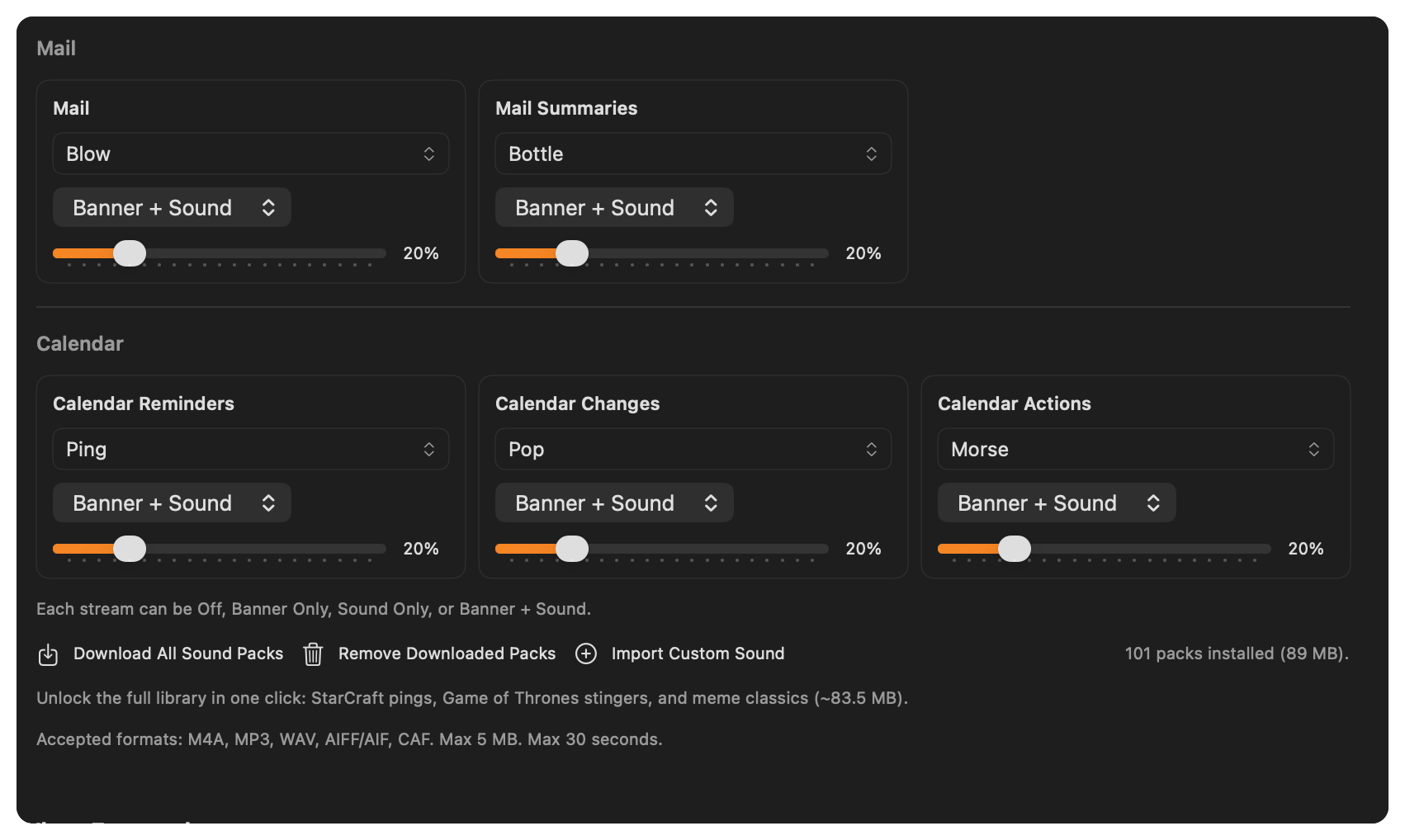
YEN Calendar fires three types of native macOS notifications:
Reminders — Follows your Google Calendar reminder settings (the “10 minutes before” popup you configured in Google). If an event has a 10-minute and a 30-minute reminder, you get both, at the right times.
New invites — When someone adds you to an event, a notification appears with the event title and time.
Rescheduled / cancelled — If an event you’re attending gets moved or deleted, you’re notified on the next sync poll.
The notification engine uses a priority queue (heap) of upcoming reminders, rebuilt on every poll. It schedules a timer for the next due reminder and pops reminders when their time has passed. On startup, it seeds all past reminders as “already fired” so you don’t get spammed with a day’s worth of old notifications.
There are many more features built-in but the point of this exercise was so I had a few less clicks per day to travel through and I love how the Terminal is becoming a single point of contact for everything that I need to do to get shit done.
Imagine that.
— 8