


Hey folks!
The mail command in YEN has been experimental for the last few months but it’s finally at a place where it’s working consistently enough to get some more folks to test-drive it!
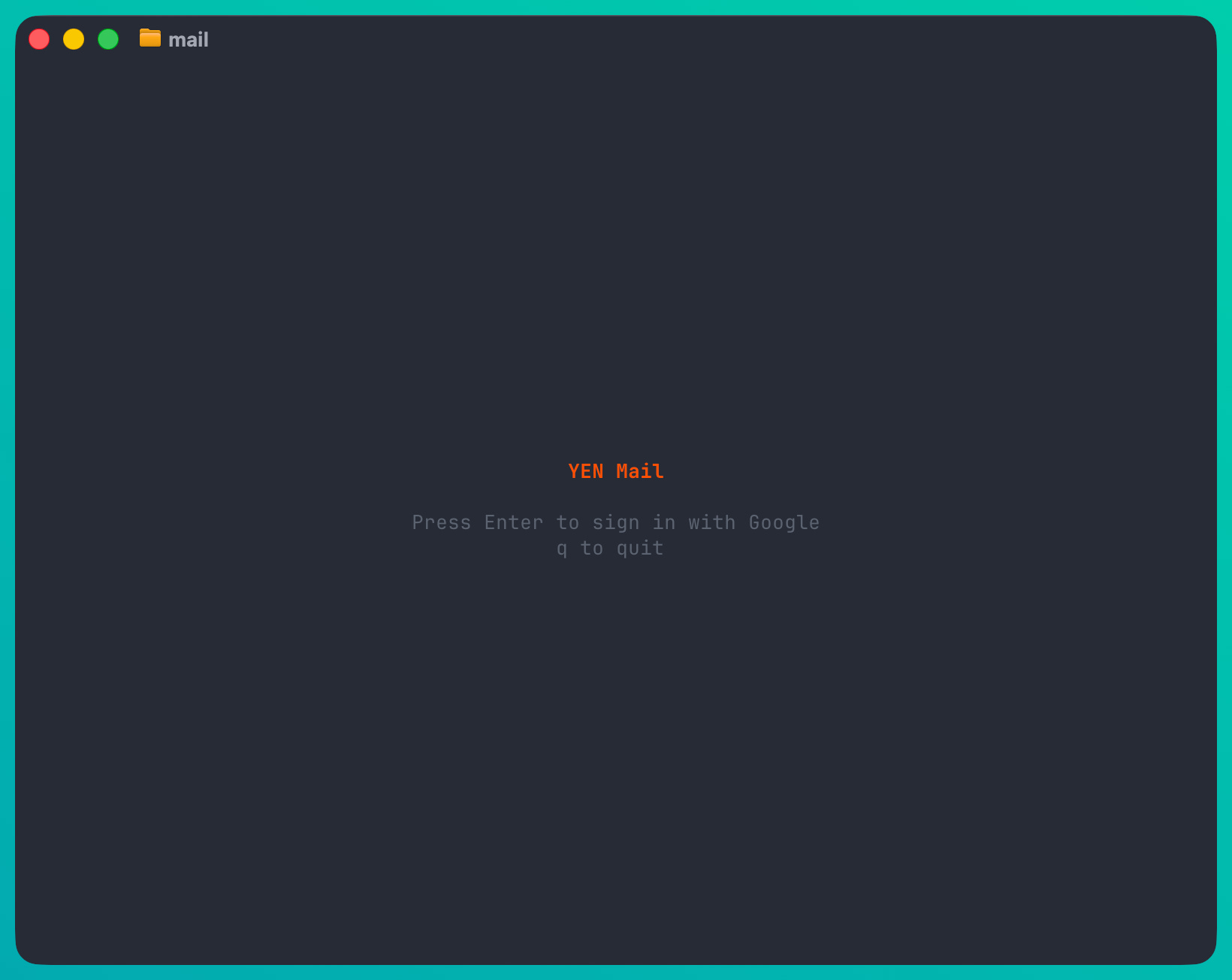
What started as a simple inbox reader is now a full-featured Gmail client: Compose, reply, reply-all, forward, attachments, labels, notifications, all from the terminal. No Electron. No web view. Just a few and mouse-free experience.
Why Does a Terminal Need Email?
Short answer? It doesn’t. Longer Answer: I live in the terminal.
Switching to a browser tab to check email breaks my personal flow so it was really the context switching that I couldn’t stand. One less click is what I’m shooting for and after a few hardcore weeks of personal testing, I’m spending less and less time in the Gmail web UI.
And that’s when I knew it was ready for community testing. What’s great is that it doesn’t force you to learn any new fundamental behaviors, like shortcut keys or hotkeys that I’ve grown to use over decades — “e” will always archive and email and “shift + 3” (or #) will always delete.
Bingo.
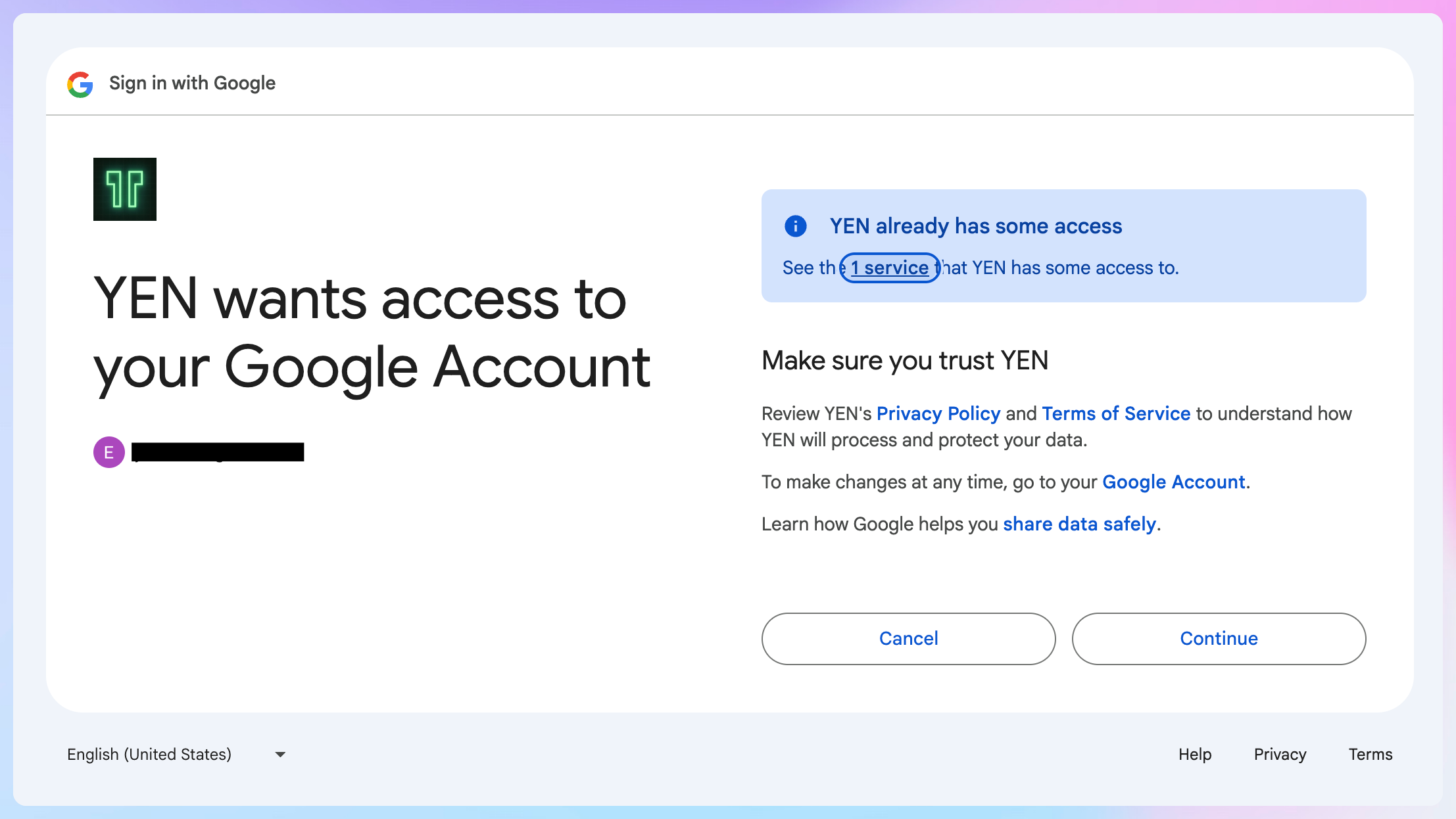
Logging in is pretty easy as it’s via Google OAuth. Note that I’m still waiting for official "approval” but you can still use it of course. The tokens live in your macOS Keychain and you won’t have to wrestle with any config files, plain-text credentials, or have any security concerns.
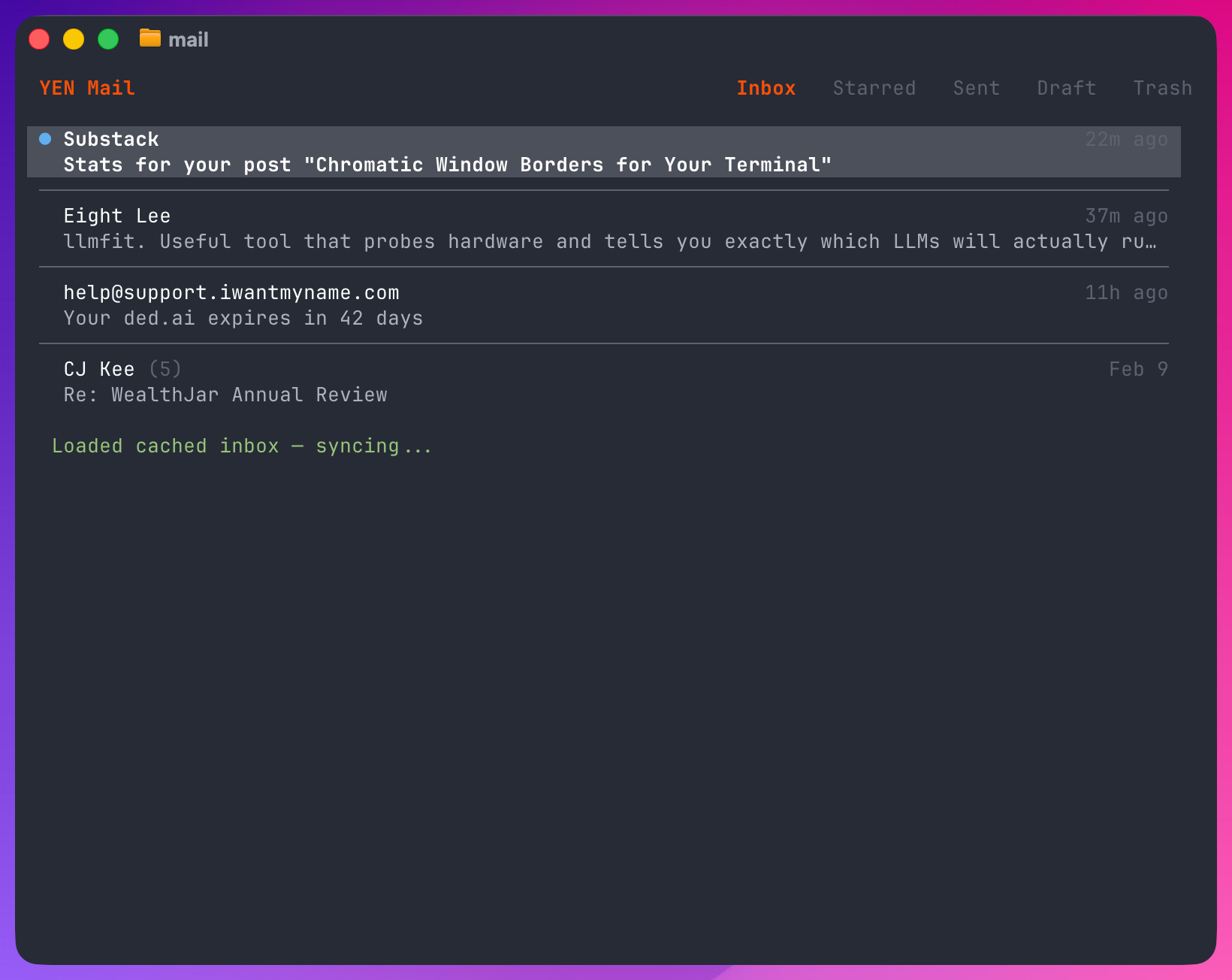
Instead, you get a full-width stacked layout: Label tabs across the top, threads filling the screen. Vim-style navigation throughout. Enter opens a thread. The thread renders as clean plain text with clickable URLs. Esc backs out.
No sidebars, no split panes, just pure email.
Here are other commands you know and love:
Thread List:

j / k       move cursor
Enter       open thread
e           archive
#           trash
s           star / unstar
R           restore (in Trash)
c           compose new message
l           manage labels
n           toggle notifications
z           undo (5-second window)
/           search (Gmail syntax)
Tab         next label
Shift+Tab   previous label
Left/Right  previous / next label
G           load more threads
q           quit
Thread Reader:
j / k scroll
Space half page down
r reply
a reply-all
f forward
e archive
# trash
s star / unstar
R restore (in Trash)
l manage labels
1-9 download attachment
z undo
u / Esc back to list
q quitYou get Five Labels to start and you can Tab/Shift+Tab (or use the Left and Right keys) to cycle through them: Inbox, Starred, Sent, Draft, and Trash. Each label has context-aware keybindings -- you can’t archive from Trash, but you can Restore (R). Sent and Draft are read-only views.
The Core Features (So Far)
Here are the core features that I’ve built so far:
Compose
Press c from the thread list. You get a three-field flow: To, Subject, Body. Enter advances between fields. Esc backs up one field. Esc from To cancels the whole thing. Email validation happens on the To field before you can advance.
The compose screen shows completed fields dimmed above the active input, so you always know where you are. Confirm screen shows the full message before sending.
Reply-All
Press a from the thread reader. Computes all recipients from the original message — To, Cc, From — deduplicates against your own address, and builds the recipient list. If there’s only one recipient after dedup, it silently falls back to a normal reply. The confirmation screen shows exactly who you’re replying to.
Forward
Typing f from the thread reader. Same field-by-field flow as compose: To, then an optional note. The forwarded message includes the standard “---------- Forwarded message ----------” separator plus original From, Date, Subject, and To headers. Subject gets the “Fwd:” prefix.
Attachments
Attachments show as a numbered list below each message:
[1] report.pdf (application/pdf, 2.3 MB)
[2] screenshot.png (image/png, 841 KB)
Press 1-9 to download. Files go to ~/Downloads/ with automatic duplicate handling (“report (1).pdf”). 5MB size limit per download.
Label Management
Press l from the thread list or reader. A picker shows all your labels with [x] / [ ] toggles. Space to toggle, Enter to apply. The picker diff-computes which labels to add and remove — only sending the changes to Gmail’s API.
From the picker, c creates a new label, x deletes a user label. System labels (Inbox, Starred, Sent, Draft, Trash) are always shown first, then user labels alphabetically.
Notifications
Background refresh checks for new mail every 10 seconds while focused and every 30 seconds when unfocused. When new unread threads arrive in your Inbox, you get a macOS notification. Single message: “From: Sender -- Subject”. Multiple: “N new emails”.
Press n to toggle notifications on or off. Initial load seeds the notification tracker so you don’t get spammed on launch.
Clickable Links
URLs in emails render as clickable OSC 8 terminal hyperlinks. If your terminal supports them (YEN does), you can Cmd+click any link to open it in your browser. URLs are styled with underline and blue for visibility.
Some Interesting Problems I Solved
Here are a few problems that I encountered that took me way too long to figure out. Probably a bit more for the nerds out there.
Plain Text Email in a Terminal
Most emails include a text / plain MIME part alongside HTML, and YEN prefers that plain-text body first. Rendering is defensive: iIf the plain text looks like leaked HTML/CSS noise, it gets cleaned; if HTML is the only usable body, the renderer falls back to stripped HTML text with link references.
The pipeline is straightforward:
Strip control characters that could corrupt the terminal
Normalize line breaks and clean plain-text artifacts (including quoted clutter)
Detect URLs and convert to OSC 8 clickable hyperlinks
Word wrap to terminal width with display-width awareness (go-runewidth)
For HTML-heavy or HTML-only messages (newsletters, automated notifications), the renderer removes style/script/head blocks, strips tags, decodes entities, and keeps anchor targets as readable references.
OAuth Without a Server
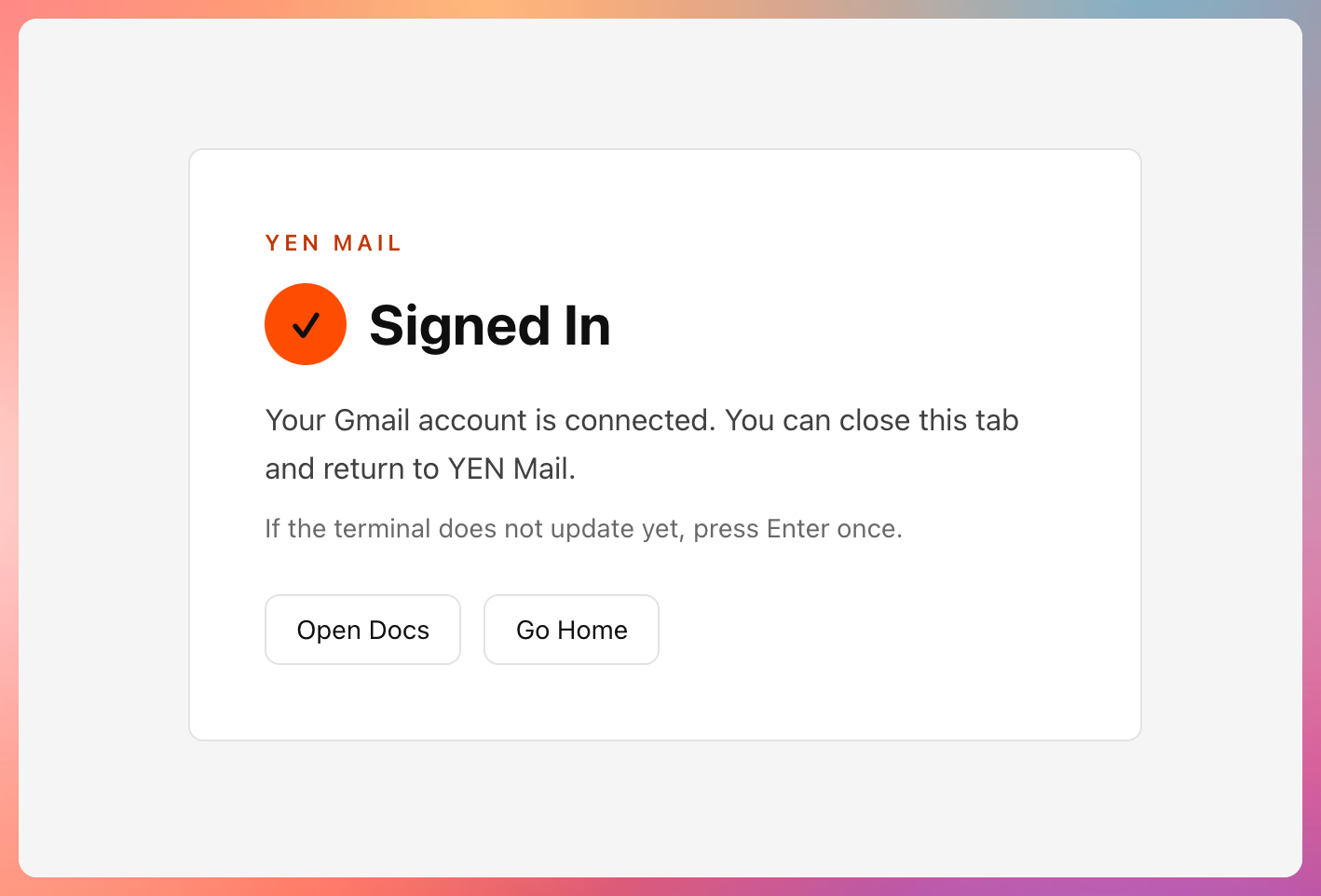
Most OAuth flows need a server to receive the callback. YEN Mail spins up a temporary localhost HTTP server on a random port, opens your browser with the auth URL, waits for the callback, then shuts down the server. The refresh token goes to macOS Keychain via the security command.
No server infrastructure. No token files on disk.
If you sign out, the Keychain entry is deleted. Privacy and security is paramount.
Reply Threading
Email threading is deceptively complex. To keep a reply in the correct Gmail thread, you need In-Reply-To (the message you’re replying to), References (the chain of message IDs in the thread), and Gmail’s ThreadId API field.
Get any of these wrong and your reply can show up as a new conversation. The reply function builds threading headers from original message metadata, handles the Re: subject prefix (with MIME encoding for non-ASCII subjects), and sends via Gmail’s API with the thread ID attached.
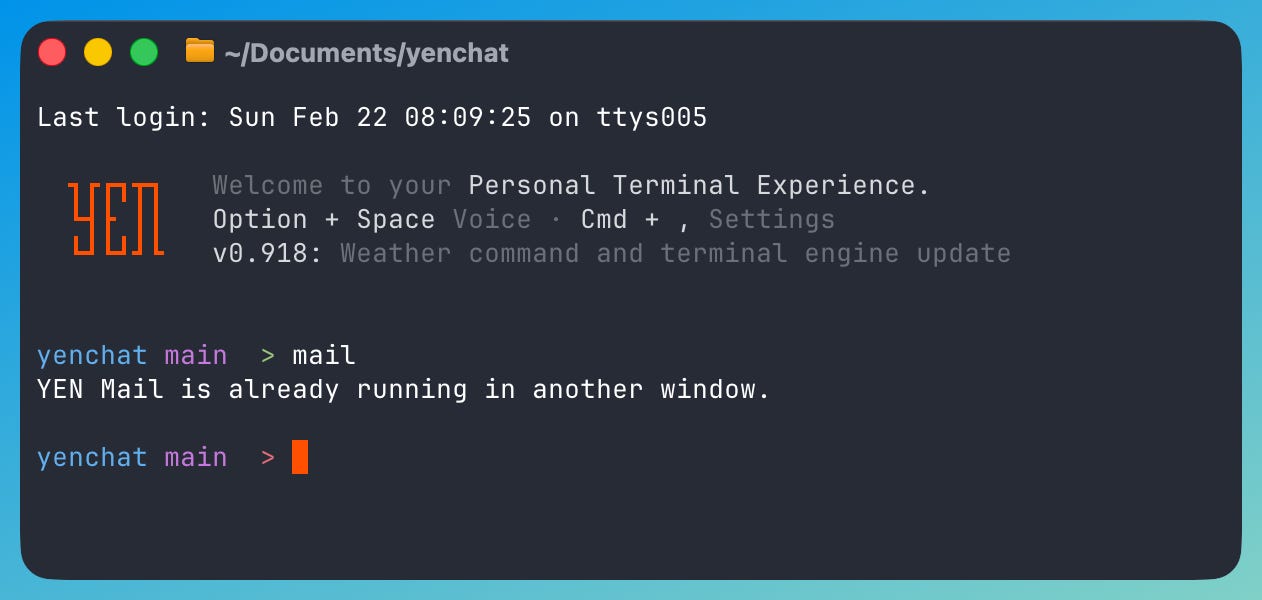
Single Instance
Same pattern as the chat client: a PID lock file in $TMPDIR/yen-mail.lock. If you type mail in a second terminal window, it tells you another instance is running instead of creating a second connection to your inbox.
The lock uses atomic file creation (O_CREATE|O_EXCL) to avoid race conditions between simultaneous launches.
What’s on the Backlog
Honest list of what’s not here yet:
Single account only — One Google account at a time
Offline mirror is still partial — Cache-first reads, queued write replay, and local compose drafts are shipped, but this is not yet a full local Gmail mirror
Google only — No Outlook, iCloud, or generic IMAP
These are on the list but each is a substantial engineering project of its own. But, again, I’d like to get some feedback from folks to see what folks like and what they’d want in the next iteration cycle.
And I hope you reduce your time in the Gmail Web UI! It’s about time.
— 8