← Digital Onigiri

From the creator · Week of Feb 23–Mar 1, 2026

Pickaxes, Shovels, and the Invincible Terminal

The AI gold rush is real. Durable value will come from terminal infrastructure.

Technical updates

45 builds through v0.978

Scratchpad arrived — a global, always-there note surface you can summon from anywhere in the app, the fastest way yet to get a thought out of your head without leaving the terminal. The same week folded a full Git TUI into YEN, branded and wired with yengit aliases, so staging, diffing, and committing gained a serious keyboard-driven home.

System information gained colorized ASCII art and a better layout, the file browser recovered its Git status colors and became harder to break, and dictation kept hardening. A new app icon landed alongside a run of Tahoe fixes — Finder chrome, About-window borders, full-bleed rendering — so YEN looks right on the next macOS before most people are running it.

Forty-five builds also left the release machine stronger than they found it: automatic artifact cleanup, DMG installer reliability, provenance and concurrency guards. Breadth was the theme; the reliability work is what made the breadth safe to lean on daily.

Every build that week, v0.929 to v0.978 ↗

Written by hand

Notes from the creator

Pickaxes, Shovels, and the Invincible Terminal

The AI gold rush is real. Durable value will come from terminal infrastructure.

Update for YEN 1.285. The bundled set is now fd, rg, lazygit, btop and fastfetch. fzf, zoxide, bat and jq are no longer included. See the current file browser guide.

Hey folks!

I keep seeing the same AI coding demo pattern: The model writes code, everyone claps, and then someone opens a terminal to find out if any of it actually works.

That moment is the entire thesis.
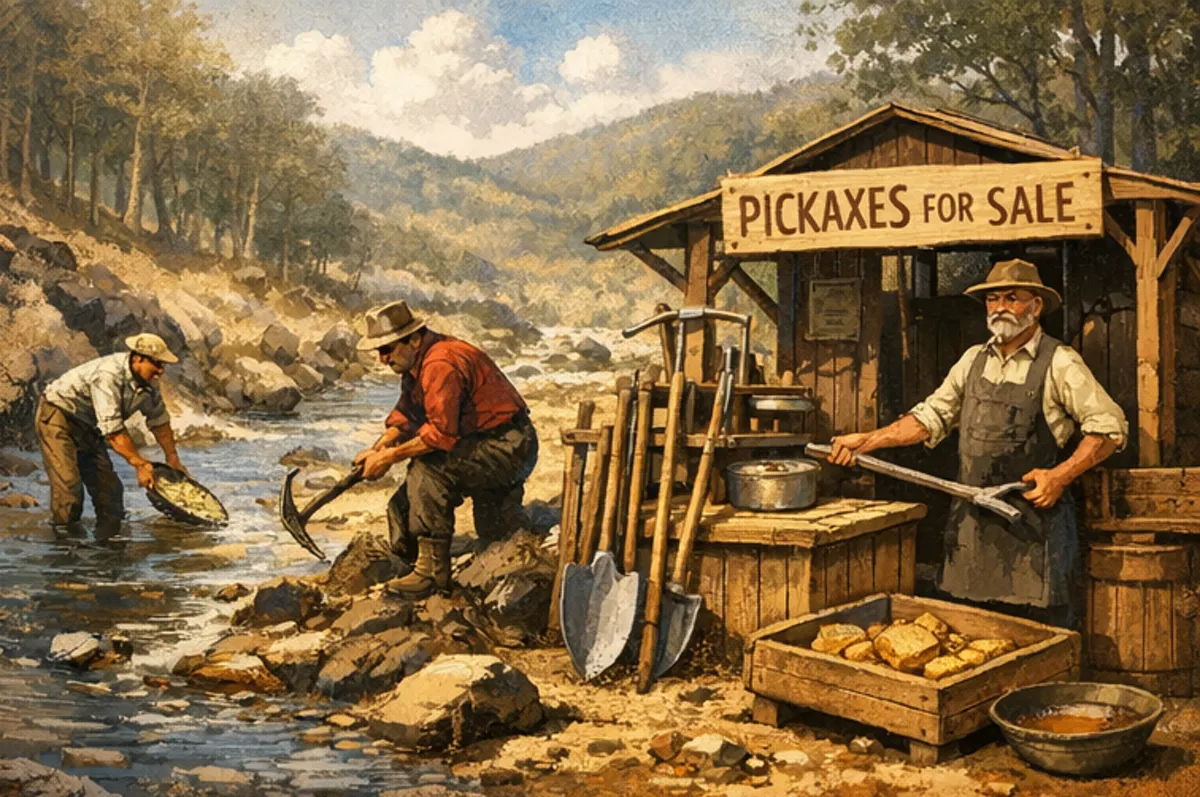
Chris Dixon wrote in 2011 that in a gold rush, you can mine for gold or sell pickaxes. Investopedia frames the same strategy more formally: Back the suppliers that power the ecosystem, not just the end product. Different phrasing, same lesson.

We are watching that pattern play out again in AI.


The Rush Is New. The Pattern Is Old.

I am not anti-AI apps. Some of them will become huge companies. But hype cycles distort where value is created. The glamorous layer gets attention first.

The infrastructure layer compounds quietly, then ends up unavoidable. In software, infrastructure wins when it does three things:

  1. Gets used every day.

  2. Reduces risk for everyone above it.

  3. Survives platform shifts.

The terminal checks all three, of course. And anyone who’s been writing software for any serious amount of time doesn’t even have to ask these three questions since we live it day in and day out.
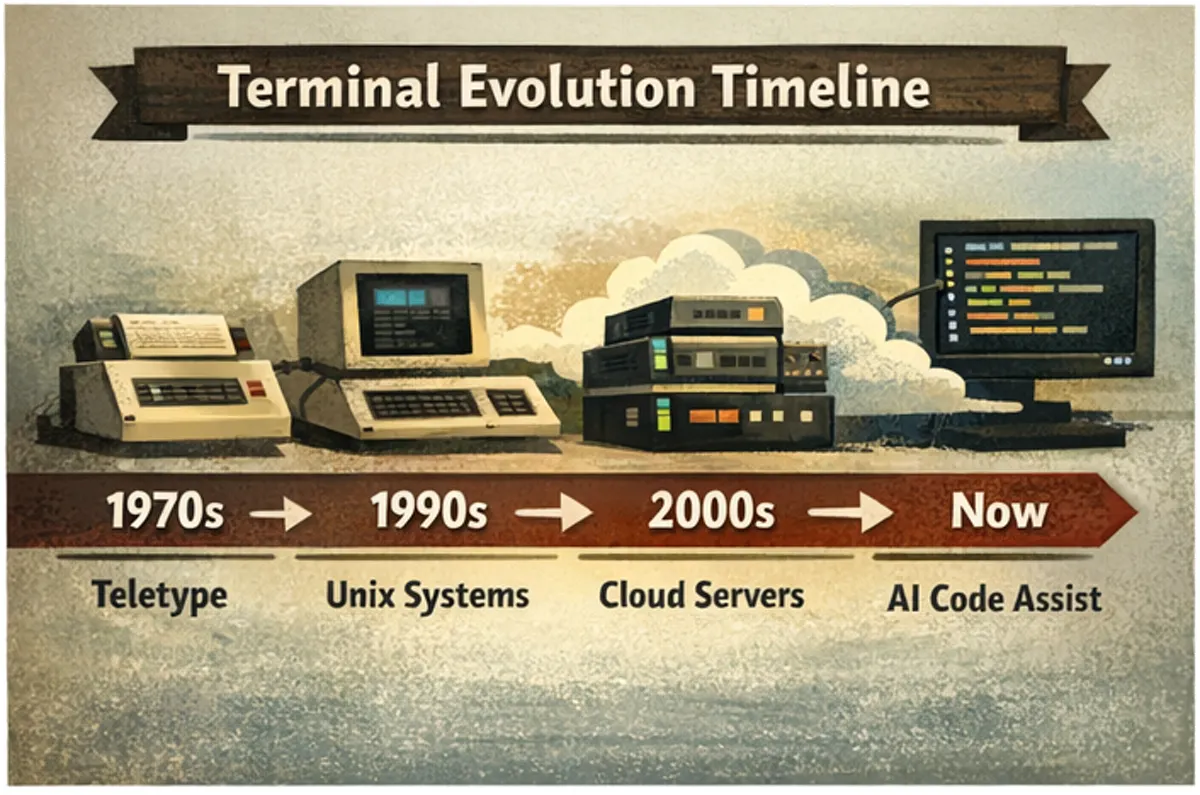
The Terminal Already Passed the Longevity Test

Before AI coding agents, before cloud IDEs, before Electron editors, the terminal was already the operator surface for software.

It survived every era change:

  • Teletype workflows to video terminals.

  • Local Unix development to distributed systems.

  • On-prem servers to cloud fleets.

  • Hand-written code to AI-assisted code.

The shape of tools changed. The command surface stayed. Why? Because the terminal is where software meets reality. Builds, tests, deploys, migrations, incident response, logs, process control. This is where outcomes are verified, not imagined.

So when people ask whether AI will replace the terminal, I think the better question is: Why would the verification layer disappear when generated output is exploding?

It will not disappear. It becomes more important. It becomes imperative.


The AI Shift Is About Supervision, Not Just Generation

AI changed who types first draft code. It did not change who owns production outcomes. The new workflow is much more supervision-heavy:

  • Orchestrate multiple tools and agents.

  • Review large diffs quickly.

  • Run verification loops repeatedly.

  • Gate risky commands.

  • Ship with evidence, not just vibes.

The keywords here are “orchestration” and “observability,” things that all engineers have done manually and in decentralized ways, but now can be done simply, immediately, without context switching.

The payoff is huge: Time savings. And it all comes back to the Terminal as those workloads really belong in a terminal-native environment.

And if your AI tooling cannot make this loop faster and safer and better for everyone impacted, then, you’re still sitting at the demo layer and not the infrastructure one. Time to upgrade your thinking and your tools.


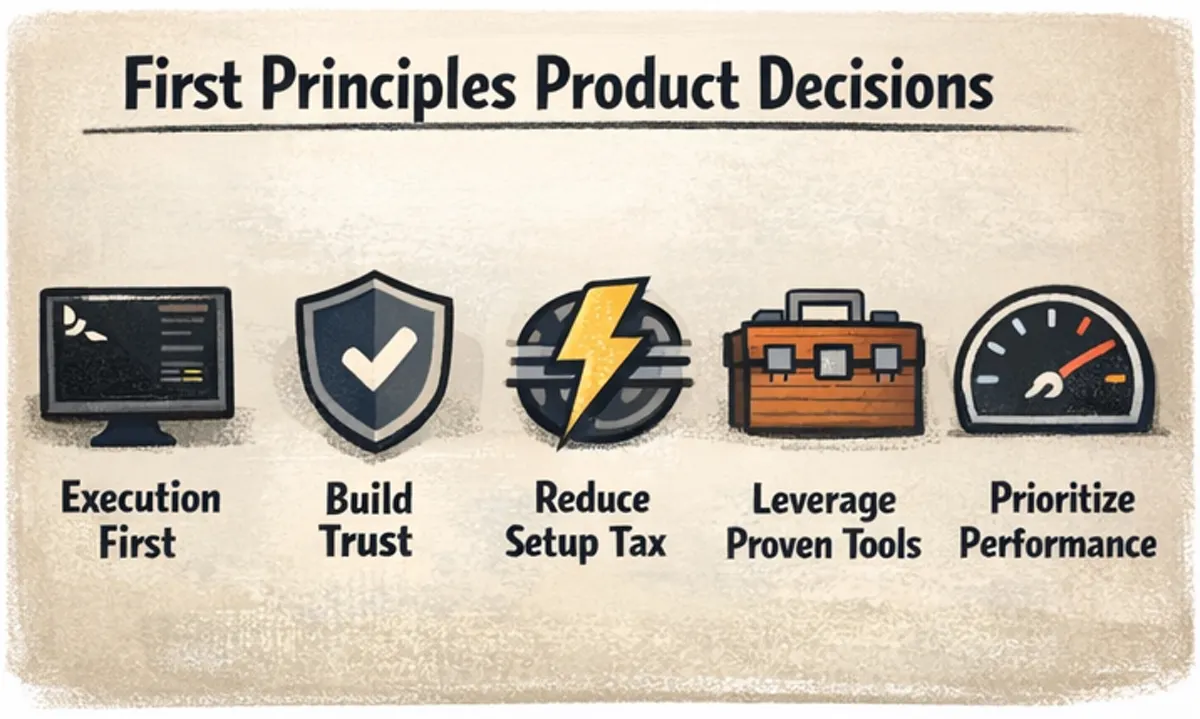
First Principles and Product Design Decisions

YEN is not a trend response. How could it be? It’s a Terminal! Always has been. The fundamental ergonomics haven’t changed but the potential for greater throughput and raw productivity horsepower has never been more real.

In other words, it’s a first-principles product design challenge:

  • Principle 1: Trust is a product feature and, by extension, privacy and security. This is why it’s a local-first core — no wifi required — and explicit opt-in for cloud-connected workflows. No account or registration gating here! The way it’s always been with Terminals. Boot it up whenever, wherever.

  • Principle 2: Speed is the trust vector which unlocks maximum leverage and reduces setup taxation that kills momentum. Consequently, bundling modern CLI essentials out of the box makes sense; tools like fd, rg, fzf, zoxide, bat, jq and a file (preview) browser and git workflows. No need to reinvent proven tooling, just like how creators of pickaxes and shovels didn’t have to invent metallurgy for their axe heads and blades for their shovels.

A concrete example: I replaced heavyweight preview dependencies with native helpers and dropped about 258.9 MB of bundled binary weight while keeping the workflow inside the terminal surface. Same user outcome, smaller trust and maintenance surface. Faster. Cheaper. Better.

That is why I describe YEN as a (“THE”?!) terminal-first IDE: A third category between editor-first AI IDEs and cosmetic terminal enhancers.
Why the Solo-Developer Constraint Is an Advantage

This part matters. A lot.

As a solo developer, I cannot win by brute force. I cannot ship ten overlapping systems and hope one sticks. I have to choose an architecture that compounds.

That constraint creates clarity:

  • Fewer abstractions, tighter control surfaces.

  • Fewer moving parts, better reliability.

  • Faster feedback loops from real users.

  • Stronger bias toward decisions that age well.

In practice, that means building from proven primitives, integrating deeply, and shipping relentlessly. The goal is not to look like a giant team. The goal is to produce a sharper product than giant teams can use without complex dependencies or coordination.

It should just work, as any Terminal should, as expected.

Like riding a bike.


Why YEN Feels Like a Natural Outcome

If you start from first principles, the path is pretty direct:

  1. Developers still execute and verify in terminals.

  2. AI increases orchestration and trust burden.

  3. Terminal infrastructure becomes more strategic, not less.

  4. The right product is a terminal-first IDE.

That is YEN. Not an editor with a terminal panel. Not a terminal with superficial AI garnish. A terminal-native environment designed for modern software work, where AI is part of the workflow but never the trust boundary.


The Bet

I’m not betting on who can produce the flashiest generated code demo this quarter. I’m betting that the teams who ship reliable software in the AI era will depend on better operational tooling at the terminal layer.

That is my pickaxe and shovel position and it’s exactly where I’m taking YEN.

Thanks for your support!

— 8
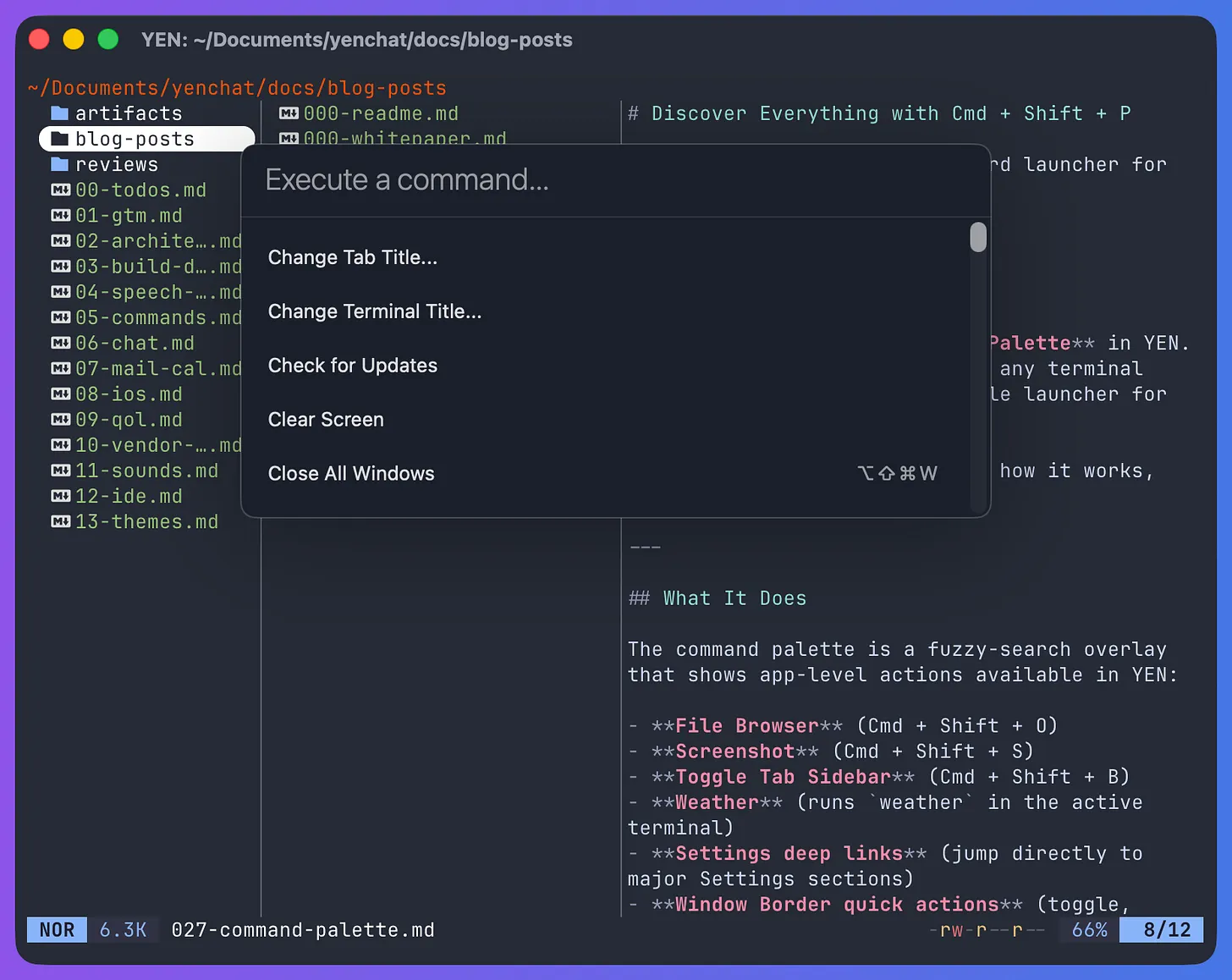
Discover All-The-Things in Your Terminal

A unified keyboard launcher for every feature in YEN with CMD + Shift + P.

Hey folks!

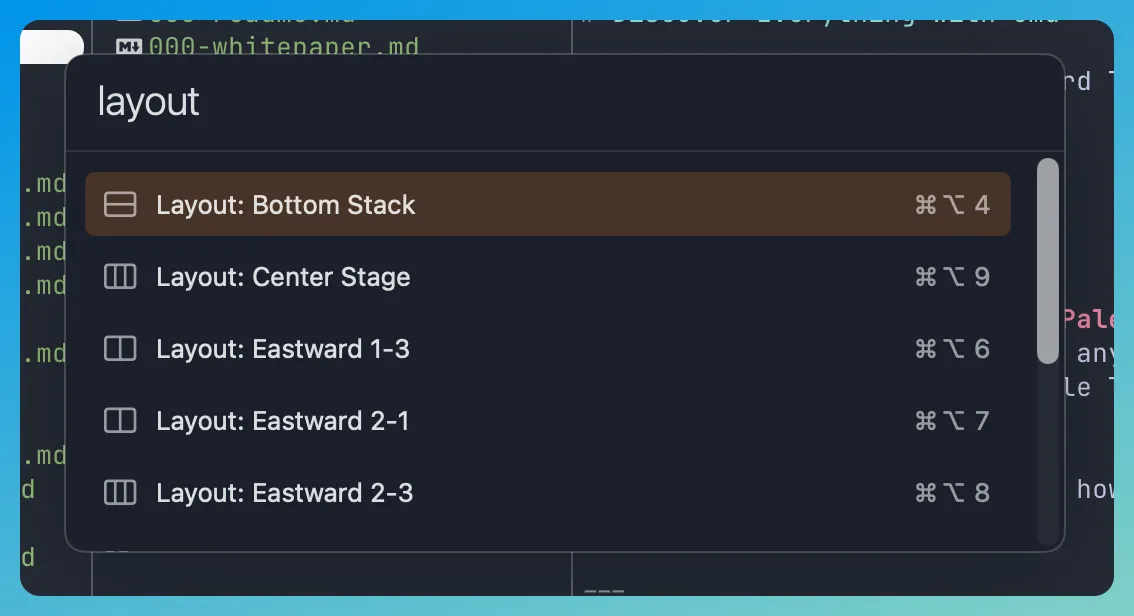
We just shipped the Command Palette in YEN. Press Cmd + Shift + P from any terminal surface and you get a searchable launcher for everything the app can do.

What It Does

The command palette is a fuzzy-search overlay that shows app-level actions available in YEN:

  1. File Browser — Cmd + Shift + O

  2. Screenshot — Cmd + Shift + S

  3. Toggle Tab Sidebar — Cmd + Shift + B

  4. Weather — Runs weather in the active terminal

  5. Settings Deep Links — Jump directly to major Settings sections

  6. Window Border Quick Actions — Toggle, Match Theme toggle, palette cycling, animation toggle, open Reduce Motion settings

  7. All 10 layout presets — Cmd + Option + 1-0

  8. Jump to any Open Surface — Cross-window navigation

  9. User-Configured Terminal Commands — From config.yen command-palette-entry

  10. Updates — Install or skip, when available

Every entry shows its keyboard shortcut, an SF Symbol icon, and a description. Start typing and the list filters instantly.

Why This Matters

YEN has a lot of features now. Speech-to-text, file browser, split layouts, chat, mail, calendar, notification sounds, keyboard shortcuts with conflict detection.

The problem: How does a user discover all of this? The Settings panel is one path. The menu bar is another. But both require knowing where to look. The command palette is the answer to “I know this feature exists, how do I get to it?” and also “what features does this app even have?”

Type “layout” and you see all 10 presets. Type “screenshot” and there it is. One interface, zero memorization.

Give it a try!

— 8

Weather without Friction in Your Terminal

Because I need to know if I can write software outside.

Hey folks!

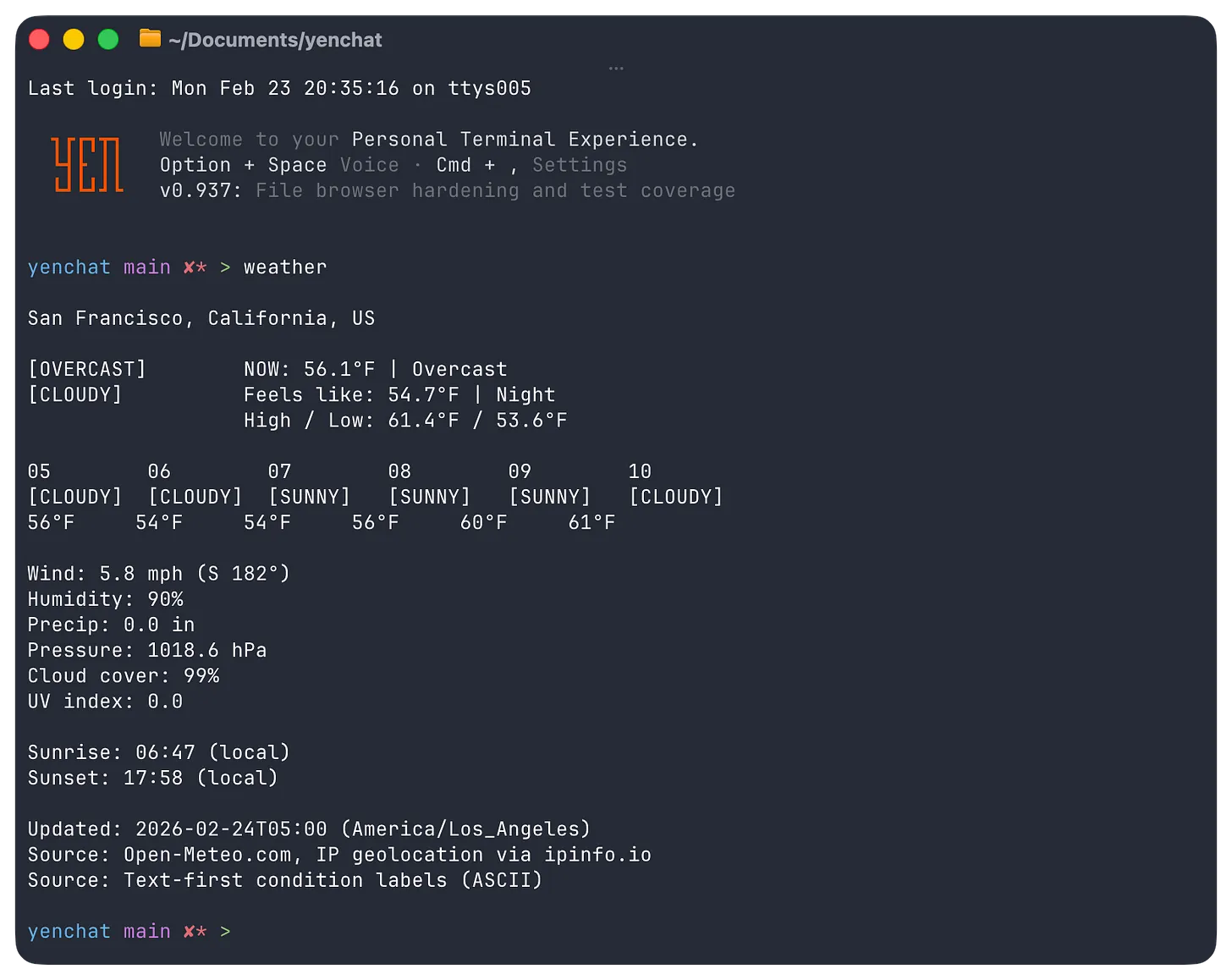
The weather command in YEN is now in a much better place. I bet you didn’t even know we had it! Why not give it a try? When you run weather off your shell you’ll see the following in you Terminal:

Yeah. That’s it. Magic.

What Was Shipped

The command supports:

  • ASCII condition icons alongside current conditions (day/night variants for clear/cloudy, plus rain, snow, thunder, fog)

  • 6-hour hourly forecast strip with compact mini-icons and temperatures

  • City lookup with --city

  • Manual coordinates with --lat and --lon

  • Metric or imperial units with --metric or --imperial

  • Grouped output with vertical spacing across clear sections: now + feels-like, hourly forecast, today’s high / low, wind (with direction), humidity, precipitation, pressure, cloud cover, UV index, and sunrise/sunset with 24hr local time labels

  • A single provider path (no provider toggle flags)

Open-Meteo is how we get it done and is the single provider path for weather in YEN.

Why I Built This

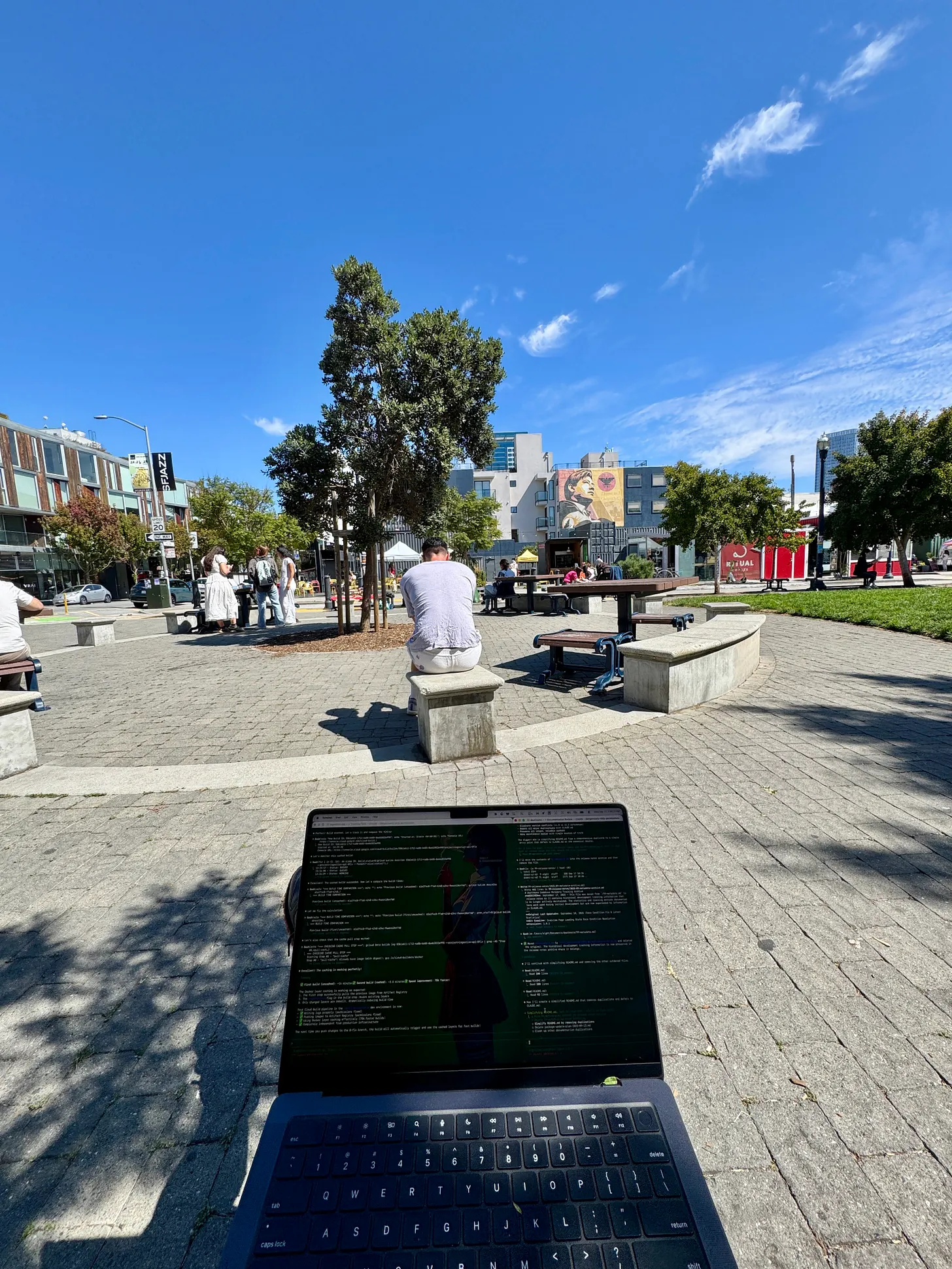
I actually spend most of my time outside, at a park, deep in my Terminal, writing software for YEN and working on my tan.

So, I built it for me.

Remember that YEN is all about speed and so I wanted to be able to answer this question quickly:

Can I work outside today?

And that’s it. Now, I don’t have to leave my Terminal. And neither do you

One command, predictable results. Fast. Enjoy!

— 8


Bonus image of one of my friends who will beg me for food while I work. Lotus!

Calendar in Your Terminal Emulator

It just made sense as a fast-follow to the Gmail Integration.

Hey folks!

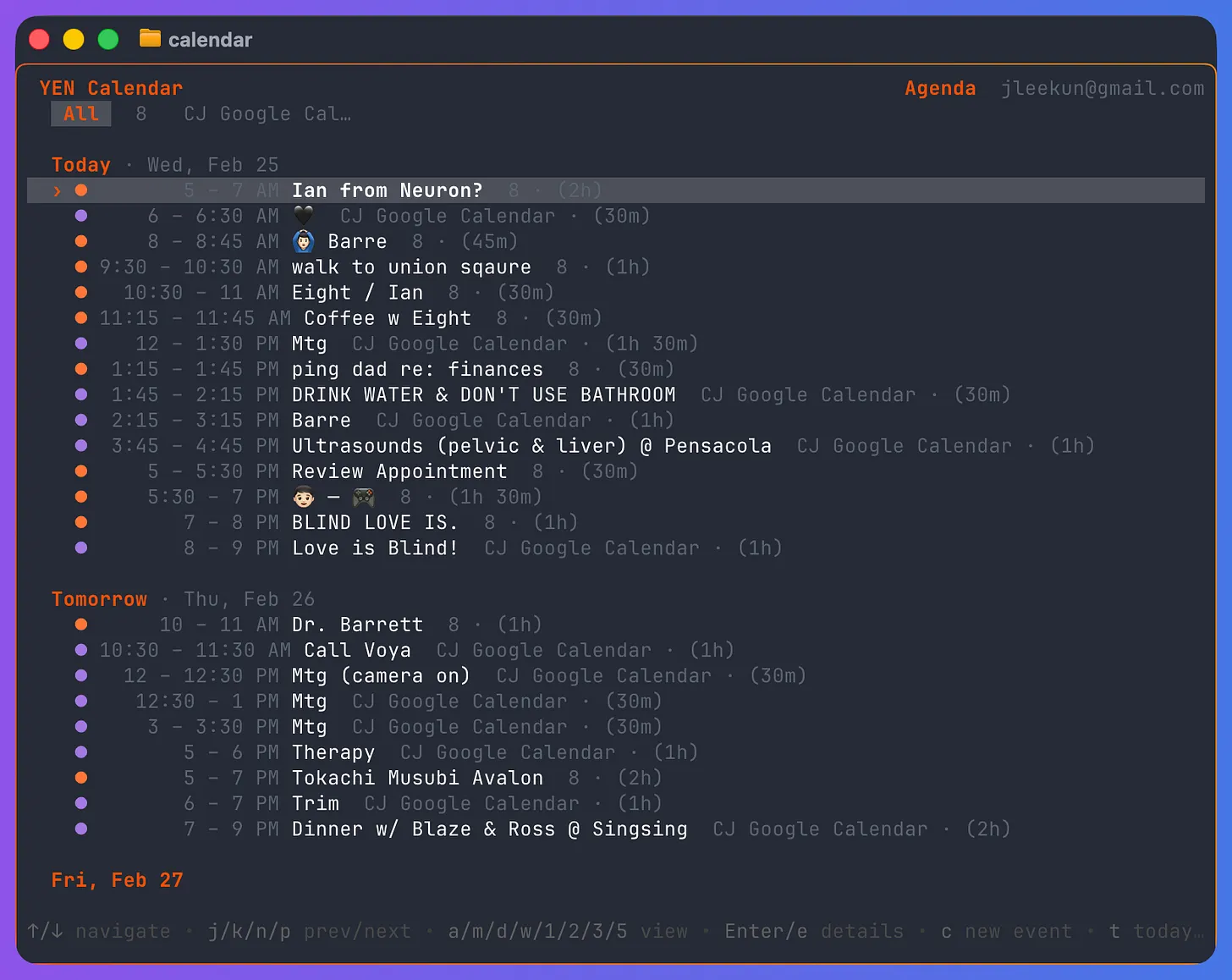
The calendar command in YEN has grown into a full daily driver for me and I’m happy to open it up for early testers in the most recent version. It follows the same oAuth pattern as the email integration: Type it, sign in with Google, and your entire schedule renders inside the terminal.

Agenda view, month grid, day view, week view, event detail, RSVP, create, edit, delete — the full loop. No browser tab. No Electron. Just a TUI.

Here’s why I built it, how it works, and the engineering problems that made it more than a bit interesting.


Why Put a Calendar in a Terminal?

Same reason as mail: I live in the terminal. Checking my calendar means opening a browser, waiting for Google Calendar to load, losing focus to whatever else is open in Chrome. The round-trip is 10-15 seconds of context-switching for something that should take 2.

I wanted calendar to feel like mail and chat — type a command, get the information, get back to work. The terminal is where my attention already is. My calendar should be there too.


What It Does

Type calendar in YEN. First time, it opens your browser for Google OAuth using the same PKCE pattern as mail, with local loopback callback handling and Keychain token storage. After that, you’re in.

You get 4 different views:

  1. Agenda view — a is the default. A chronological list of upcoming events across all your calendars, grouped by day. 14-day lookahead. Color-coded calendar indicators on the left, time and duration on the right. All-day events render at the top of each day group in a distinct style.

  2. Month view — m is a real 6x7 calendar grid (Monday-first). It shows leading/trailing days, in-grid event snippets, and local in-grid search filtering. v toggles instantly between agenda and month.

  3. Day view — d shows a single day with time slots. Navigate ranges with j / n (next) and k / p (previous), or use arrow keys for fine-grained stepping. Events render inline at their time position. All-day events sit in a header row above the timeline.

  4. Week view — w shows a 7-day grid. Each column is a day, with all-day and timed rows that expand based on event density. On narrow terminals (under 80 columns), it falls back to day view automatically. On very narrow terminals (under 100 columns), weekends collapse to make room.

Press t from any view to snap back to today. The selected date tracks across view switches — if you’re looking at Wednesday in month/day and press w, week view centers on that same Wednesday.

Other Navigation Options that you may be familiar with:

Up / Down   move cursor
j / n       next date range
k / p       previous date range
h / l       legacy step navigation (month/day/week)
a / m / d / w   agenda / month / day / week view
5 / 3 / 1 / 2   agenda / month / day / week view
v           toggle agenda <-> month
t           jump to today
Enter / e   event detail
c           new event
/           search
f / Tab     next calendar filter
F / Shift+Tab   previous calendar filter
Left/Right  prev / next day (month/day) or prev / next week (week)
z           undo pending delete
r           refresh
S           sign out
q           quit

And even manage all of the Event Details as you might want!

Press Enter (or e) on any event. You get the full details: title, time, location, calendar name, attendee list with RSVP statuses, description, and a direct link to the Google Calendar web event. Detail view also supports direct link open with o and Cmd + click on visible URLs.

From the detail view:

r           RSVP (accept / tentative / decline)
e           edit event
Backspace   delete event
o           open in browser
j / k       scroll
q / Esc     back to list

And what about RSVP and Create, Edit, and Delete? I got you covered.

For RSVPs you can press r on an event detail. A horizontal picker shows three options: Accept, Tentative, Decline. Arrow keys to select, Enter to confirm. Your response is sent to Google Calendar API immediately. The attendee list updates on the next refresh.

For Create, Edit, and Delete you can do the following:

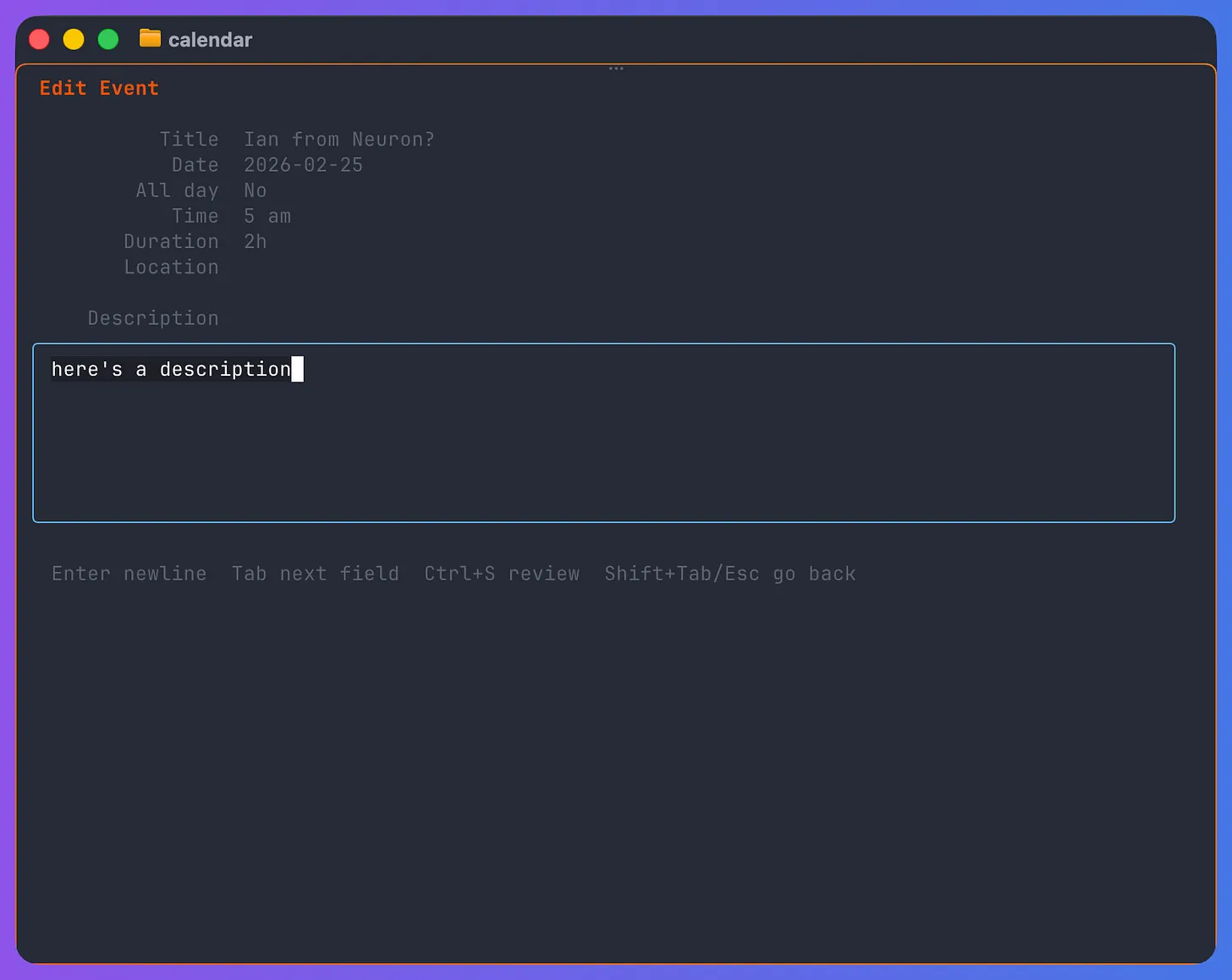
  • Press c from any list view. You get a field-by-field flow: calendar picker, title, date, time, duration, location, description. Description is multi-line. Tab or Enter advances between fields (in description, Enter inserts a newline). Shift+Tab or Esc goes back and preserves what you typed. Ctrl+S jumps straight to the confirmation review when required fields are complete. From the confirmation screen, press 1-9 to jump directly to any field for keyboard-only review and edits.

  • Edit (e from detail view) pre-fills all fields from the existing event. Same flow, same confirmation.

  • Delete (Backspace from detail view) shows a confirmation prompt. For recurring events, both edit and delete ask whether to target this instance, this and following, or all events.

And you can search, of course.


Desktop Notifications

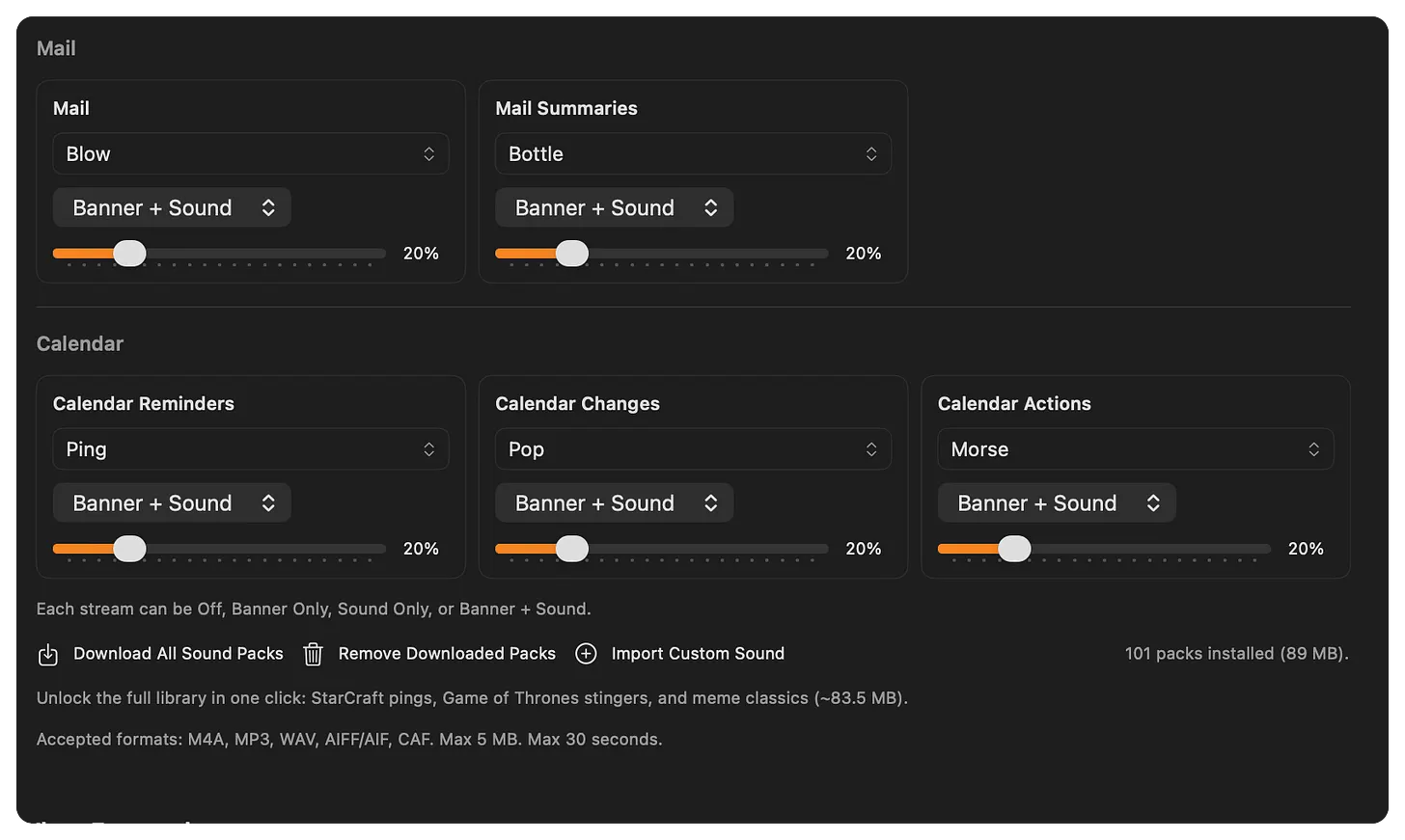
YEN Calendar fires three types of native macOS notifications:

  1. Reminders — Follows your Google Calendar reminder settings (the “10 minutes before” popup you configured in Google). If an event has a 10-minute and a 30-minute reminder, you get both, at the right times.

  2. New invites — When someone adds you to an event, a notification appears with the event title and time.

  3. Rescheduled / cancelled — If an event you’re attending gets moved or deleted, you’re notified on the next sync poll.

The notification engine uses a priority queue (heap) of upcoming reminders, rebuilt on every poll. It schedules a timer for the next due reminder and pops reminders when their time has passed. On startup, it seeds all past reminders as “already fired” so you don’t get spammed with a day’s worth of old notifications.

There are many more features built-in but the point of this exercise was so I had a few less clicks per day to travel through and I love how the Terminal is becoming a single point of contact for everything that I need to do to get shit done.

Imagine that.

— 8

Bundling Lazygit for Zero-Setup Git in Terminal

Now YEN has Lazygit baked right in. So much wow.

Update for YEN 1.285. lazygit is still bundled. bat is not: text in the file browser opens in the system pager. See the current file browser guide.

Hey folks!

Git's CLI is powerful. It is also hostile. Staging hunks, interactive rebasing, resolving merge conflicts — these are workflows that punish you for not memorizing flags.

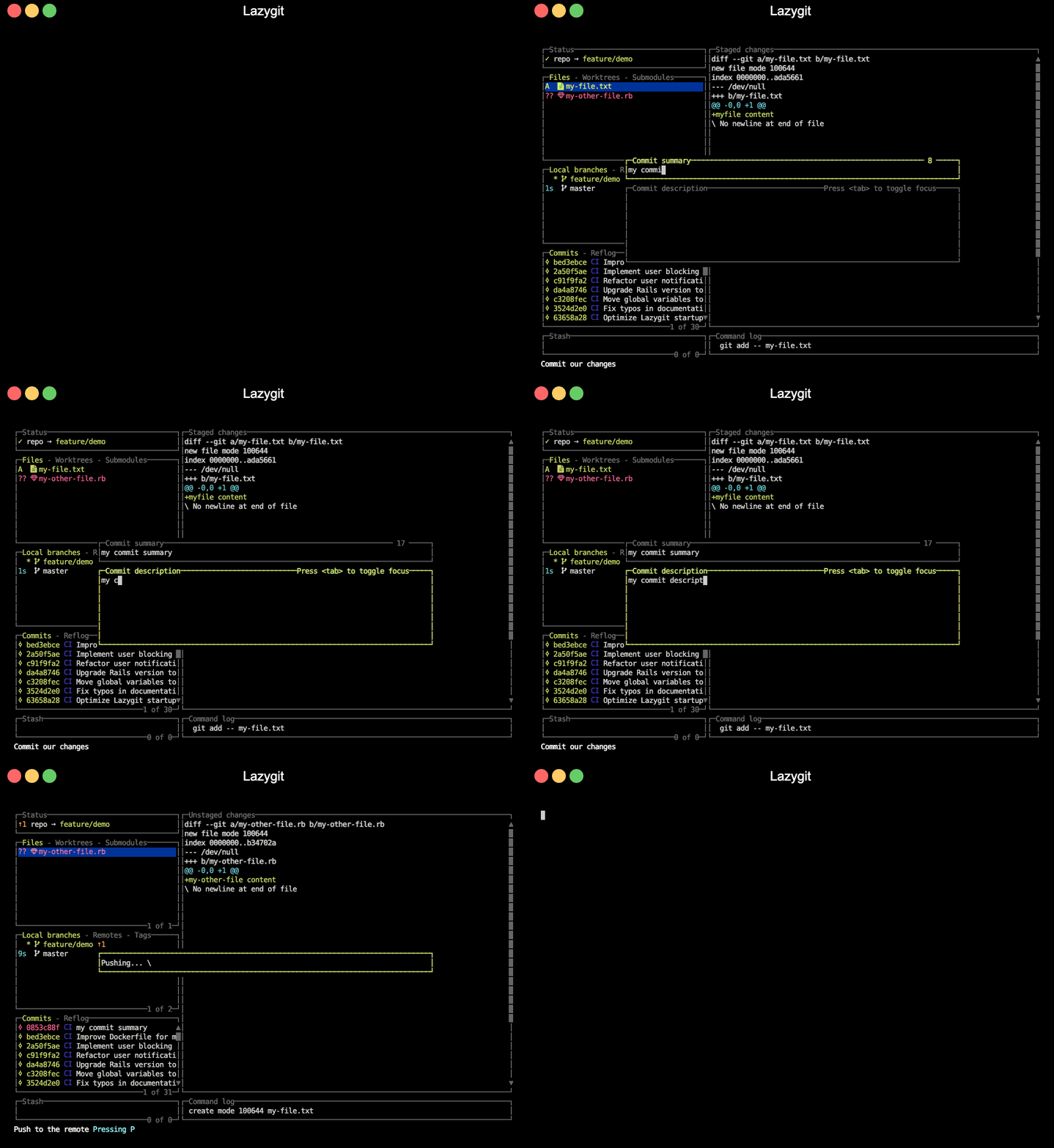
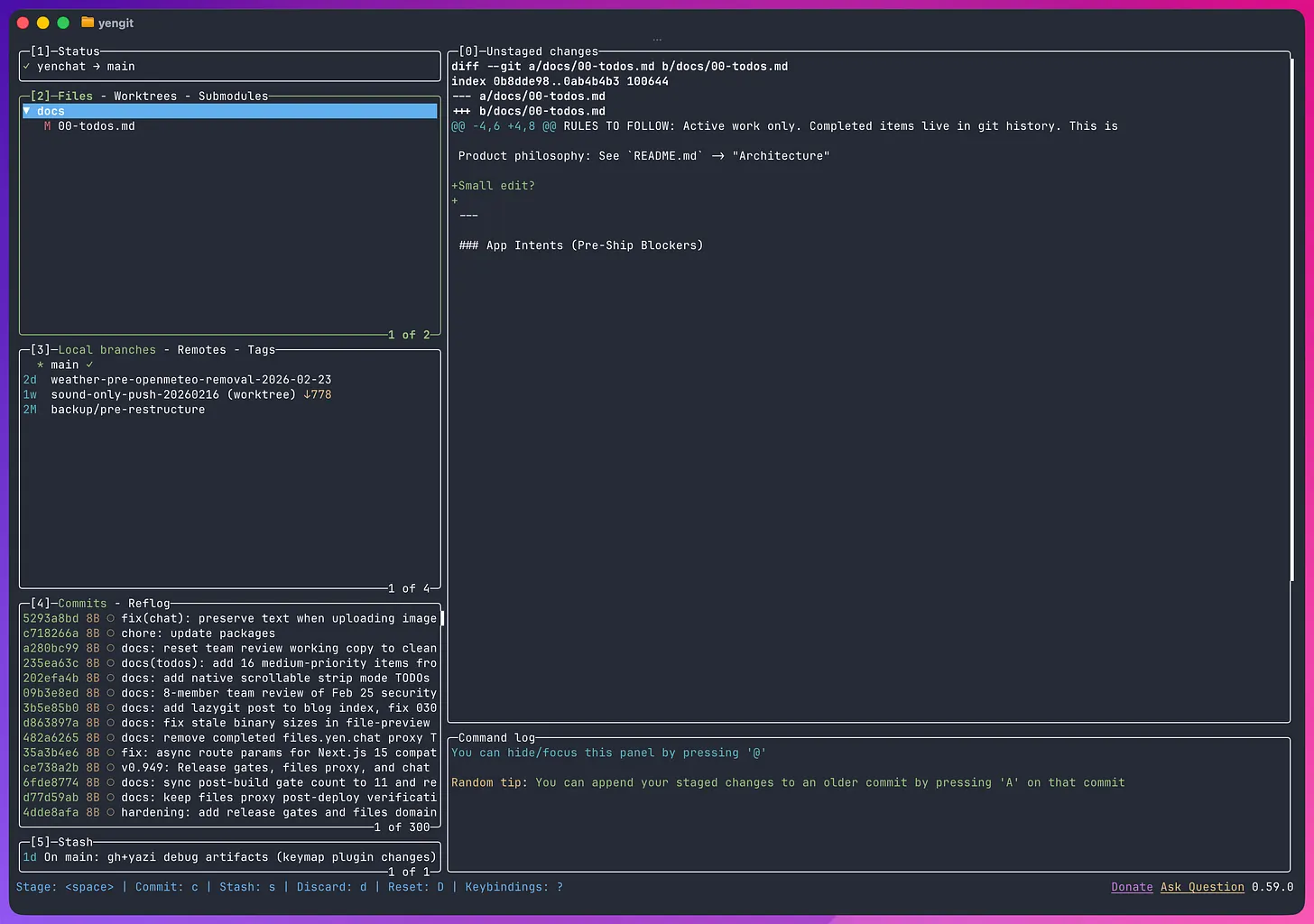
Lazygit fixes that. It is a full-screen terminal UI for git that makes staging, committing, branching, rebasing, stashing, and diffing keyboard-driven and visual. It has 73,000+ GitHub stars for a reason. And, I really love it so I decided to bake it into YEN:

It’s pre-bundled, pre-configured, pre-signed, and available for you from the jump.


It’s as Easy as…

Here are the four equivalent commands that you’ll need, all aliased properly: yengit, lazygit, gitlazy, or gityen. All four route to the same binary and config. No difference in behavior. I’ll keep the packages updated so you don’t have to.

It should just work.

When you run yengit, the wrapper:

  1. Detects your existing lazygit config at ~/.config/lazygit/config.yml

  2. Loads YEN's config as a second layer on top

  3. Invokes lazygit with --use-config-file "$user_config,$yen_config"


Shell Integration

Every shell session inside YEN gets lazygit wrappers auto-injected:

bash
# zsh and bash — both get these automatically
lazygit() { _yen_run_app_command lazygit "$@"; }
gitlazy() { _yen_run_app_command gitlazy "$@"; }
yengit()  { _yen_run_app_command yengit "$@"; }
gityen()  { _yen_run_app_command gityen "$@"; }

External shells get the same wrappers via yen init zsh or yen init bash.

The _yen_run_app_command helper ensures YEN's bundled binary takes priority over any system-installed version. This prevents version mismatches and guarantees the branding and config behavior.


Why This Matters for the IDE Thesis

Our terminal-first IDE thesis says serious development work belongs inside one high-performance terminal environment.

Git is the most-used developer tool after the editor itself. Having it available inside the terminal — pre-configured, zero-install, visually integrated — removes one more reason to context-switch away.

Lazygit inside YEN is not just "we ship a binary." It’s much more:

  • Available immediately with no brew, no PATH, no config ceremony

  • Version-locked so we can test against it and guarantee behavior

  • Config-merged so power users keep their customizations

  • Branded so it feels native to the environment

  • Signed and notarized so macOS never blocks it

The same vendor-and-compose pattern we used for the file browser, for native previews, for bat and ripgrep. Take the best tool. Bundle it. Integrate it. Ship it ready.

Let’s go.

— 8

Upgrading the File Browser with Native Previews

Video, PDF, and SVG previews — all running on macOS native APIs inside your Terminal.

Hey folks!

YEN's file browser already had syntax-highlighted code previews, Quick Look, and directory navigation. What it did not have was rich media previews that felt native.

When you browsed to a video file, a PDF, an SVG, or a zip archive — you got either a generic icon or nothing. If we wanted thumbnails, we had to bundle heavy cross-platform tools. ffmpeg alone was 248 MB.

So I asked: Does macOS already know how to do this?

It does. Hell yeah it does.


What You See Now

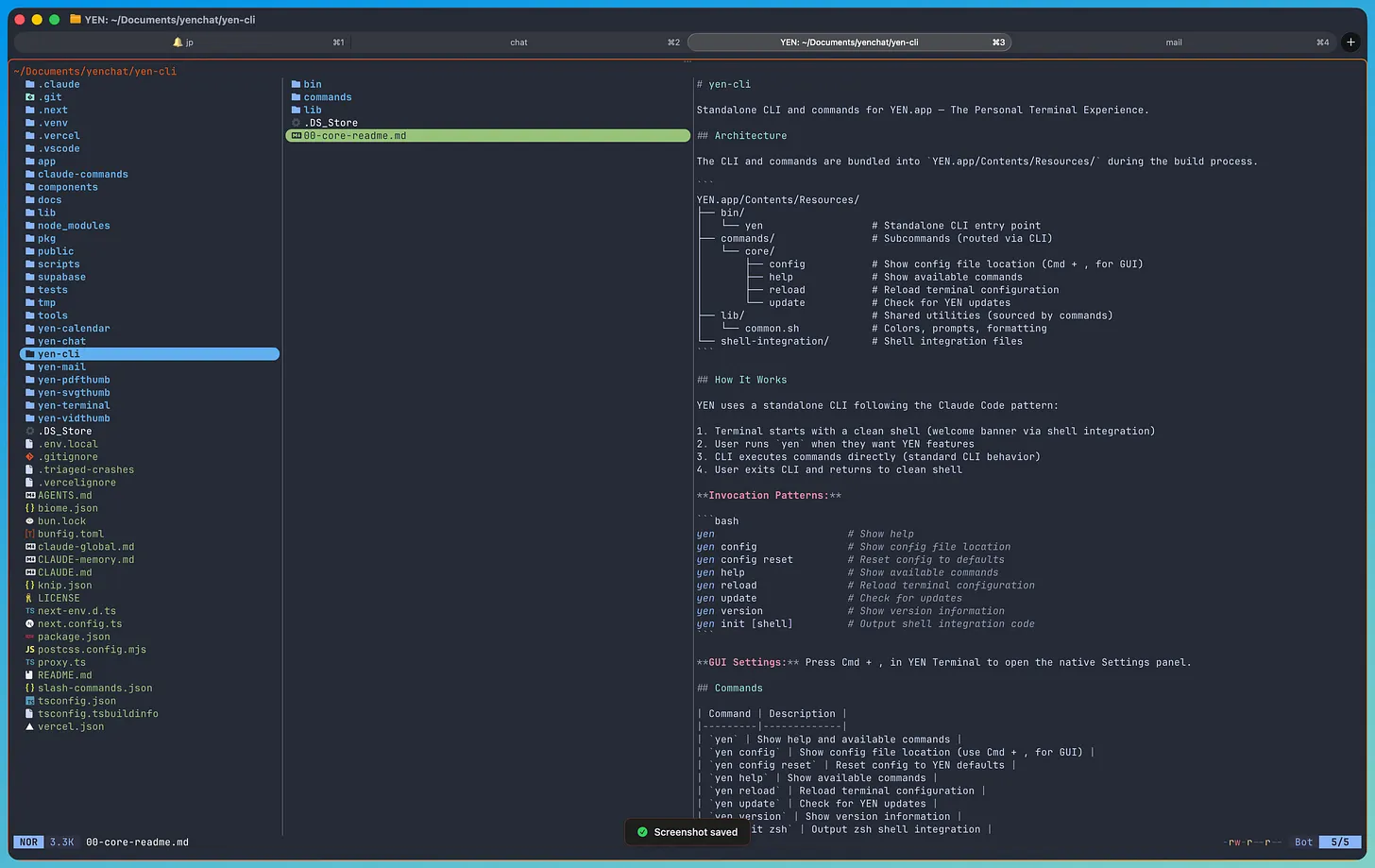
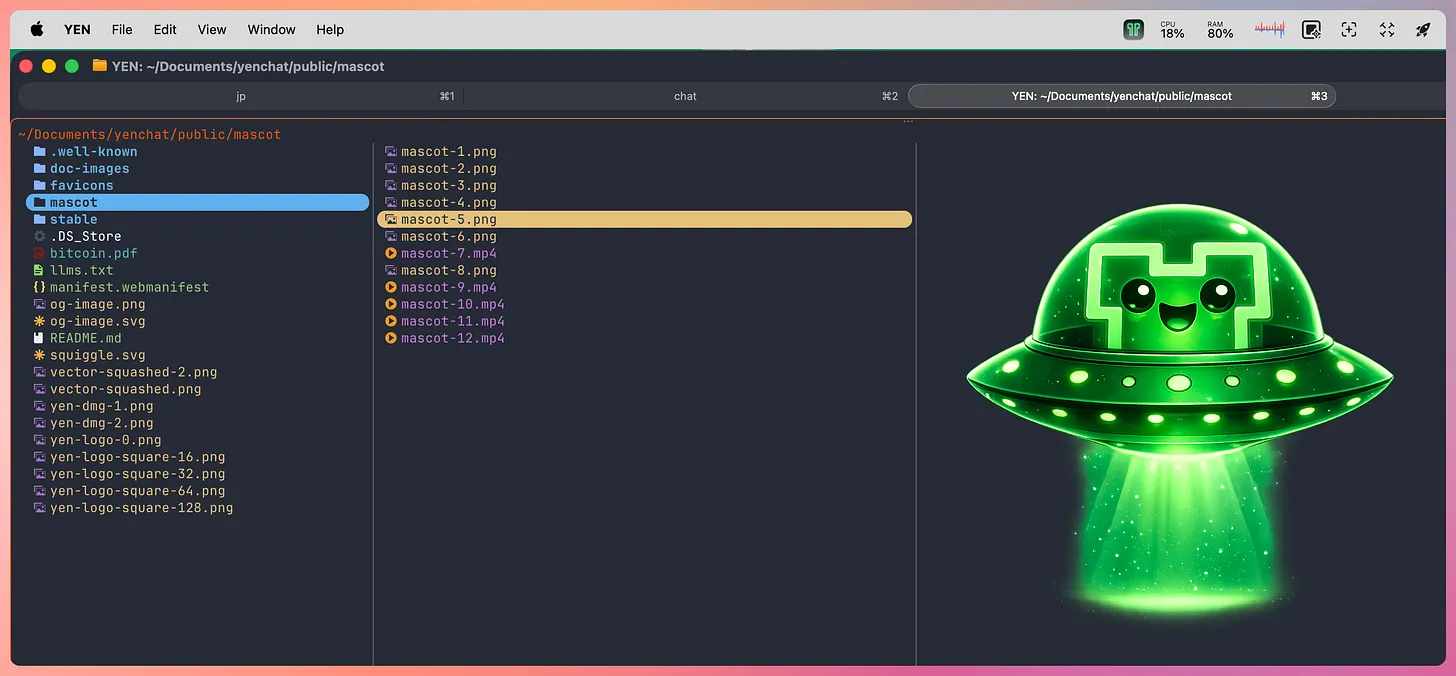
Open the file browser (Cmd + Shift + O or type y in your shell) and navigate to any of these:

  • Video files: A representative frame extracted instantly via AVFoundation. No ffmpeg, no ffprobe, no 248 MB dependency. A 204 KB native helper does the same job.

  • PDF files: The first page rendered as a thumbnail via PDFKit. Clean, fast, accurate. 164 KB instead of a 5.3 MB poppler install.

  • SVG files: Rendered natively through AppKit. For edge cases like compressed .svgz files or SVGs with CSS variables, a lightweight fallback kicks in automatically. You never see the switch happen.

  • Archives: Zip, tar, gz, bz2, xz, and more listed and extracted via macOS's built-in bsdtar. No bundled archive binary at all — the system already has one.

All of this works the moment you open the file browser. No configuration, no plugins to install, no homebrew dependencies.


The Preview Experience

The file browser is a full-screen TUI. The left pane shows your directory tree. The right pane shows a live preview of whatever is selected.

For code files, you get syntax-highlighted preview with language detection. Move the cursor and the preview updates instantly. Press Enter to open a full read-only view with the same color scheme — no color mismatch between the preview pane and the full-file view.

For media files — videos, PDFs, SVGs — you now get actual visual thumbnails rendered in the preview pane. Not placeholder icons. Not "install ffmpeg to enable previews." Real content. For archives, you see the file listing right in the preview pane. Select and extract without leaving the terminal.

Press Space for macOS Quick Look on anything. Press O for an open-with menu. Press e to jump into your editor. Press g r to reveal in Finder. Everything stays inside the terminal until you explicitly choose to leave it.


Theme Consistency

This one is subtle but it matters.

YEN ships a bundled theme for the file browser that stays aligned with your active terminal theme. Both launch paths — Cmd + Shift + O and the shell y function — export the same theme value, so:

  • The preview pane syntax colors match your terminal

  • The full-file read-only view matches the preview pane

  • Git status indicators in the file list use your theme palette

You never see a jarring color switch when moving between preview and full-file view. Most terminals and IDEs get this wrong — their file browser panel uses different colors than their editor, or their preview uses a hardcoded theme that clashes with everything else.

I eliminated that entirely.


Guardrails

Rich previews are great until they slow you down. We added operational safety for edge cases:

  • Large Files — If a text file is huge or minified (megabytes of single-line JSON, for instance), the preview automatically downgrades to plain wrapped text instead of trying to syntax-highlight a million tokens.

  • Encrypted Archives. — If an archive is password-protected, extraction fails with an explicit error message — not silent corruption, not a password leaked in process arguments.

  • Cache Bounds — Video and PDF thumbnail caches are bounded at 512 entries. Git status caches cap at 2,048 tracked directories. The file browser stays responsive in large repos.


What We Removed

The native preview path replaced three bundled dependencies:

  • ffmpeg + ffprobe (248 MB) — Replaced by a 204 KB native video thumbnail helper

  • poppler (5.3 MB) — Replaced by a 164 KB native PDF thumbnail helper

  • 7zip (5.9 MB) — Replaced by macOS's built-in **bsdtar** (0 KB added)

Total removed: 259 MB of binary weight. Total added: under 575 KB across three small native helpers. YEN's installer dropped from roughly 170 MB to 110 MB.

Every megabyte removed is a megabyte that does not need to be code-signed, notarized, downloaded, or audited. Smaller attack surface, faster installs, less to trust.

All about speed baby.


Why Native-First

We could have kept ffmpeg. It works. Everybody uses it. But "everybody uses it" is not a good enough reason to ship a quarter-gigabyte binary for generating thumbnails.

macOS has AVFoundation for video, PDFKit for PDFs, AppKit for SVG rendering, and libarchive for archives. These APIs exist on every Mac. They get security updates from Apple automatically. They add zero binary weight to YEN because they are already on your machine.

The native helpers we wrote are small, single-purpose Swift programs. **yen-vidthumb** calls **AVAssetImageGenerator** and writes a JPEG. **yen-pdfthumb** calls **PDFPage.thumbnail()** and writes a PNG. **yen-svgthumb** renders through AppKit first, falls back to a vendored SVG rasterizer for the edge cases AppKit cannot handle.

Each one does exactly one thing. If Apple improves AVFoundation's video decoding next year, our video thumbnails get faster for free. We do not have to vendor a new ffmpeg build.

This is the same pattern we apply everywhere in YEN: if macOS already provides the capability, use it. Only vendor a third-party tool when the native alternative is missing or significantly worse.

Everything runs locally. Nothing phones home. No setup required.

Give it a try and let me know what you think.

— 8

Your Terminal Knows Your Machine Now

System info and monitoring is now baked directly into YEN.

Hey folks!

Two new tools ship inside YEN starting with v0.955. They are not flashy. They are not AI. They are the kind of thing you reach for when something is wrong, or when you just want to know what you are working with.


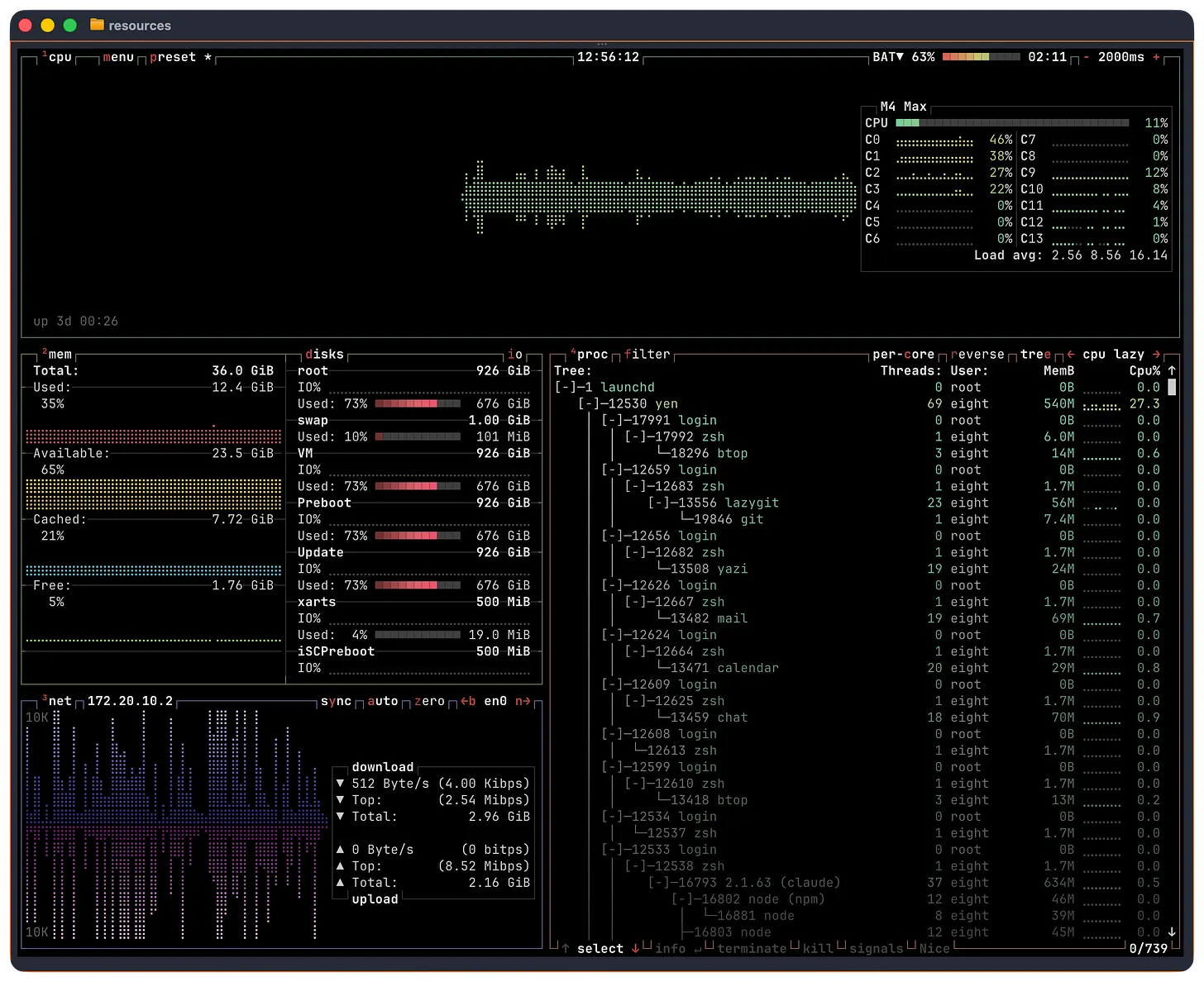
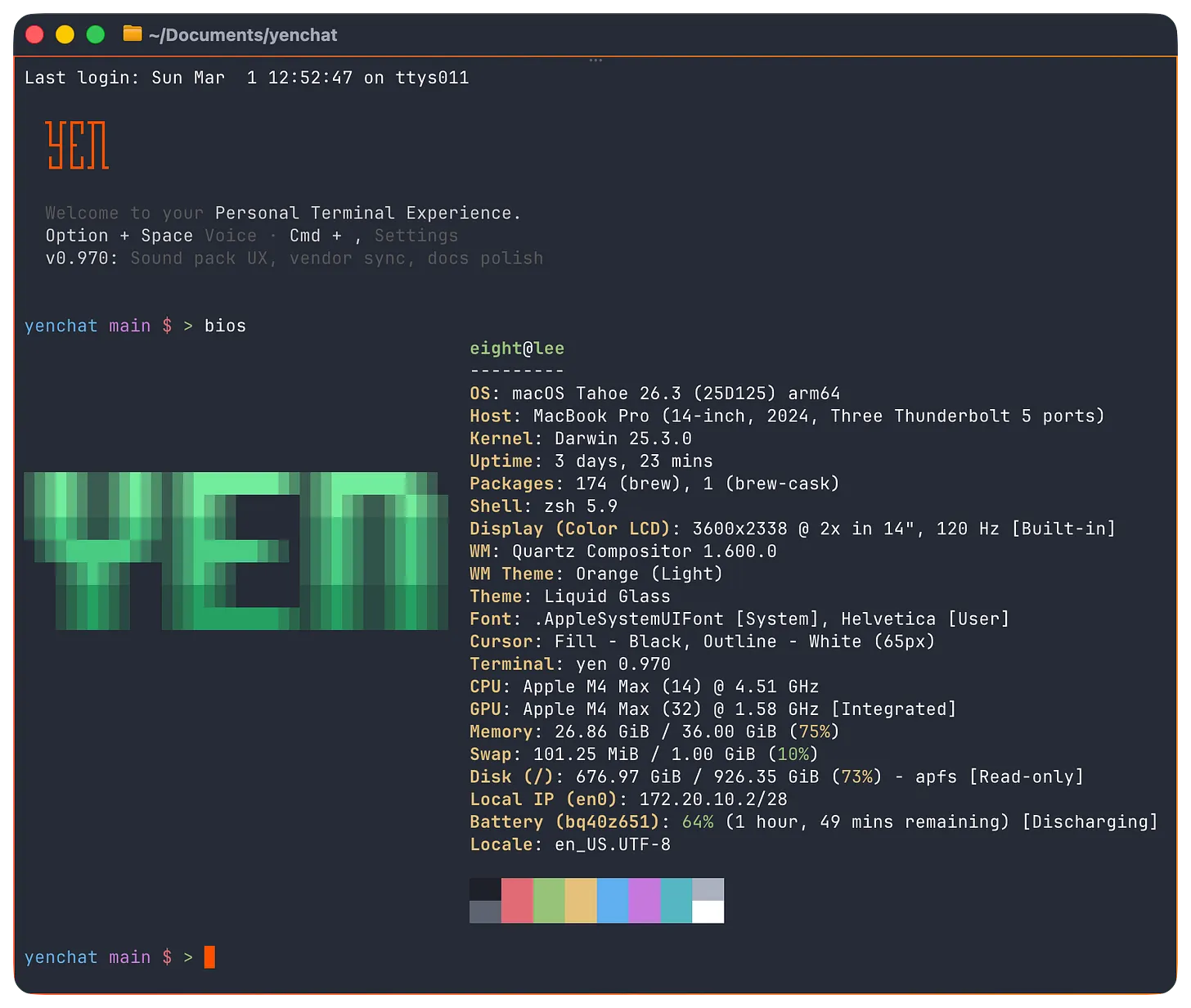
btop is a system monitor. fastfetch is a system info display. Both are bundled, signed, notarized, and ready on first launch. No homebrew. No build-from-source. Type the command and it works.


See What Your System Is and What It is Doing

This isn’t a complicated addition but it’s a super-functional one. btop and fastfetch ship inside YEN. One shows you what your system is doing. The other shows you what your system is.

This is information that developers need all the time and so I thought, why not bring those in natively so that it’s one less thing to install? You don’t have to use them, of course, but, you might end up loving that it’s so immediately available.

You get things like CPU usage per core and memory breakdowns, disk I/O and network throughput. Per-process stats with sorting and GPU monitoring, all in one screen, updating in real-time, all navigable via your keyboard so you never have to lose any speed and time.

For you system bios you can easily see the OS, the kernel, CPU, GPU, memory, uptime, shell, terminal, and more. It calls macOS system APIs directly like sysctl for kernel and CPU info, IOKit for GPU and battery, CoreFoundation for locale and display, sysctlbyname for memory. No subprocess spawning. No text parsing. Just C code calling the APIs that already know the answers.

It detects over fifty categories: OS, kernel, CPU, GPU, memory, disk, shell, terminal, font, display resolution, battery, Bluetooth, local IP, uptime, packages. The output is clean and instant.

Why These Two, Why Now

The honest answer: we should have shipped them sooner.

YEN already bundled a bunch of tools — a file browser, file finder, content search, fuzzy finder, directory jumper, syntax highlighter, JSON processor, git client, and SVG renderer. That covers navigating, searching, viewing, and version-controlling your code. But it did not cover the machine itself.

When a build takes twice as long as expected, the first question is "what is eating my CPU?" When you are debugging a CI failure that works on your machine, the first question is "what version of macOS am I actually running?" These are not exotic problems. They happen every week.

Both commands work from any YEN terminal. Shell integration auto-registers the aliases, so you do not need to configure anything.

Give it a try and let me know what you think!

— 8

More issues

Newer · From Makefiles to Agentic Skills: Shipping a 30-Language Desktop App via a Single Command ↗Older · Email is Now in Your Terminal ↗All release notes ↗All issues ↗