← Digital Onigiri

From the creator · Week of Feb 16–22, 2026

Email is Now in Your Terminal

YEN just became a Terminal-native email client that you didn't know you needed.

Technical updates

39 builds through v0.928

Personality week. Palette skins and sound packs arrived, so YEN could start looking and sounding like yours; a Settings toolbar tied the growing options together, and theme overrides began persisting the way you would expect. The file browser learned to preview more of what you point it at, including native archive previews that let you look inside a compressed file without extracting anything.

Dictation was rebuilt on Apple's newer speech engine and then hardened: clearer permission prompts, recovery from a legacy disabled state, safer sound import. Window standards, border hardening, split transparency, and a run of Settings fixes kept the native workspace tightening while the personality layer grew.

Beneath both, the pipeline learned to prove its own provenance — a vendor-audit gate, entitlement hardening, memory-lifecycle work across the overlay stack — because a product this configurable is only fun if the foundation refuses to wobble.

Every build that week, v0.880 to v0.928 ↗

Written by hand

Notes from the creator

Email is Now in Your Terminal

YEN just became a Terminal-native email client that you didn't know you needed.

Hey folks!

The mail command in YEN has been experimental for the last few months but it’s finally at a place where it’s working consistently enough to get some more folks to test-drive it!
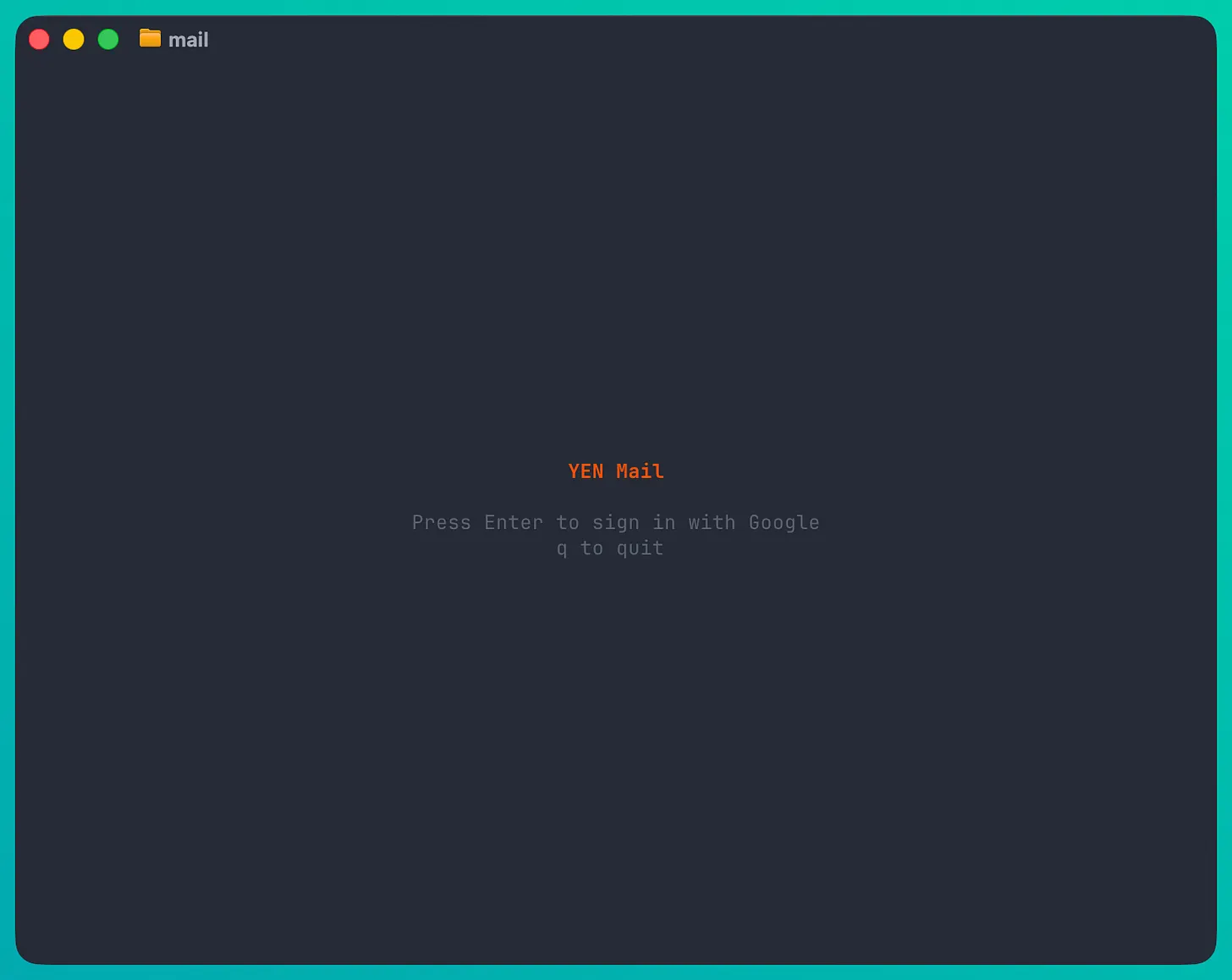
What started as a simple inbox reader is now a full-featured Gmail client: Compose, reply, reply-all, forward, attachments, labels, notifications, all from the terminal. No Electron. No web view. Just a few and mouse-free experience.

Why Does a Terminal Need Email?

Short answer? It doesn’t. Longer Answer: I live in the terminal.

Switching to a browser tab to check email breaks my personal flow so it was really the context switching that I couldn’t stand. One less click is what I’m shooting for and after a few hardcore weeks of personal testing, I’m spending less and less time in the Gmail web UI.

And that’s when I knew it was ready for community testing. What’s great is that it doesn’t force you to learn any new fundamental behaviors, like shortcut keys or hotkeys that I’ve grown to use over decades — “e” will always archive and email and “shift + 3” (or #) will always delete.

Bingo.
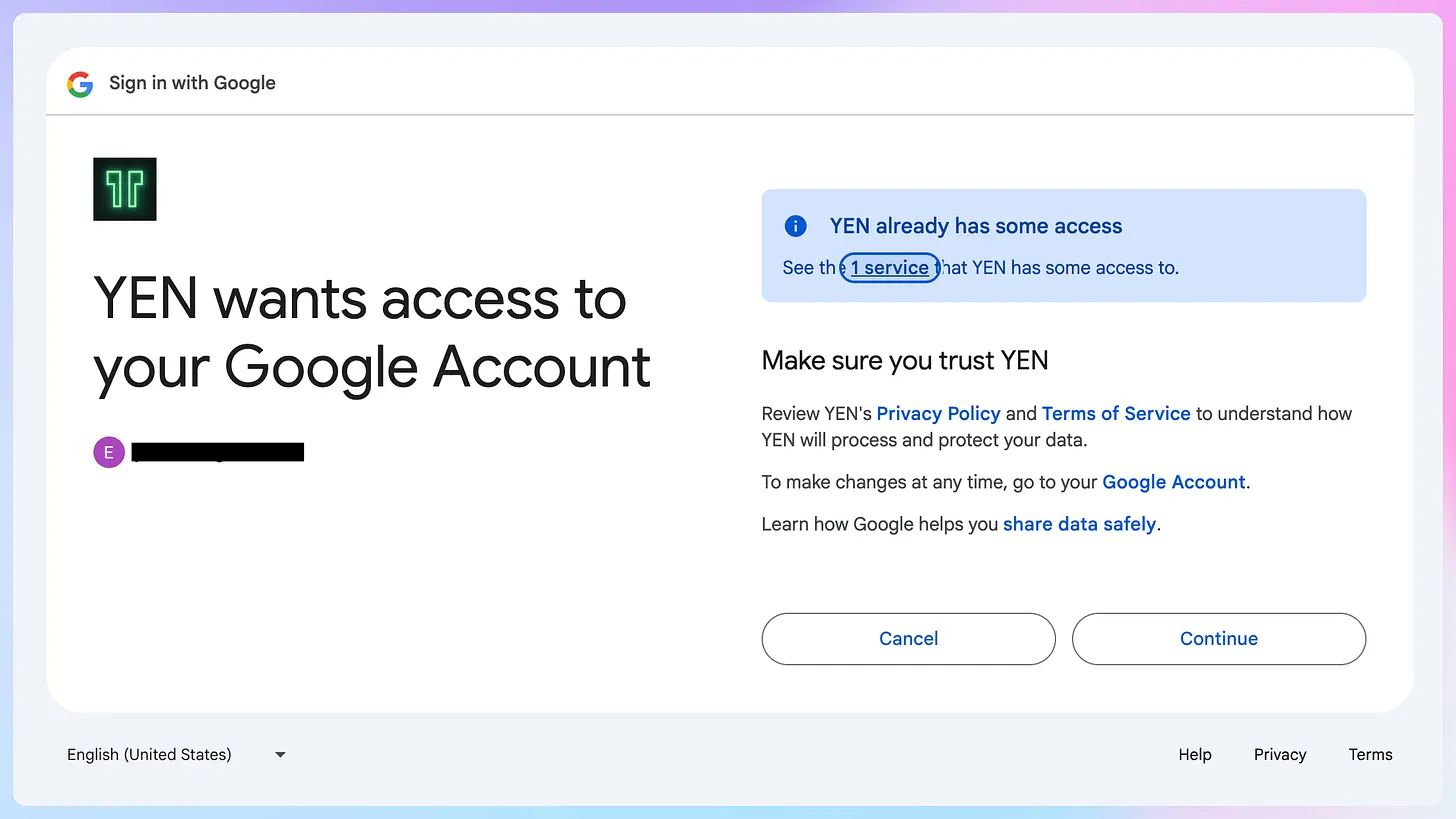
Logging in is pretty easy as it’s via Google OAuth. Note that I’m still waiting for official "approval” but you can still use it of course. The tokens live in your macOS Keychain and you won’t have to wrestle with any config files, plain-text credentials, or have any security concerns.

Instead, you get a full-width stacked layout: Label tabs across the top, threads filling the screen. Vim-style navigation throughout. Enter opens a thread. The thread renders as clean plain text with clickable URLs. Esc backs out.

No sidebars, no split panes, just pure email.
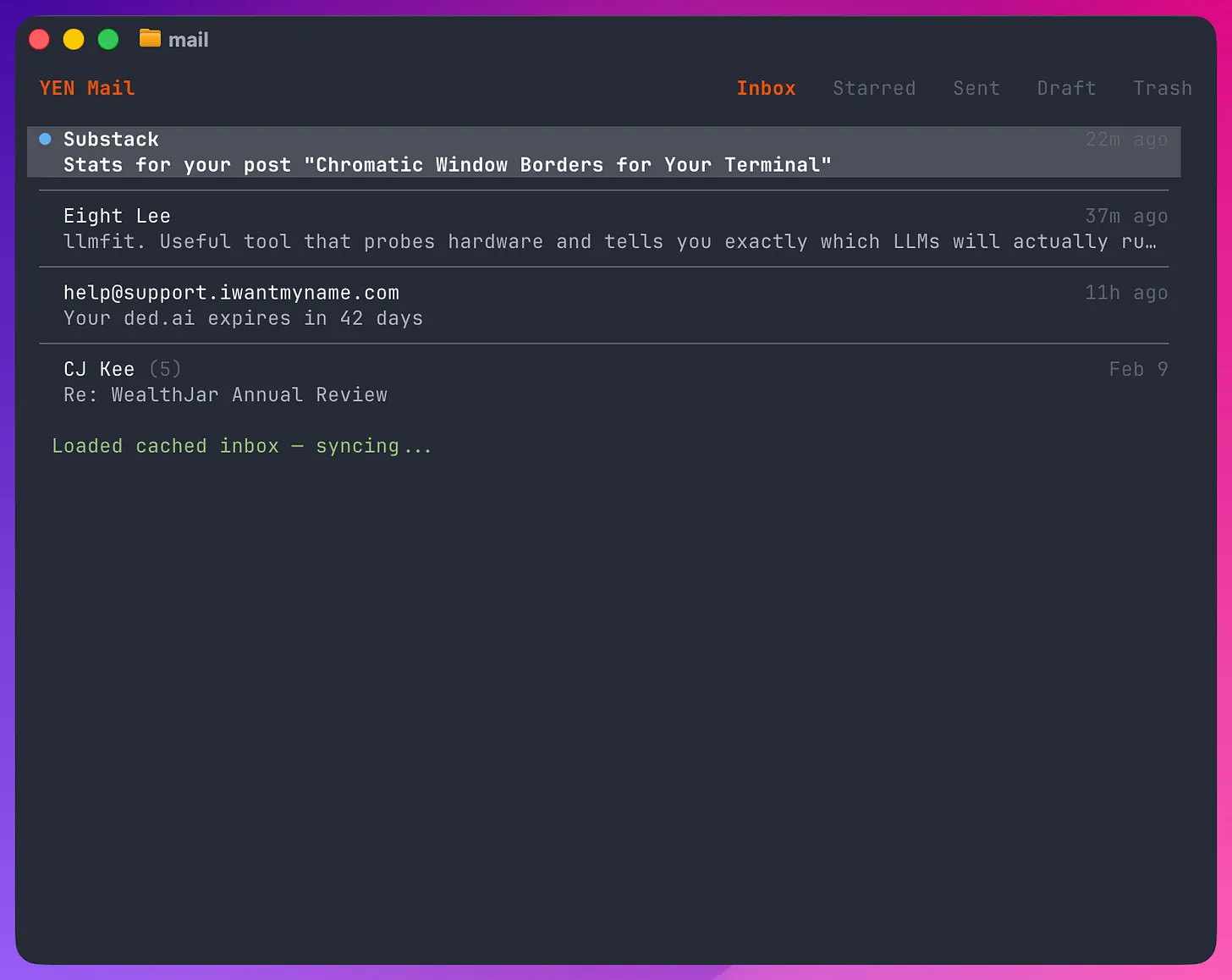
Here are other commands you know and love:

Thread List:

j / k       move cursor
Enter       open thread
e           archive
#           trash
s           star / unstar
R           restore (in Trash)
c           compose new message
l           manage labels
n           toggle notifications
z           undo (5-second window)
/           search (Gmail syntax)
Tab         next label
Shift+Tab   previous label
Left/Right  previous / next label
G           load more threads
q           quit
Thread Reader:

j / k       scroll
Space       half page down
r           reply
a           reply-all
f           forward
e           archive
#           trash
s           star / unstar
R           restore (in Trash)
l           manage labels
1-9         download attachment
z           undo
u / Esc     back to list
q           quit

You get Five Labels to start and you can Tab/Shift+Tab (or use the Left and Right keys) to cycle through them: Inbox, Starred, Sent, Draft, and Trash. Each label has context-aware keybindings -- you can’t archive from Trash, but you can Restore (R). Sent and Draft are read-only views.

The Core Features (So Far)

Here are the core features that I’ve built so far:

Compose

Press c from the thread list. You get a three-field flow: To, Subject, Body. Enter advances between fields. Esc backs up one field. Esc from To cancels the whole thing. Email validation happens on the To field before you can advance.

The compose screen shows completed fields dimmed above the active input, so you always know where you are. Confirm screen shows the full message before sending.

Reply-All

Press a from the thread reader. Computes all recipients from the original message — To, Cc, From — deduplicates against your own address, and builds the recipient list. If there’s only one recipient after dedup, it silently falls back to a normal reply. The confirmation screen shows exactly who you’re replying to.

Forward

Typing f from the thread reader. Same field-by-field flow as compose: To, then an optional note. The forwarded message includes the standard “---------- Forwarded message ----------” separator plus original From, Date, Subject, and To headers. Subject gets the “Fwd:” prefix.

Attachments

Attachments show as a numbered list below each message:

  • [1] report.pdf (application/pdf, 2.3 MB)

  • [2] screenshot.png (image/png, 841 KB)

Press 1-9 to download. Files go to ~/Downloads/ with automatic duplicate handling (“report (1).pdf”). 5MB size limit per download.

Label Management

Press l from the thread list or reader. A picker shows all your labels with [x] / [ ] toggles. Space to toggle, Enter to apply. The picker diff-computes which labels to add and remove — only sending the changes to Gmail’s API.

From the picker, c creates a new label, x deletes a user label. System labels (Inbox, Starred, Sent, Draft, Trash) are always shown first, then user labels alphabetically.

Notifications

Background refresh checks for new mail every 10 seconds while focused and every 30 seconds when unfocused. When new unread threads arrive in your Inbox, you get a macOS notification. Single message: “From: Sender -- Subject”. Multiple: “N new emails”.

Press n to toggle notifications on or off. Initial load seeds the notification tracker so you don’t get spammed on launch.

Clickable Links

URLs in emails render as clickable OSC 8 terminal hyperlinks. If your terminal supports them (YEN does), you can Cmd+click any link to open it in your browser. URLs are styled with underline and blue for visibility.
Some Interesting Problems I Solved

Here are a few problems that I encountered that took me way too long to figure out. Probably a bit more for the nerds out there.

Plain Text Email in a Terminal

Most emails include a text / plain MIME part alongside HTML, and YEN prefers that plain-text body first. Rendering is defensive: iIf the plain text looks like leaked HTML/CSS noise, it gets cleaned; if HTML is the only usable body, the renderer falls back to stripped HTML text with link references.

The pipeline is straightforward:

  1. Strip control characters that could corrupt the terminal

  2. Normalize line breaks and clean plain-text artifacts (including quoted clutter)

  3. Detect URLs and convert to OSC 8 clickable hyperlinks

  4. Word wrap to terminal width with display-width awareness (go-runewidth)

For HTML-heavy or HTML-only messages (newsletters, automated notifications), the renderer removes style/script/head blocks, strips tags, decodes entities, and keeps anchor targets as readable references.

OAuth Without a Server

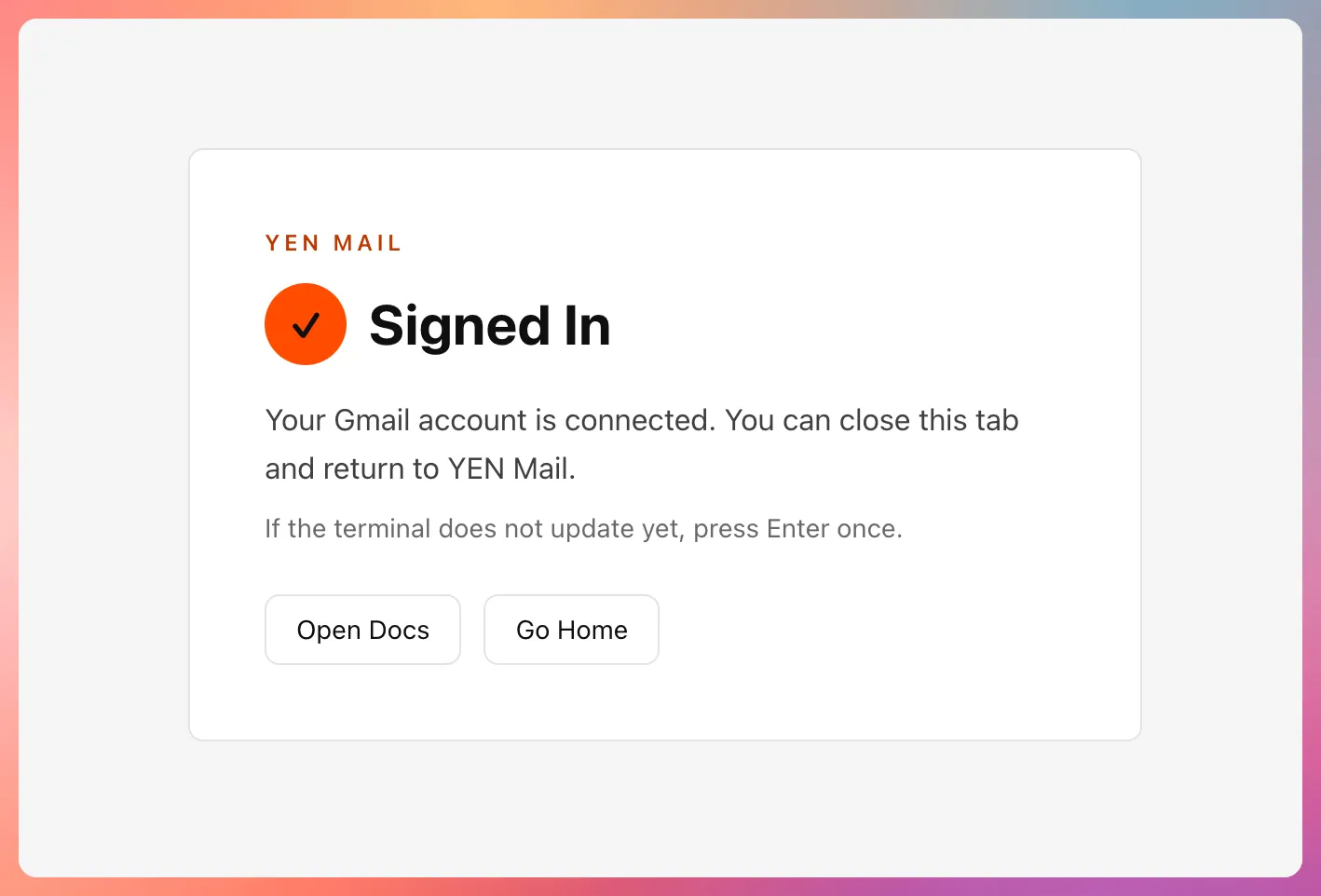
Most OAuth flows need a server to receive the callback. YEN Mail spins up a temporary localhost HTTP server on a random port, opens your browser with the auth URL, waits for the callback, then shuts down the server. The refresh token goes to macOS Keychain via the security command.

No server infrastructure. No token files on disk.

If you sign out, the Keychain entry is deleted. Privacy and security is paramount.

Reply Threading

Email threading is deceptively complex. To keep a reply in the correct Gmail thread, you need In-Reply-To (the message you’re replying to), References (the chain of message IDs in the thread), and Gmail’s ThreadId API field.

Get any of these wrong and your reply can show up as a new conversation. The reply function builds threading headers from original message metadata, handles the Re: subject prefix (with MIME encoding for non-ASCII subjects), and sends via Gmail’s API with the thread ID attached.
Single Instance

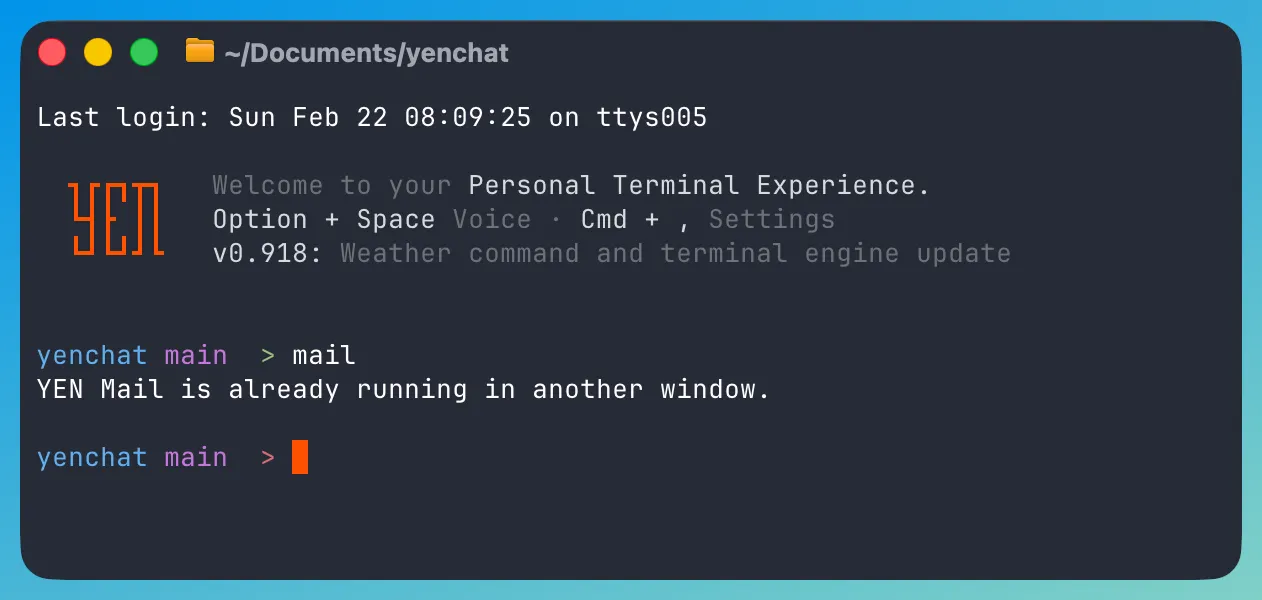
Same pattern as the chat client: a PID lock file in $TMPDIR/yen-mail.lock. If you type mail in a second terminal window, it tells you another instance is running instead of creating a second connection to your inbox.

The lock uses atomic file creation (O_CREATE|O_EXCL) to avoid race conditions between simultaneous launches.

What’s on the Backlog

Honest list of what’s not here yet:

  1. Single account only — One Google account at a time

  2. Offline mirror is still partial — Cache-first reads, queued write replay, and local compose drafts are shipped, but this is not yet a full local Gmail mirror

  3. Google only — No Outlook, iCloud, or generic IMAP

These are on the list but each is a substantial engineering project of its own. But, again, I’d like to get some feedback from folks to see what folks like and what they’d want in the next iteration cycle.

And I hope you reduce your time in the Gmail Web UI! It’s about time.

— 8
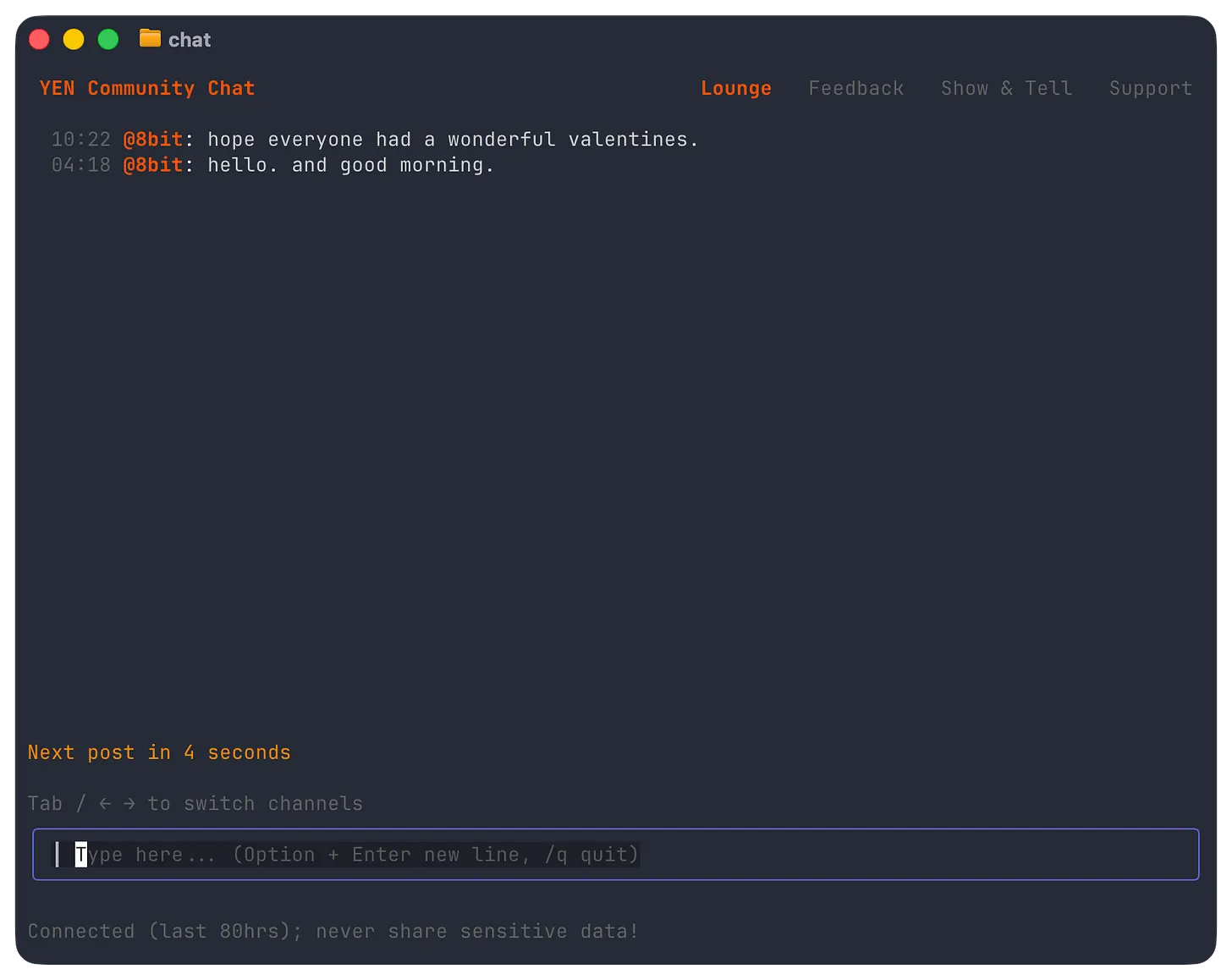
A Community Chat Inside a Terminal?

The first of it's kind? A Terminal Social Network? It's in the Emulator.

Hey folks!

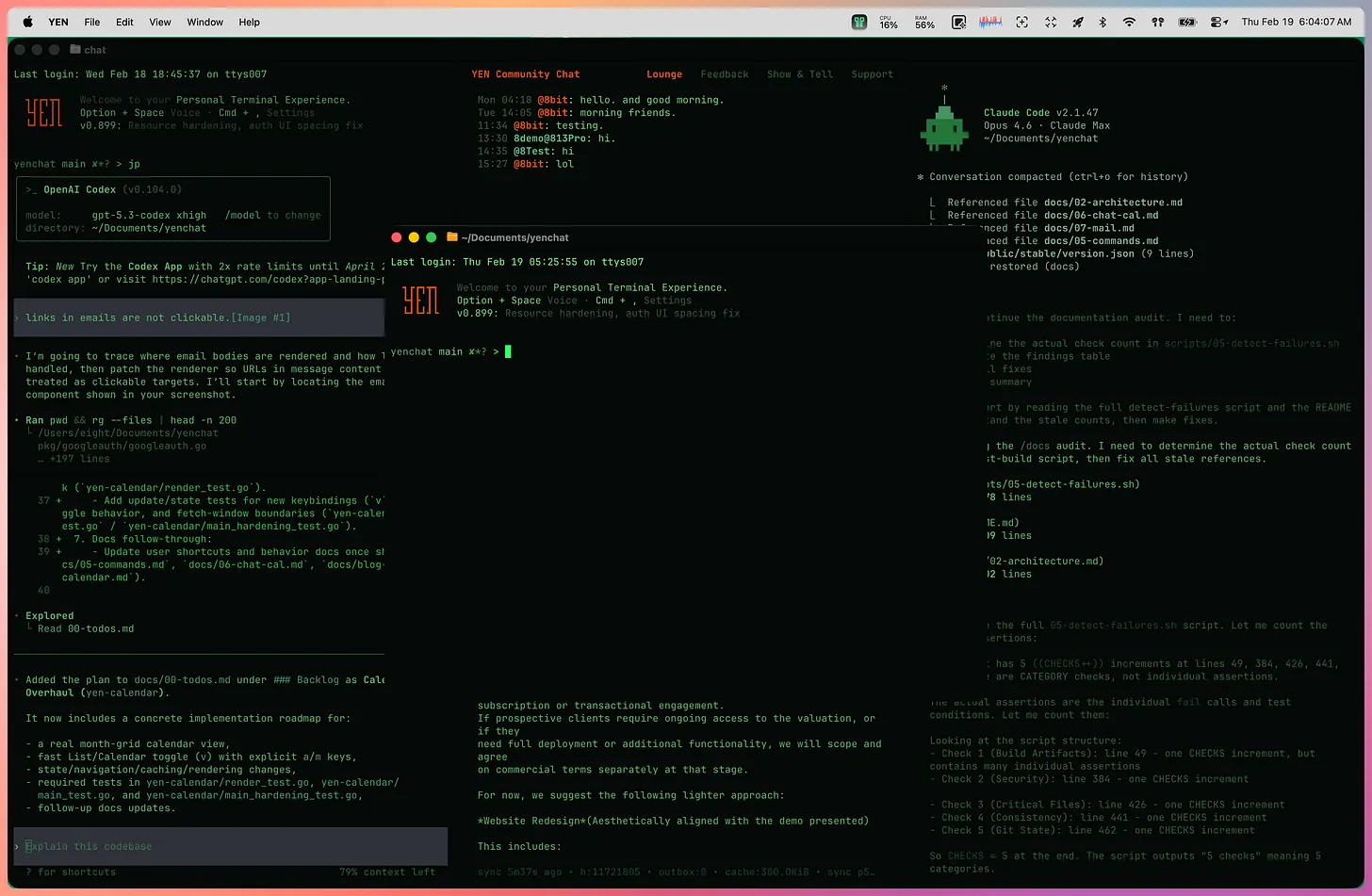
I shipped something a bit unusual this month: A global chat room built directly into YEN. Type chat in your terminal, and you’re in a shared room with other YEN users.

No browser tab. No Electron sidebar. No account. Just a TUI that connects you to other people who use the same terminal.

Here’s why I built it, and the engineering decisions behind it.

Why Put Chat in a Terminal?

Every terminal user already has Slack, Discord, and a dozen other chat apps open. Why add another one?

Because none of those are in the terminal. In fact, this might be a real “world first" type of thing! I’m a bit chuffed about it actually.

But what I really wanted was a direct line of communication to our early users. In other words, product feedback. If I’m debugging something and want to ask a quick question, I have to context-switch to a browser or a separate app.

The friction is small, but it adds up. I wanted something that felt as native as git log or man — a command, not an application.

The goal was simple: type “chat”, say something, type /q, get back to work. Under 2 seconds of overhead.

Four Rooms, No Configuration

There are four hardcoded rooms: Lounge, Feedback, Show & Tell, and Support. Press Tab to switch between them, or use arrow keys when your input is empty.

I will definitely think about extending this and perhaps even letting users create their own rooms but I’m not entirely sure how I want to do that so feedback is definitely welcome! Put it in the chat!

Oh, and don’t forget to set your handle; just type /h and pick one. I’ll see you online.

— 8

Option + Enter Should Just Work

The tiniest fix that drove me the most insane

Hey folks!

This is a short one. But I need to get it off my chest.

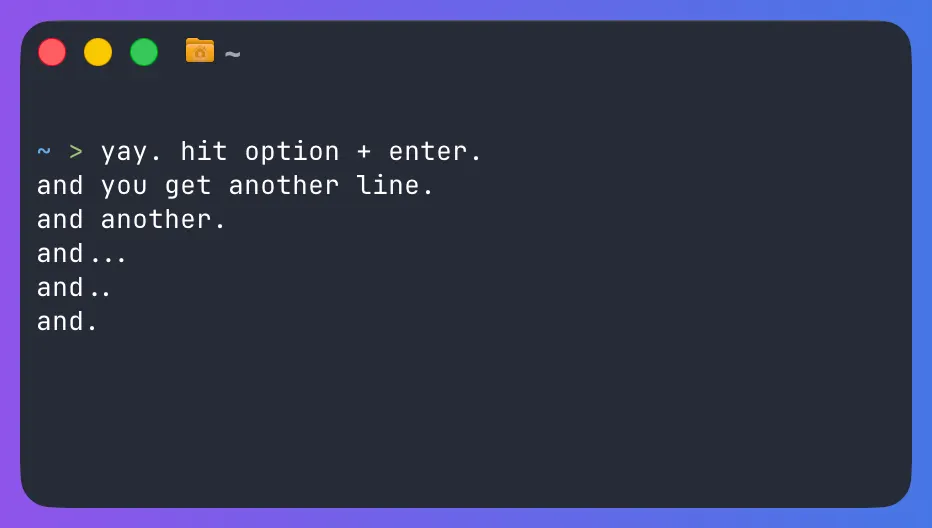
Press Option + Enter in your terminal. Go ahead, try it. If you are using most terminals, you get a normal newline. Your shell runs the command or drops to the next line. Life is good.

What Is Happening

The xterm modifyOtherKeys protocol is a way for terminals to tell applications “Hey, the user pressed Option along with this key.” It encodes the modifier and the keycode into an escape sequence:

\x1b[27;2;13~

That is: Escape, CSI, key event 27, modifier 2 (Shift), keycode 13 (Enter), terminator. A perfectly valid terminal protocol sequence.

The problem is that your shell does not care.

Zsh does not parse modifyOtherKeys sequences for Enter. Bash does not either. Fish does not. Nushell does not. They see \x1b[27;2;13~ and go “that is not a keybinding I recognize” and print the tail end as literal text.

Sadness. Every. Single. Time.

Now, we don’t have a sadness and that’s a great thing. That is it. That is the entire blog post. Option + Enter sends Enter. As God intended.

— 8

Why Do You Highlight Text in a Terminal?

The answer is obvious, yet almost no terminal gets it right.

Hey folks!

Quick question: When you highlight text in a terminal, what are you trying to do

  1. Admire the selection color?

  2. Practice your mouse drag technique?

  3. Copy it?

It's C. It's always C. It has been C since the dawn of graphical computing. And yet…

The State of Terminal Clipboards in 2026

Here's what happens when you select text in most terminals on macOS:

  1. You highlight something.

  2. You press Cmd + C.

  3. You press Cmd + V somewhere else.

  4. It works.

Three steps. Which is fine. But there's a better question: Why did step 2 need to exist?

Some terminals do have "copy-on-select" as an option buried in preferences. Turn it on, highlight text, and... it copies to an internal selection buffer. Not the system clipboard. Not the thing Cmd + V reads from. A private, invisible clipboard that exists in a parallel universe where only middle-click paste can find it.

This is a Linux X11 convention. It makes sense on X11, where PRIMARY and CLIPBOARD are different selection targets with different paste mechanisms. It makes zero sense on macOS, where there's one clipboard and everyone uses Cmd + V.

What YEN Does

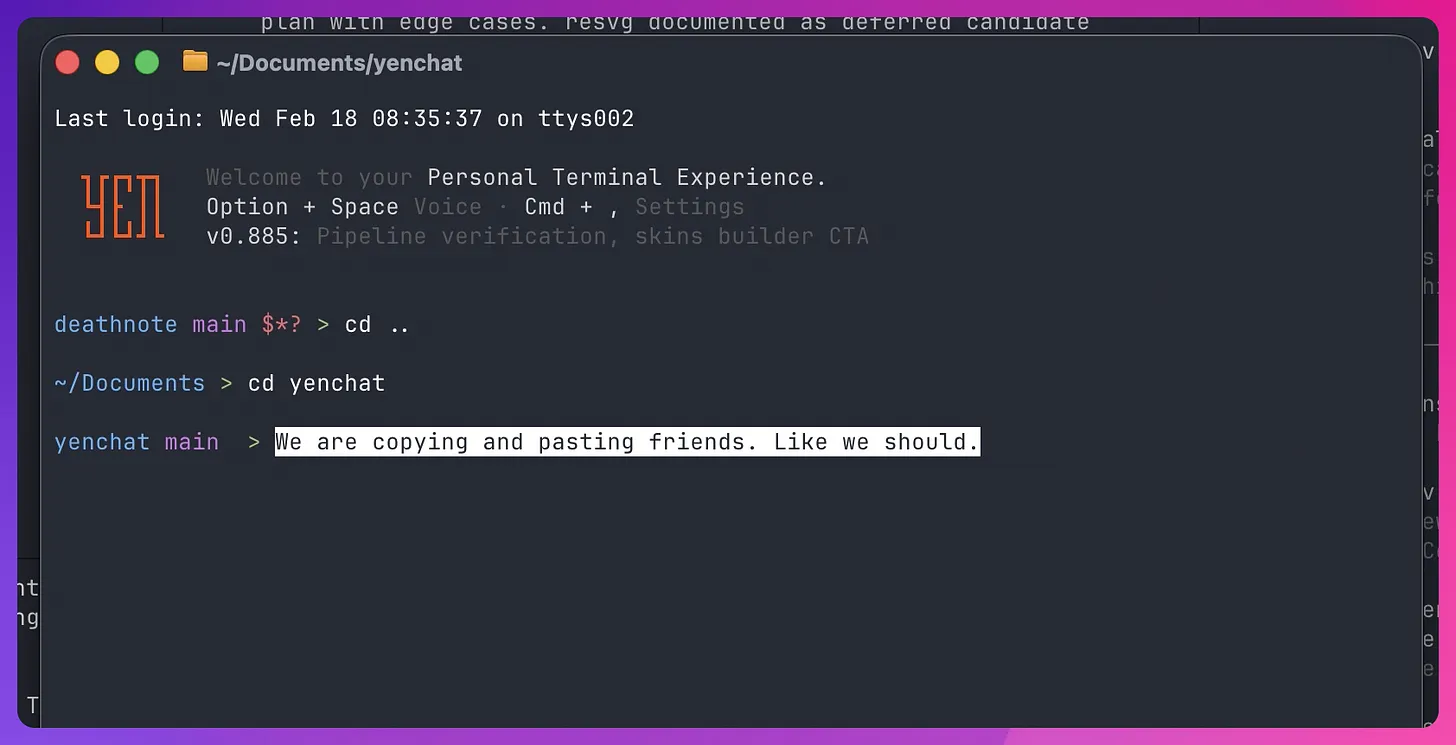
When you highlight text in YEN, it copies to your system clipboard. Immediately. No Cmd + C. No config toggle. No invisible selection buffer.

Highlight. Switch apps. Cmd + V. Done.

We patch the engine's default from true (selection clipboard only) to clipboard (both system and selection). One line in Config.zig. One decision that saves you a keystroke thousands of times a year.

You’re welcome.


"But What If I Don't Want to Overwrite My Clipboard?"

Fair concern. Here's the thing: if you're highlighting text in a terminal, you want that text. The previous clipboard contents were already on their way out the moment your brain decided to select something.

And if you really did highlight accidentally, just Cmd + Z in whatever field you paste into. The old clipboard contents aren't coming back either way — you already made peace with that when you reached for the mouse.


The Shift Trick

TUI apps (vim, htop, lazygit) capture mouse events, which means normal text selection doesn't work inside them. In YEN:

Hold Shift, then drag to select.

This bypasses the TUI's mouse handler and selects raw terminal text. And yes — it auto-copies to your system clipboard too.


Why Nobody Else Does This

Honestly? I think it's because terminal developers are so used to the X11 model that they forgot to ask "does this make sense on macOS?" Copy-on-select to an invisible buffer is a feature that technically exists but practically doesn't help anyone on a Mac.

It's the kind of thing where the code is correct but the experience is wrong. And fixing it is literally a one-line default change.

Sometimes the best features are the ones you never notice because they just work the way your brain expected them to.

That's it. That's the feature. You already forgot it was there.

— 8

450+ Themes for Your Terminal

Click, Preview, Revert. Instantly test drive any style without saving anything.

Hey folks!

Quick engineering note about something that seems simple but required some care to get right — real-time theme preview in YEN's settings panel.

This was something requested by one of our community members and users and so I thought this would be a good opportunity to make every Settings Options Panel and have real-time feedback.

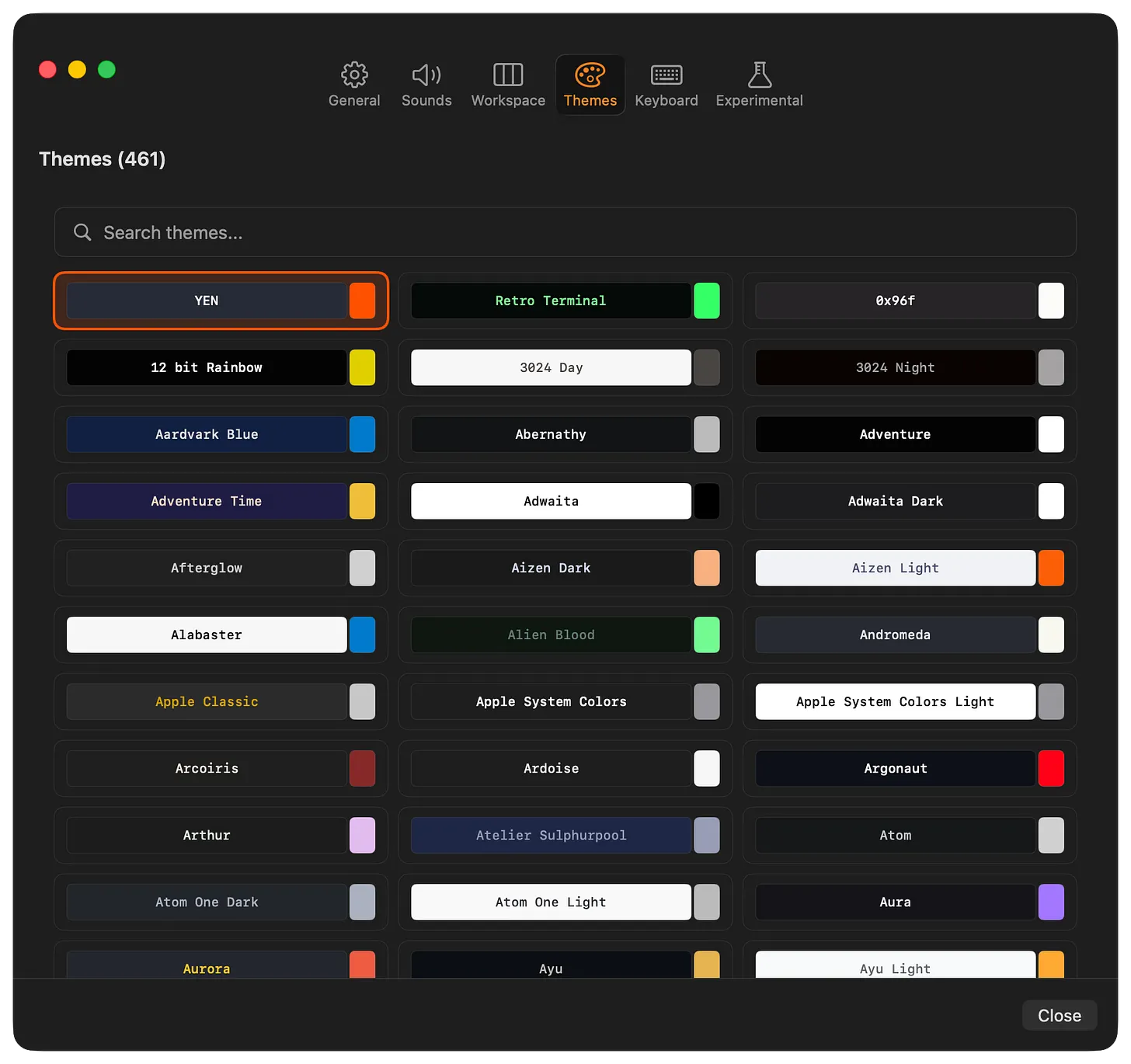
Press Cmd + , to open your Settings, click Themes, and start browsing. Each time you click a theme card, your terminal instantly shows what it looks like. No Save button required.

Click another theme, see a different one. Close the panel without saving, and you are right back where you started. Fun.

Try the new “Retro Terminal” that I just created last night:

The Small Problem That Scaled

YEN ships with 450+ bundled themes. That is a lot of choice. Too much choice if you have to apply each one, reload your config, squint at your terminal, decide you hate it, and undo.

That’s way too many button clicks! I’m all about speed. So, I knew we could make it faster. So, that’s what I did.

Most terminals make you edit a config file, save it, and reload to see a theme. Some cache the config in memory and require a full restart. Either way, exploring themes becomes a chore. I wanted browsing themes to feel like flipping through a photo album — click, see it, next.

Now, the small problem can’t possibly even exist. Nice. If you have thoughts — type chat in your terminal or ping @yenFTW.

-- 8

Making Your Terminal Sound Like Fun

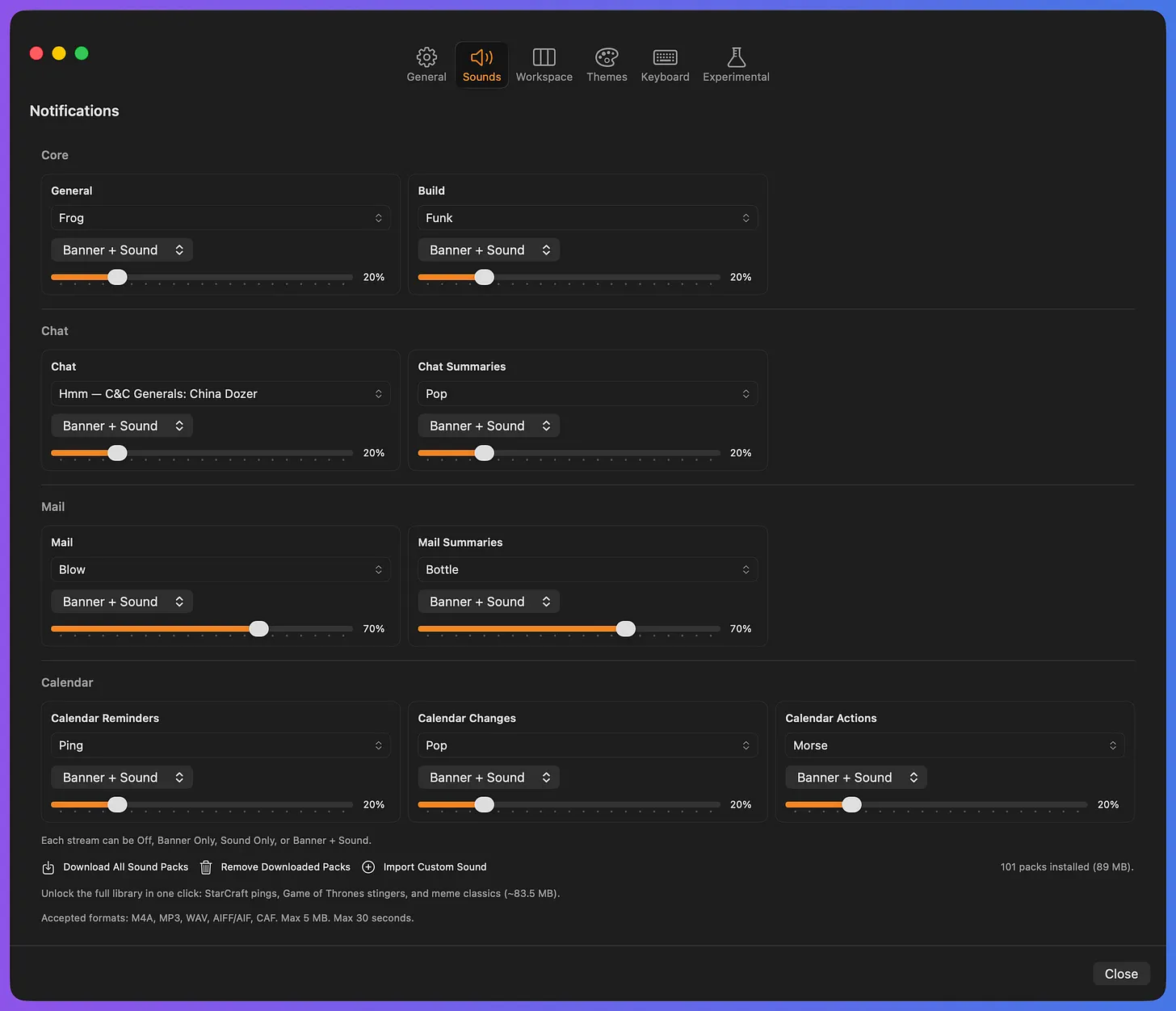
Bundling 101 optional sound packs just makes me giggle.

Hey folks!

Quick story about a feature that started simple and spiraled into something ridiculous in the best way — notification sounds for YEN.

What began as “let users pick a system sound for notifications” turned into a much larger project with over 1,700 individual sounds covering everything from classic RTS games to Monty Python, Game of Thrones, and the Wilhelm Scream.

You can even upload your own custom sounds, if you want. All optional, of course.


The Original Problem I Was Trying to Solve

YEN has four notification types:

  1. System — Whenever a native event or session is complete.

  2. Chat — when someone messages you in the global chat.

  3. Mail — when new Gmail arrives.

  4. Calendar — when you have an upcoming event.

Originally, they all used the same system sound. That works, but it’s not great. When you hear a ping, you have to check the banner to know what just happened. Was that an email? A chat message? A calendar reminder?

The fix seemed obvious: Let users pick different sounds for each service.

Chat gets one sound. Mail gets another. Calendar gets a third. And customize the system one to your heart’s desire as well. Over time, my ears have learned the difference and it’s making me even faster and more aware of what’s going on in my Terminal. I mean, that’s what we’re all about, right?

Speed. Problem solved. Now, it’s even more fun.


Sound Packs That Make The Terminal Great Again

I started small. Four packs:

  • Classic RTS — Age of Empires, StarCraft, Command & Conquer.

  • Retro Arcade — Pac-Man, Tetris, old-school coin-op bleeps.

  • Sci-Fi Terminal — Beeps, boops, Star Trek door whooshes.

  • Meme Lord — Bazinga, “It’s over 9000”, the metal pipe sound.

  • StarCraft — SCV, Siege Tank, Battlecruiser, Medic, Firebat, Science Vessel.

  • WarCraft — Orc Peon, Human Peasant, Jaina Proudmore, Corrupted Arthas.

  • Age of Empires II — Taunts, Age of Mythology villagers.

  • Command & Conquer — Red Alert Soviet Soldier, Generals GLA Worker, Yuri, Kirov Airship.

And Counter-Strike, Valorant, Fortnite, TF2 Engineer, Civilization, SimCity, Halo, Mortal Kombat, Dark Souls, Witcher, Mass Effect, Metal Gear Solid, Ocarina of Time, Skyrim, and 14 packs of Movies and TV themes like:

  • Game of Thrones, Breaking Bad, Arrested Development, Brooklyn Nine Nine

  • The Office (Michael Scott), Parks and Rec (Ron Swanson), Futurama, Seinfeld

  • The Sopranos, The IT Crowd, Archer, Star Trek (Worf)

  • Princess Bride, Monty Python and the Holy Grail

And much, much more. It’s ~88 MB total and you can download and remove it to clear up space as you’d like. And it just feels magical. It’s the difference between software that respects your time and software that makes you work for every feature.

Honestly, boot one up and tell me that you don’t crack a smile. I’m waiting.

-- 8

Chromatic Window Borders for Your Terminal

Focus-aware window chrome, native settings controls, command palette actions, and screenshot-accurate rendering. Oh my.

Hey folks!

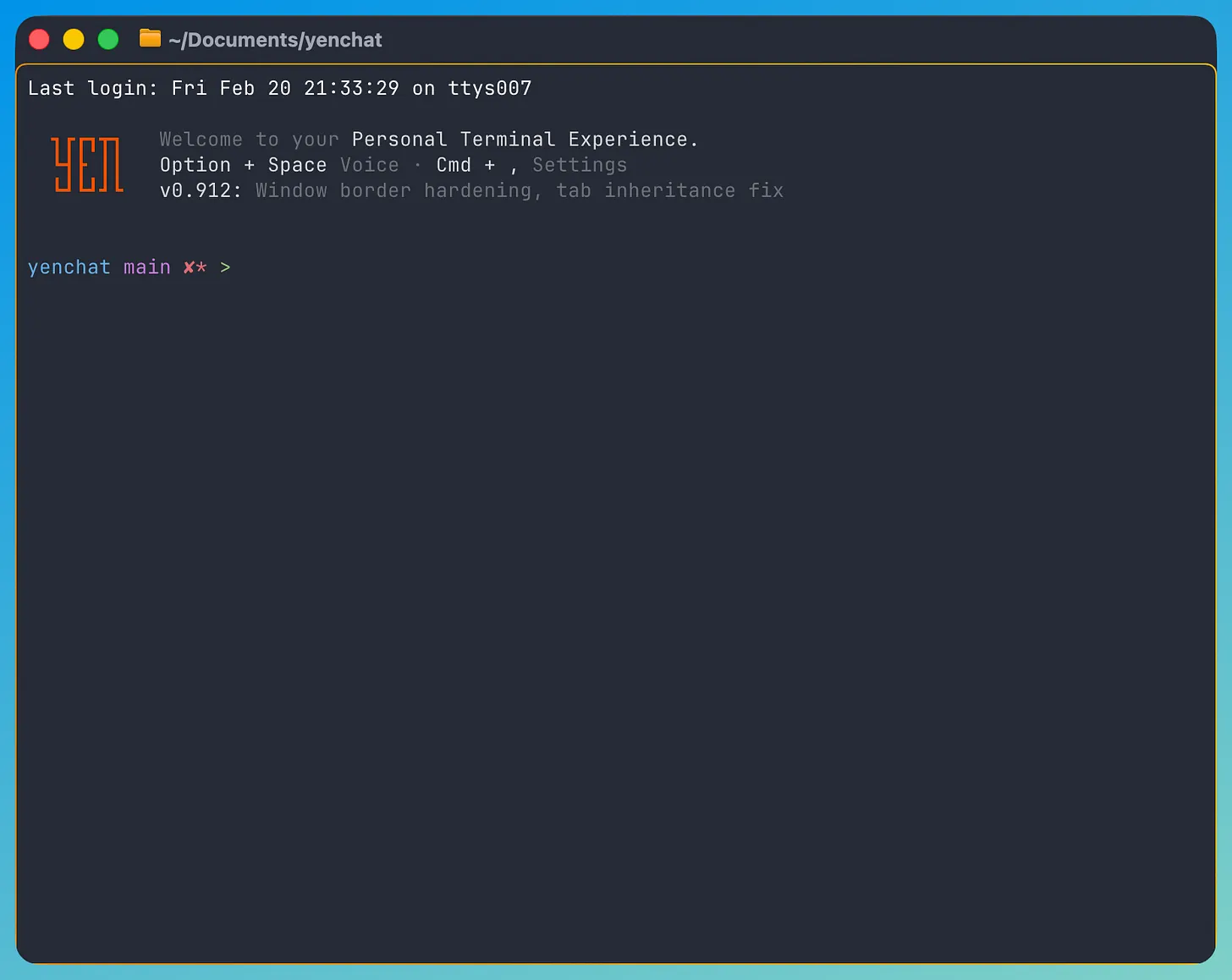
I just shipped a new, experimental, and pretty fun visual feature in YEN: Chromatic Window Borders. I’d love for you to give it a try:

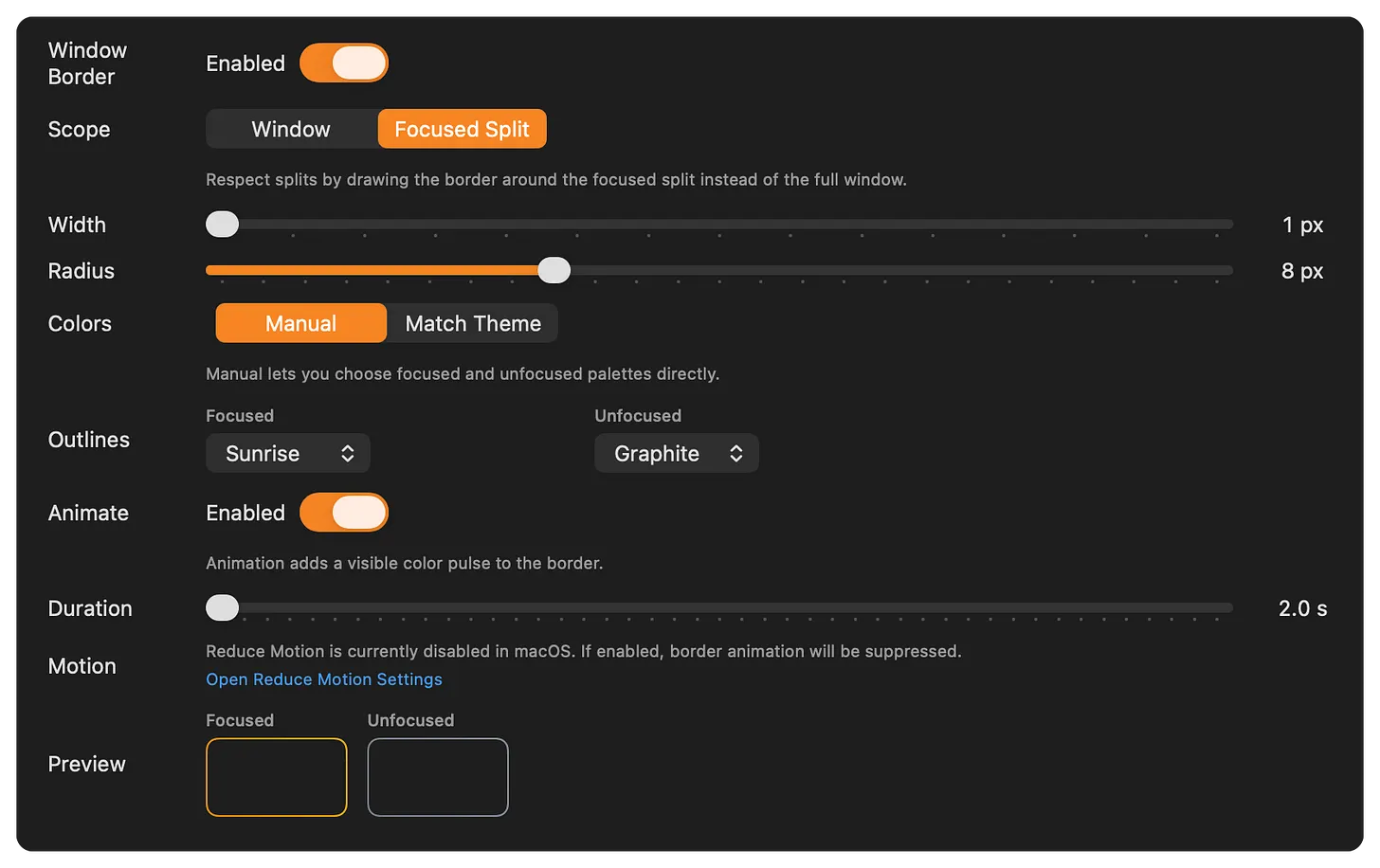
You can make it pretty subtle, like above, or you can make them very thick. It’s up to you. The settings panel addition is pretty easy to use:

What you get is a first-class window-level feature with:

  • Native Settings controls

  • Focus-aware palettes

  • Match Theme color mode with live theme-switch updates

  • Native-style preview swatches and radius tuning policy

  • Optional non-rotating color pulse motion with Reduce Motion guardrails

  • Accessibility fallback when Differentiate Without Color is enabled

  • Command palette actions

  • Screenshot parity with what you actually see on screen

Here’s a quick video for you:

Fun times.

Command Palette Integration

Cmd + Shift + P now includes window border quick actions:

  1. Window Border: Toggle

  2. Window Border: Toggle Match Theme

  3. Window Border: Cycle Focused Palette

  4. Window Border: Cycle Unfocused Palette

  5. Window Border: Toggle Animation

Chromatic Window Borders is now a shipped, first-class YEN feature; it’s native, deterministic, and practical with real-time controls. I hope you like it.

-- 8

More issues

Newer · Pickaxes, Shovels, and the Invincible Terminal ↗Older · Your Terminal Has a File Browser Now ↗All release notes ↗All issues ↗