


Hey folks!
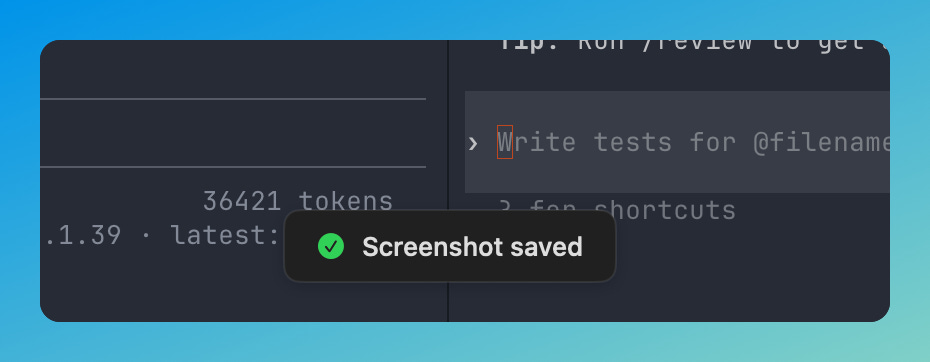
New shortcut: Cmd + Shift + S saves a screenshot of your terminal window to a file and copies it to your clipboard. One keystroke, two outputs.
Yup, that’s it. Magic. A much needed upgrade for folks who love to do just that.
The Problem Was Always the Same
You want to share what’s in your terminal. A build error. A clean test run. A particularly satisfying git log or AI chat log. I know I do.
Your current options before YEN:
Cmd + Shift + 4 — macOS screenshot tool. Draw a rectangle. Accidentally clip the edge. Redo it. Get it right. File lands on your Desktop. You still need to copy it to paste somewhere.
Cmd + Shift + 5 — The recording toolbar appears. You dismiss it. You wanted a screenshot, not a production.
Copy as Text — Loses all formatting, colors, and context. A green test suite and a red failure look identical in plain text.
None of these are wrong. They’re just not built for a terminal. You’re using general-purpose tools for a specific job. Now, with YEN you get one shortcut, two outputs:
Press CMD + Shift + S in YEN. That’s it.
Screenshot saves to your configured location (Desktop by default).
PNG copy goes to clipboard immediately.
A satisfying “Screenshot Saved” notification appears in YEN (seen above).
Paste into Slack, Discord, a GitHub issue, an email. The image is already on your clipboard. The file is already on disk if you need it later. So quick. So fast. Speed!
If you haven’t tried it, give it a go! Let me know how it works for you.
— 8