


Hey folks!
Quick one today. I added a native settings panel to YEN.
Actually, I had already done this but the foundation is pretty set and I don’t plan on adding much more so at this point it’s ready for the official v1.0 release.
Fun times!
Why a Settings Panel?
Here’s the thing about terminal configuration: Pretty much every other terminal out there makes you edit a text file. For instance, iTerm2 has a sprawling preferences window with 47 tabs, sure, but most terminals? Open a dotfile, change a value, reload. Repeat until it looks right.
Eww. That feels so old school.
And you know what? All good. I’ve done it a thousand times. But I kept watching people discover YEN’s 450+ bundled themes by... scrolling through a list of filenames. No preview. No idea what “Aizen Light” looks like until you apply it, reload, squint, decide you hate it, and try the next one.
So I built a settings panel that shows you what you’re picking before you pick it.
Cmd + , and You’re There
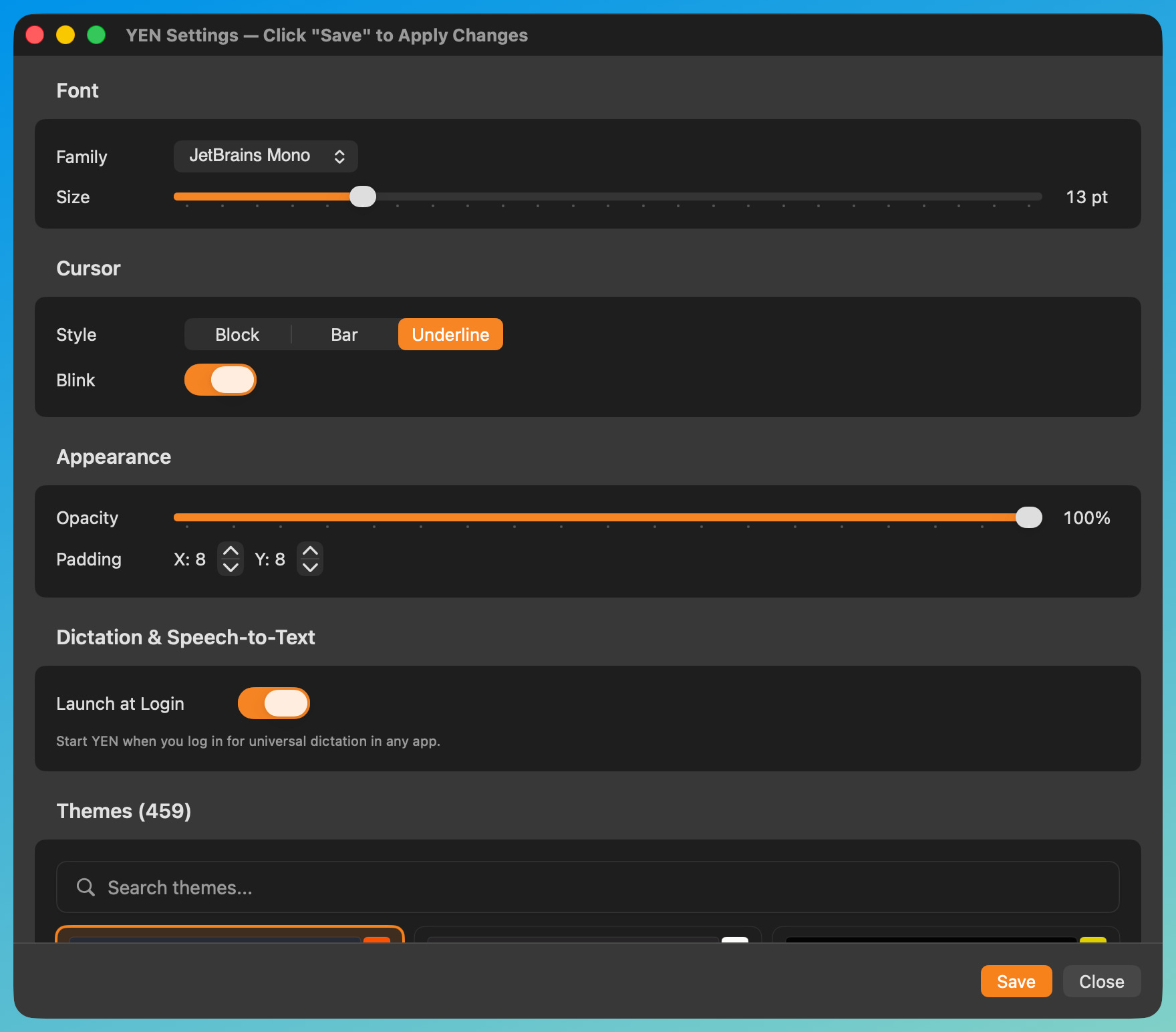
I’ve made it as simple as possible so that you don’t have to think more than you should: Press Cmd + , — the standard macOS settings shortcut, and you’ve become a master customizer. A native SwiftUI panel opens. No browser window. No electron shell. No web view pretending to be native. Actual macOS UI.
What you can configure:
Font — Family picker (monospace fonts only, because we’re not animals) and size slider. I honestly like to change the font treatments on nearly every session but that’s my personal preference, of course.
Cursor — Block, bar, or underline. Blink toggle.
Appearance — Background opacity and window padding. This is effectively my favorite customization. I like to see just a little behind the terminal and get that opacity just right. I feel like I’m visually multitasking.
Themes — This is the fun part.
450+ Themes With Live Color Previews
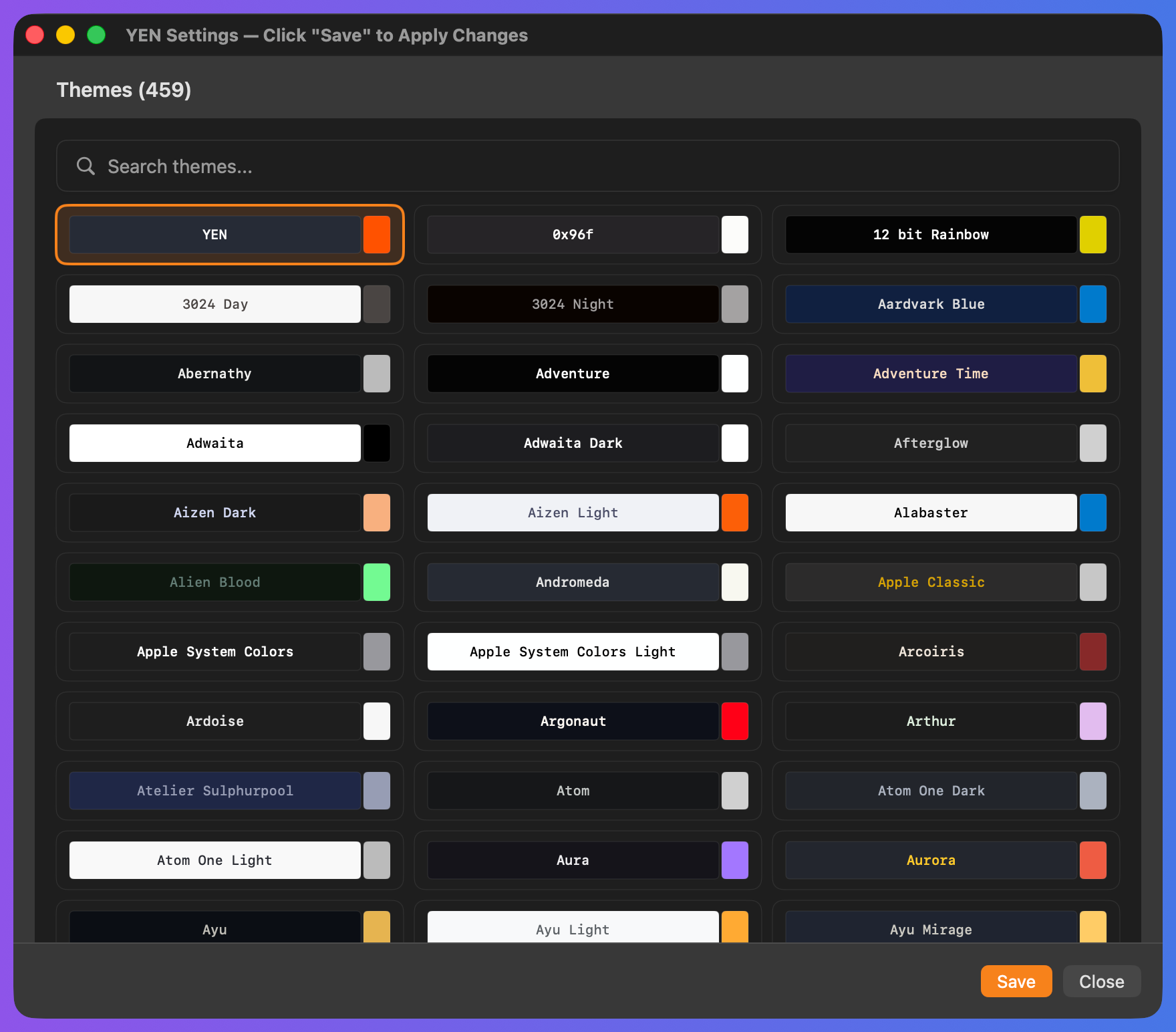
Every theme renders as a small card showing the actual colors: text on background, plus the cursor accent color. You can see what a theme looks like before you commit to it.
There’s a search bar at the top. Type “mono” and you get Monokai, Monokai Remastered, Monokai Soda. Type “nord” and there it is. No more guessing filenames.
The grid uses a clean 3-column layout with a search field at the top. Each theme shows its name on the background color with an accent color strip. Narrow the window and it stacks gracefully.
And yes, there’s a default YEN Theme now. Dark background, clean white text, our signature orange cursor. It sits at the top of the list, right where it should be.
What I Didn’t Build
No color picker. No custom theme creator. No import/export. No cloud sync. If you want something custom, create a text file in ~/.yen/themes/ with your hex colors. That’s it. The settings panel will find it and show a preview.
I’m not building a theme IDE. The settings panel exists to make the common case fast — pick a font, pick a theme, adjust opacity, move on. The power-user path (editing config files directly) still works exactly as before.
And that’s about it. Enjoy! Let me know if you have any additional thoughts on potential additions to the Settings Panel!
— 8